


Vista general
Selection methods in FreeCAD allow picking objects in the FreeCAD Interface: such as 3D view, tree view, selection view, and other dialogs. Some selection methods are workbench specific and are documented in the particular workbench documentation.
Vista 3D
In the 3D view there are various ways of selecting objects.
Selección simple
Simple selection with the mouse (by default left-click) and pre-selection (hover) are described in the mouse navigation page.
Clices repetidos
The first click selects a sub-element (vertex, edge or face) of the object under the mouse. A second click selects the whole object.
The third click extends the selection to its container object (PartDesign Body, Std Part, and others). Further clicks expand the selection up the container chain.
Comandos de selección
- To select all objects: Std SelectAll.
- To box select multiple main objects: Std BoxSelection.
- To box select multiple faces: Std BoxElementSelection or Part BoxSelection.
Selection view
The selection view shows the names of the objects being selected, including their full name within an object, for example, Unnamed#Body.Box001.Face17.
It also allows to perform some actions like Std ViewFitSelection, and sending the object to the Python console.
Object export
This should be in the selection view page.
Select any complex object, for example, a PartDesign Body or Std Part, then in the selection view select again the object, and then press Ctrl + C in the keyboard to open the Object selection dialog. This allows copying the selected object together with all or only some of that object's dependency objects. For example, for a Std Part the possible objects to select include the Std Part itself, but also its Origin, its three base axes (XYZ), and its three base planes (XY, YZ, XZ).
After pressing OK, the selected objects are copied into memory, and then can be pasted in the document to duplicate these objects only.
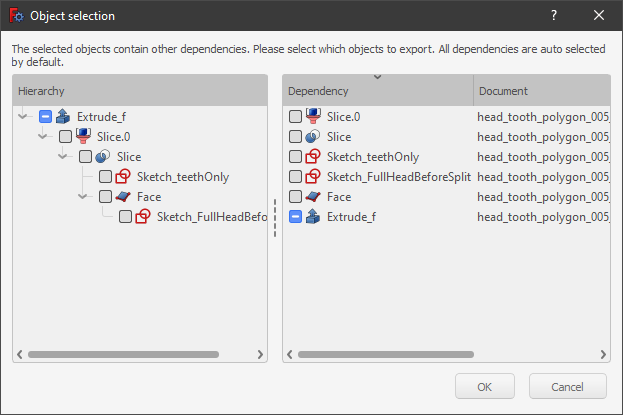
Object selection dialog that is launched from the selection view.
Tree view
In the tree view items can be selected, or deselected, one at a time, by holding the Ctrl key and clicking with the mouse.
A range of items can be selected by clicking on the first item, holding Shift, and clicking on the last item.
Selecting a single item will also show its properties in the property editor.
Double clicking will open any associated task panel containing actions. Make sure to close this task panel before executing another command or switching to any other workbench.
More methods are available by opening the context menu (right-click), depending on the object selected or the active workbench; see the information in tree view.
Scripting
Selecting objects is inherently a graphical task and therefore it is only available when the graphical user interface is loaded.
These methods can be used in macros or from the Python console:
import FreeCADGui as Gui

Gui.Selection.addSelection
Gui.Selection.addSelectionGate
Gui.Selection.Filter
The addSelectionGate method prevents the user from selecting objects not specified in the selection string. A  symbol appears when the pointer is over an item not in the specified group.
Gui.Selection.addSelectionGate("SELECT Part::Feature SUBELEMENT Edge")

#### or
Gui.Selection.addSelectionGate("SELECT Part::Feature SUBELEMENT Face")

#### or
Gui.Selection.addSelectionGate("SELECT Part::Feature SUBELEMENT Vertex")
To remove SelectionGate():
Gui.Selection.removeSelectionGate()
See the Source documentation and Std PythonHelp for more help on using these tools.
Esta página ha sido recuperada de https://wiki.freecad.org/Selection_methods