


Introduction
The Property View appears in the lower section of the Model panel (if the Combo View is active) or as a stand-alone panel.
Generally, the Property View is intended to deal with the properties one object at a time. The values shown in the Property View belong to the selected object. Despite this, some properties like colors can be set for multiple selected objects. If no element is selected the Property View is empty.
Not all properties can be modified, some are read-only.

The Data properties of a Part Box
Property definition
A property is a piece of information like a number or a text string that is attached to a FreeCAD document or an object in a document. Properties can be viewed and modified with the Property editor.
Properties play a very important part in FreeCAD, since it has been designed to work with parametric objects, which are objects defined only by their properties.
Custom scripted objects in FreeCAD can have properties of the following types:
Boolean
 Float
 FloatList
 FloatConstraint
 Angle
 Distance
 Integer
 IntegerConstraint
 Percent
 Enumeration
 IntegerList
 String
 StringList
 Link
 LinkList
 Matrix
 Vector
 VectorList
 Placement
 PlacementLink
 Color
 ColorList
 Material
 Path
 File
 FileIncluded
 PartShape
 FilletContour
 Circle
Example of Part object properties
Properties
There are two types of feature properties accessible through tabs at the bottom of the property editor:
- ВиглядView : properties related to the "visual" display of an object.
- ДаніData : properties related to the "physical" parameters of an object.
View
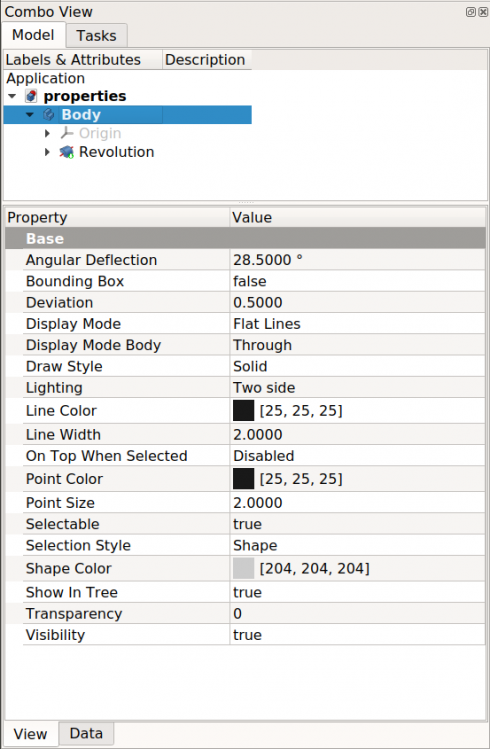
Base
- ВиглядBounding Box : Indicates if a box showing the overall extent of the object is to be displayed. Value False, or True (Default, False).
- ВиглядControl Point : Indicates if the feature control points are to be displayed. Value False, or True (Default, False).
- ВиглядDeviation : Sets the accuracy of the polygonal representation of the model in the 3d view (tessellation). Lower values = better quality. The value is in percent of object's size (deviation in mm = (w+h+d)/3*valueInPercent/100, where w,h,d are the bounding box dimensions).
- ВиглядDisplay Mode :Display mode of the feature, Flat lines, Shaded, Wireframe, Points
 . (Default, Flat lines).
 - ВиглядLighting : Lighting One side, Two side
 . (Default, Two side).
 - ВиглядLine Color : Gives the color of the line (edges) (Default, 25, 25, 25).
- ВиглядLine Width : Gives the thickness of the line (edges) (Default, 2).
- ВиглядPoint Color : Gives the color of the points (ends of the feature) (Default, 25, 25, 25).
- ВиглядPoint Size : Gives the size of the points (Default, 2).
- ВиглядSelectable : Allows selection of the feature. Value False, ou True (Default, True).
- ВиглядShape Color : Give the color shape (default, 204, 204, 204).
- ВиглядTransparency : Sets the degree of transparency in the feature of 0 to 100 (Default, 0).
- ВиглядVisibility : Determines the visibility of the feature (like the bar SPACE). Value False, or True (Default, True).
Data

Base
ДаніPlacement :
Summary of the data below.
Every feature has a placement that can be controlled through the Data Properties table. It controls the placement of the part with respect to the coordinate system. NOTE: The placement properties do not affect the physical dimensions of the feature, but merely its position in space!
If you select the title Placement  , a button with three small points appears to the right. Clicking this button ..., opens the Tasks_Placement options window.
ДаніAngle :
Specifies the angle to be used with the axis property (below). An angle is set here, and the axis that the angle acts upon is set with the axis property.
The feature is rotated by the specified angle, about the specified axis.
A usage example might be if you created a revolution feature as required, but then needed to rotate the whole feature by some amount, in order to allow it to line-up with another pre-existing feature.
ДаніAxis :
This property specifies the axis/axes about which the feature is to be rotated. The exact value of rotation comes from the angle property (above).
This property takes three arguments, which are passed as numbers in the x, y, and z boxes in the tool. Setting a value for more than one of the axes will cause the part to be rotated in each axis, by the angle value multiplied by the value for the axis.
For example, with an angle of 15° set, specifying a value of 1.0 for x, and 2.0 for y will cause the finished part to be rotated 15° in the x-axis AND 30° in the y-axis.
ДаніPosition :
This property specifies the base point to which all dimensions refer. This takes three arguments, which are passed as numbers to the x, y, and z boxes in the tool. Setting a value for more than one of the boxes will cause the part to be translated by the number of units along the corresponding axis.
ДаніLabel :
The Label is the name given to the object (feature), this name can be changed as desired.
PS: The displayed properties can vary, depending on the tool used.
A property is a piece of information like a number or a text string that is attached to a FreeCAD document or an object in the document. Many property types are available. Some of the most common types are:
App::PropertyAngle
App::PropertyBool
App::PropertyDistance
App::PropertyFloat
App::PropertyInteger
App::PropertyLength
App::PropertyPlacement
App::PropertyString
App::PropertyVector
View and Data properties
The Property View has two tabs giving access to two classes of properties:
- Data properties, related to the "physical" parameters of the object. The Data properties define the essential characteristics of the object. They exist at all times, even when FreeCAD is used in console mode, or as a library. This means that if you load a document in console mode, you can edit the radius of a circle or the length of a line, even if you cannot see the result on the screen.
- View properties, related to the "visual" appearance of the object. The View properties are tied to the
ViewObjectof the object, and are only accessible when the graphical user interface (GUI) is loaded. They are not accessible when using FreeCAD in console mode, or as a headless library. By default changes to View properties are not added to the undo stack and cannot be undone and redone with Std Undo and Std Redo. But it is possible to change this by setting the fine-tuning parameter AutoTransactionView totrue.
Basic properties
Different objects may have different properties. However, many objects have the same properties because they are derived from the same internal class.
Most geometrical objects that can be created and displayed in the 3D View are derived from a Part::Feature. See Part Feature for the basic properties these objects have.
For 2D geometry, most objects are derived from a Part::Part2DObject (itself derived from a Part::Feature) which is the base of Sketches, and most Draft objects. See Part Part2DObject for the basic properties these objects have.
To display the context menu of the Property View right-click the background, or right-click a property.
Right-clicking the background shows three options:
- Add Property: adds a dynamic property to the object.
- Expand/Collapse Properties: introduced in 1.1
- Property groups collapse/expand when you click their name. Property nodes collapse/expand when you click the symbol (usually an arrow) in front of their name.
- Expand to Default: property groups are expanded and property nodes are collapsed for the current object.
- Expand All: property groups and property nodes are expanded for the current object.
- Collapse All: property groups and property nodes are collapsed for the current object.
- Default Expand: when an objects is selected, property groups appear expanded and property nodes appear collapsed.
- Auto Expand: when an objects is selected, property groups and property nodes appear expanded.
- Auto Collapse: when an objects is selected, property groups and property nodes appear collapsed.
- Show Hidden: if active, hidden Data and View properties are shown.
When right-clicking a property the following additional options are available:
- Copy: copies the property value to the clipboard.
- Rename Property Group: renames the property group of selected properties. Only available for dynamic properties. Dynamic properties are those added by the user.
- Rename Property: renames the selected property. Idem. introduced in 1.1
- Edit Property Tooltip: edits the tooltip of the selected property. Idem. introduced in 1.1
- Delete Property: deletes selected properties. Idem.
- Expression: brings up the Expression Editor, which allows using expressions in the property value.
- Status:
- If a status value is followed by an asterisk (*) it is static and cannot be changed.
- Hidden: if active, sets the property as hidden, meaning that it will only be displayed in the Property View if Show Hidden is active.
- Output: if active, sets the property as output.
- NoRecompute: if active, modifying the property doesn't touch its container for recompute.
- ReadOnly: if active, sets the property as read-only. The property won't be editable in the Property View. It may however still be possible to change the property via a dialog.
- Transient: if active, sets the property as transient. The value of a transient property is not saved to file. When opening a file, it is instantiated with its default value.
- Touched: if active, the object becomes touched, and ready for recompute.
- EvalOnRestore: if active, the property is evaluated when the document is restored.
- CopyOnChange: if active, the property is copied when changed in a Link. The Link's ДаніLink Copy On Change property must be set to
TrackingorEnabledfor this to work. This is related to Variant Links.
- CopyOnChange: if active, the property is copied when changed in a Link. The Link's ДаніLink Copy On Change property must be set to
Scripting
See FeaturePython Custom Properties.
Preferences
See Combo view.
Цю сторінку отримано з https://wiki.freecad.org/Property_View