


|
|
| Ubicación en el Menú |
|---|
| Diseño de Piezas → MultiTransform |
| Entornos de trabajo |
| Diseño de Piezas, Complete |
| Atajo de teclado por defecto |
| Ninguno |
| Introducido en versión |
| - |
| Ver también |
| Ninguno |
Introducción
'La operación Escalar' - Esta operación toma un conjunto de uno o más operaciones seleccionadas como su entrada (los 'originales'), y los escala por un factor dado. Ya que el escalado se realiza alrededor del centro de gravedad de las operaciones seleccionadas, normalmente desaparecen dentro de las versiones escaladas. Por tanto, normalmente sólo es útil utilizar escalar como parte de una operación de MultiTransformación.
 PartDesign Scaled is one of the transformation options of
  Multi-Transform. Contrary to the other options it is not available as a separate tool. It turns a transformation result into a sequence of scaled objects with evenly distributed scale factors. Starting with the unscaled base feature of the previous transformation the scale factor increases or decreases until reaching the given value at the last item.
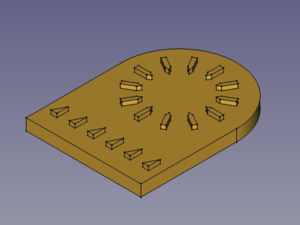

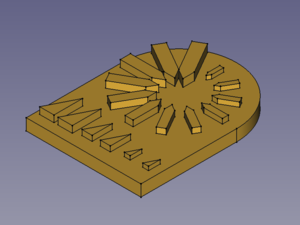
A linear pattern and a polar pattern → Scaled the linear pattern with 3 steps (occurrences) and the polar pattern with 12 steps
If there is no previous transformation within the Multi-Transform feature, scaled items will be placed at the same position as the base feature. This may result in unexpected shapes if the base feature isn't covered completely by the scaled object. And thus it is not recommended to use Scale as the first transformation of a Multi-Transform feature.
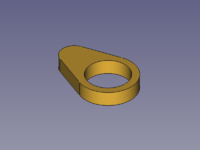
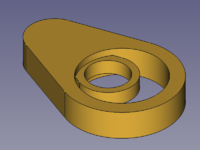
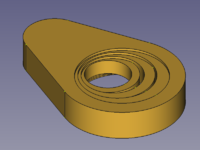
A base feature with a hole → Scaled object with 2 occurrences → Scaled object with 4 occurrences
Usage
Scaling a transformed feature
- Do one of the following:
- The Multi-Transform Parameters task panel opens.
- Right-click in the Transformations list and select Add Scale Transformation from the context menu.
- A Scale item is added to the list and the task panel is extended at the bottom to allow to set the Factor and Occurrences. See Options for more information.
- Press the OK bar at the bottom.
- Press the OK button at the top to finish.
Scaling a single feature
- Select a feature of the current body in the Tree View.
- There are several ways to invoke the tool:
- Press the Multi-Transform button.
- Select the Part Design → Transformation Features → Multi-Transform option from the menu.
- Press the
- The MultiTransform parameters task panel opens. See above.
Opciones
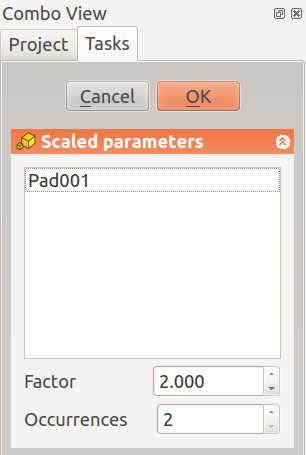 |
Cuando se crea una operación de Escalar, el letrero de diálogo de 'parámetros de escalado' ofrece las siguientes opciones: Selecionar los originalesLa lista que muestra los 'originales' contiene las operaciones que van a ser escaladas. Seleccionado cualquier operación se añadirá a la lista. Factor e instanciasEspecifica el máximo factor con respecto al cual la operaciones se van a escalar, y el número total de formas escaladas (incluida la operación original). |
- Factor: The factor to which the last feature is scaled.
- Occurrences: Number of steps from unscaled (1) to Factor (including base and last feature).
- A scaled transformation accepts the number of occurrences of the previous transformation as maximum value or any integer divisor of that number returning an integer result. So
12,6,4,3, and2are valid for a Linear or Polar Pattern with 12 occurrences. - A scaled single feature accepts any integer number larger than 1.
- A scaled transformation accepts the number of occurrences of the previous transformation as maximum value or any integer divisor of that number returning an integer result. So
Notes
- The center of scaling is the features's center of gravity and that may cause:
- A growing item to protrude on the opposite side of the parent feature.
- A shrinking item to lose all contact with the parent feature and disappear.
- A shrinking pocket to become an invisible cavity inside the parent feature.
Esta página ha sido recuperada de https://wiki.freecad.org/PartDesign_Scaled