


Introduction
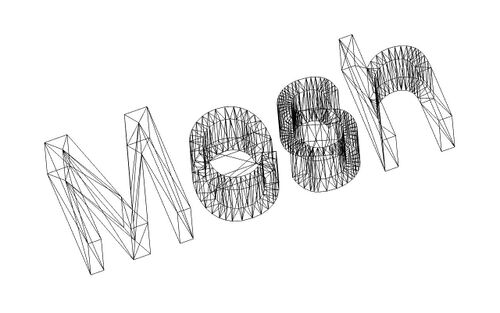
Nät arbetsbänken hanterar triangelnät. Nät är en speciell typ av 3D objekt, sammansatt av trianglar som är ihopkopplade via deras kanter och hörn.
Många 3D applikationer använder nät som deras primära 3D objektstyp, som sketchup, blender, maya eller 3d studio max. Eftersom nät är mycket simpla objekt, som endast innehåller hörn (punkter), kanter och (triangulära) ytor, så är de mycket lätta att skapa, förändra, dela upp, sträcka ut, och kan lätt flyttas från en applikation till en annan utan några förluster. Eftersom de dessutom innehåller mycket simpel data, så kan 3D applikationer vanligtvis hantera mycket stora kvantiteter av dem utan några problem. Av dessa anledningar, så är nät ofta den valda 3D objekttypen i applikationer för filmer, animeringar, och bildbehandling.
Emellertid har nät en stor begränsning inom konstruktionsfältet: De är mycket 'dumma' objekt, som endast består av punkter, linjer och ytor. De består endast av ytor, och har ingen informationom dess massa, så de beter sig inte som solider. I ett nät så finns det inget automatiskt sätt att avgöra om en punkt är inuti eller utanför objektet. Detta innebär att alla solidbaserade operationer, som addition eller subtraktion, alltid är svåra att utföra på nät, och ofta orsakar fel.
Använda nätmodulen
Nätmodulen har för närvarande ett mycket enkelt gränssnitt, alla dess funktioner är grupperade i Nät menyn. De viktigaste operationerna som du för närvarande kan göra med nät är:
- Importera nät i flera filformat
- Exportera nät i flera filformat
- Konvertera Del objekt till nät
- Analysera kurvatur, ytor, och kontrollera om ett nät kan konverteras till en solid på ett säkert sätt
- Vända nät normaler
- Stänga hål i nät
- Ta bort ytor i nät
- Förena, subtrahera och skära nät
- Skapa nätprimitiver, som kuber, sfärer, Koner eller cylindrar
- Klippa nät längs en linje
 Import Mesh…: Imports a mesh object from a file.
 Export Mesh…: Exports a mesh object to a file.
 Mesh From Shape: Creates mesh objects from shape objects.
 Refinement: Remeshes a mesh object.
- Analyze
 Evaluate and Repair: Evaluates and repairs a mesh object.
 Face Info: Shows information about faces of mesh objects.
 Curvature Info: Shows the absolute curvature of curvature objects at selected points.
 Evaluate Solid: Checks if a mesh object is solid.
 Bounding Box Info: Shows the bounding box coordinates of a mesh object.
 Curvature Plot: Creates Mesh Curvature objects for mesh objects.
 Harmonize Normals: Harmonizes the normals of mesh objects.
 Flip Normals: Flips the normals of mesh objects.
 Fill Holes: Fills holes in mesh objects.
 Close Holes: Fills selected holes in mesh objects.
 Add Triangle: Adds faces along a boundary of an open mesh object.
 Remove Components: Removes faces from mesh objects.
 Remove Components Manually: Removes components by hand from mesh objects.
 Segmentation: Creates separate mesh segments for specified surface types of a mesh object.
 Segmentation From Best-Fit Surfaces: Creates separate mesh segments for specified surface types of a mesh object, and can identify their parameters.
 Smooth: Smooths mesh objects.
 Decimate: Reduces the number of faces in mesh objects.
 Scale: Scales mesh objects.
 Regular Solid: Creates a regular parametric solid mesh object.
- Boolean
 Union: Creates a mesh object that is the union of two mesh objects.
 Intersection: Creates a mesh object that is the intersection of two mesh objects.
 Difference: Creates a mesh object that is the difference of two mesh objects.
- Cutting
 Cut: Cuts whole faces from mesh objects.
 Trim: Trims faces and parts of faces from mesh objects.
 Trim With Plane: Trims faces and parts of faces on one side of a plane from a mesh object.
 Section From Plane: Creates a cross section across a mesh object.
 Cross-Sections: Creates multiple cross sections across mesh objects.
 Merge: Creates a mesh object by combining the meshes of two or more mesh objects.
 Split by Components: Splits a mesh object into its components.
 Unwrap Mesh: Creates a flat representation of a mesh object.
 Unwrap Face: Creates a flat representation of a face of a shape object.
Preferences
There are some export preferences related to Mesh Formats but these are not used by commands belonging to this workbench. They are used by the Std Export command.
Mesh Workbench preferences can be found in the following groups in the Preferences Editor:
 Display: On the Mesh View page several preferences can be set.
 OpenSCAD: The Mesh Union, Mesh Intersection and Mesh Difference commands require OpenSCAD and use the OpenSCAD executable preference to find its executable.
Notes
- More mesh tools are available in the
 OpenSCAD Workbench.
 - See Mesh Generation for detailed information on creating meshes using the GUI.
- See Mesh Scripting to manipulate and create meshes using Python.
- See also FreeCAD and Mesh Import
- See Asymptote to export meshes to the Asymptote format.
Denna sida hämtas från https://wiki.freecad.org/Mesh_Workbench