|
|
| Description |
|---|
| Import BMP monochrome and grayscale images into FreeCAD as sketches, solids, wires, faces or lithophane. Macro version: 0.2021.09.23 Last modified: 2021-09-23 FreeCAD version: 0.18 or later Download: ToolBar Icon Author: TheMarkster |
| Author |
| TheMarkster |
| Download |
| ToolBar Icon |
| Links |
| Full Documentation on Github Macros recipes How to install macros How to customize toolbars |
| Macro Version |
| 0.2021.09.23 |
| Date last modified |
| 2021-09-23 |
| FreeCAD Version(s) |
| 0.18 or later |
| Default shortcut |
| None |
| See also |
Description
This macro is used to import BMP images into FreeCAD as FreeCAD objects. Options for monochrome 1 bit per pixel images include importing as sketches, solids, wires, faces, or points. A grayscale BMP image can also be imported as a lithophane.
Usage: Click the Open Image button and select your image in the open file dialog. Only image types supported are BMP. These must be monochrome 1 bit per pixel unless importing as a lithophane, in which case grayscale bmp is supported. You can use a color BMP image for lithophane, but it will be internally interpreted as grayscale during import. After opening the image it will appear in the preview pane. The red and blue cross represents where the origin will be relative to the imported object. You can add negative values to the X Offset and Y Offset boxes to move the origin prior to doing the import. See the screenshot below where the cross has been moved. Below the Open Image button are buttons to be used for doing the import. Some of these buttons bring up dialogs for extra options. For example, Solid offers the Lithophane option. With Wires imports you can elect whether to have faces made of the wires. With Points you can elect whether to create a new sketch with the points added as links to external geometry.
It should be noted there are better ways to import images into FreeCAD. The best way is to convert to SVG and import as geometry for most cases. High resolution images should be avoided. These will tend to produce too many objects for FreeCAD to be able to manage. It's possible even to run out of memory and crash FreeCAD or even the entire computer, so be sure to save anything important you are working on. The process can be quite slow depending on the resolution and complexity of the image. There is an abort button you can use. If you see error messages go ahead and abort the import. Consider the case of a relatively low resolution image of 120 x 120. This is still 14,400 pixels! The algorithm goes raster line by raster line, so there would 120 lines. Where the adjacent pixels on a line are all the same color they are combined into a single object and when importing as a single fused solid these are further combined as new lines are added. The progress bar is functional as long as it is the macro that is working, but when the macro completes and gives FreeCAD the object it can sometimes take a long time for FreeCAD to digest and render and may appear to be nonresponsive. Be patient.
The best images are those with clean 90 degree angles, all horizontal and vertical with no diagonals and no curves. Such images can be imported as sketches and extruded in Part workbench. Images with curves and diagonals will tend to be highly pixelated. This is the nature of the BMP format. Even high resolution images will be pixelated if you zoom in far enough. Some of the imports will be, frankly, quite ugly. This is the main reason SVG imports are preferred.
The macro also offers some other tools for wire editing. These are mainly in dealing with imported Wires, which are Draft workbench wires. The points in these objects can be edited with the macro. See the documentation on github for more details.
The Select Objects button is used to select subobjects that share the same boundbox limits on one of the axes. For example, if you wish to select all the faces at the same Z coordinate on the XY plane select one of the faces, click the Select Objects button, select Z in the dialog, and wait while all the faces in the object that match this criteria are added to the FreeCAD selection mechanism. This also works for edges and vertices. This feature was added to make it easier in Path workbench to select all the faces for a 3d pocket, but can be useful for other purposes.
Full documentation can be found on github: FCBmpImport.
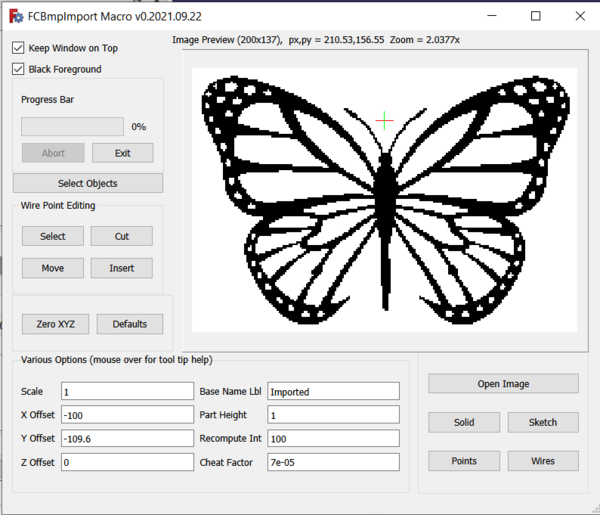
FCBmpImport screenshot
Legend
Temporary code for external macro link. Do not use this code. This code is used exclusively by Addon Manager. Link for optional manual installation: Macro
# This code is copied instead of the original macro code
# to guide the user to the online download page.
# Use it if the code of the macro is larger than 64 KB and cannot be included in the wiki
# or if the RAW code URL is somewhere else in the wiki.

from PySide import QtGui, QtCore

diag = QtGui.QMessageBox(QtGui.QMessageBox.Information,
    "Information",
    "This macro must be downloaded from this link\n"
    "\n"
    "https://gist.githubusercontent.com/mwganson/ea7aa4dcb79d7492caa24e8970967174/raw/1fe247b5b93e5084866a69754854d9caedca1f09/FCBmpImport.FCMacro" + "\n"
    "\n"
    "Quit this window to access the download page")

diag.setWindowFlags(QtCore.Qt.WindowStaysOnTopHint)
diag.setWindowModality(QtCore.Qt.ApplicationModal)
diag.exec_()

import webbrowser
webbrowser.open("https://gist.githubusercontent.com/mwganson/ea7aa4dcb79d7492caa24e8970967174/raw/1fe247b5b93e5084866a69754854d9caedca1f09/FCBmpImport.FCMacro")
ToolBar Icon

Script
Macro FCBmpImport.FCMacro

This page is retrieved from https://wiki.freecad.org/Macro_FCBmpImport