

Úvod
The preferences for the  Draft Workbench can be found in the Preferences Editor. In the menu select Edit → Preferences and then Draft. This group is only available if the Draft Workbench has been loaded in the current FreeCAD session.
There are five pages: General, Interface, Grid and Snapping, Visual and Texts and Dimensions.
Some advanced preferences can only be changed in the Parameter Editor. See Fine-tuning.
This page has been updated for version 1.1.
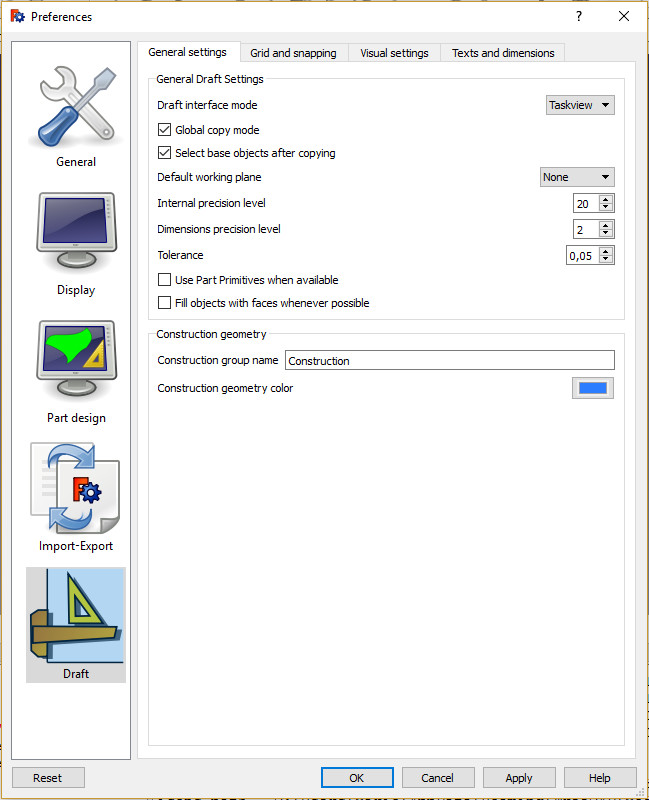
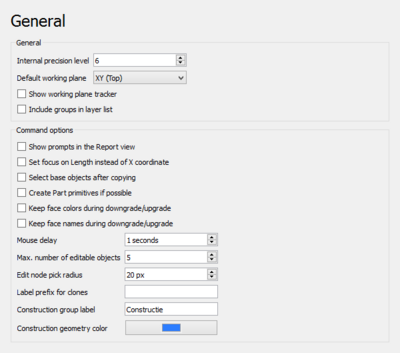
On this page you can specify the following:
| Name | Description |
|---|---|
| Internal precision level | The number of decimals used in internal coordinate operations (for example 3 = 0.001). Values between 6 and 8 are usually considered the best trade-off. |
| Default working plane | The default working plane for new views. The options are:
|
| Show working plane orientation | If checked, a widget indicating the current working plane orientation appears when picking points. |
| Include groups in layer list | If checked, the layers drop-down list also includes groups. Objects can then automatically be added to groups as well. See Draft AutoGroup. |
| Show prompts in the Report View | If checked, instructions are displayed in the Report View when using Draft commands. introduced in 1.0 |
| Set focus on Length instead of X coordinate | If checked, Length input, instead of the X coordinate, will have the initial focus. This allows to indicate a direction and then type a distance. |
| Select base objects after copying | If checked, base objects, instead of created copies, are selected after copying. |
| Create Part primitives if possible | If checked, Draft commands will create Part primitives instead of Draft objects. Note that this is not fully supported, and many objects will not be editable with Draft modification commands. |
| Keep face colors during downgrade/upgrade | If checked, Draft Downgrade and Draft Upgrade will keep face colors. Only for the splitFaces and makeShell options. |
| Keep face names during downgrade/upgrade | If checked, Draft Downgrade and Draft Upgrade will keep face names. Only for the splitFaces and makeShell options. |
| Mouse delay | This is the delay in seconds during which the mouse is inactive after entering a number in one of the Draft task panel input fields. During the delay moving the mouse won't change the entered value. Set to 0 to disable the delay. |
| Max. number of editable objects | The maximum number of objects Draft Edit is allowed to process at the same time. |
| Edit node pick radius | The pick radius of edit nodes. |
| Label prefix for clones | The default prefix added to the label of new clones. |
| Construction group label | The default label for the construction geometry group. |
| Construction geometry color | The default color for Draft objects in construction mode. |
Interface
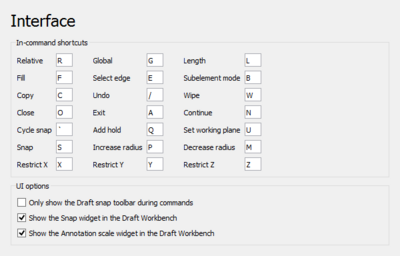
On this page you can specify the following:
| Name | Description |
|---|---|
| In-Command Shortcuts | These shortcuts only work when a Draft or BIM command is active. Note that not all commands support all shortcuts. |
| Relative | Shortcut to toggle relative mode. If relative mode is on, coordinates are relative to the last point, if available, else they are relative to the coordinate system origin. |
| Global | Shortcut to toggle global mode. If global mode is on, coordinates are relative to the global coordinate system, else they are relative to the working plane coordinate system. |
| Length | Shortcut to change the focus from the X coordinate input box to the Length input box and vice versa. |
| Make face | Shortcut to toggle filled mode. If filled mode is on, the created object will have ÚdajeMake Face set to true.
|
| Select edge | Shortcut to press the Select Edge button. See Draft Dimension. |
| Subelement mode | Shortcut to toggle subelement mode. If subelement mode is on, the command will use the selected subelements instead of the whole objects. |
| Copy | Shortcut to toggle copy mode. If copy mode is on, the command will create modified copies instead of modifying the original objects. |
| Undo | Shortcut to press the Undo button. |
| Wipe | Shortcut to press the Wipe button. |
| Close | Shortcut to press the Close button. |
| Exit | Shortcut to press the Finish button. |
| Continue | Shortcut to toggle continue mode. If continue mode is on, commands will restart after finishing. |
| Cycle snap | Shortcut to change snap priority to an object that is obscured by other geometry. See Draft Snap. |
| Add hold | Shortcut to insert a "hold point" at the current location of the cursor. See Draft Snap. |
| Set working plane | Shortcut to press the Set Working Plane button. |
| Snap | Shortcut to toggle Draft snapping. |
| Increase radius | Shortcut to increase the maximum distance at which Draft Snap Grid detects the intersections of grid lines. See Draft SelectPlane. |
| Decrease radius | Shortcut to decrease the maximum distance at which Draft Snap Grid detects the intersections of grid lines. |
| Restrict X | Shortcut to constrain the movement of the cursor to the X axis. See Draft Constrain. |
| Restrict Y | Shortcut to constrain the movement of the cursor to the Y axis. |
| Restrict Z | Shortcut to constrain the movement of the cursor to the Z axis. |
| Recenter | Shortcut to temporarily recenter the working plane during commands. See Draft Snap. introduced in 1.1 |
| Only show the Draft Snap toolbar during commands | If checked, the Draft Snap toolbar will only be visible during commands. introduced in 1.0 |
| Show the Draft Snap Widget in the Draft Workbench | If checked, the Draft Snap Widget is displayed in the Draft Status Bar. |
| Show the Draft Scale Widget in the Draft Workbench | If checked, the Draft Scale Widget is displayed in the Draft Status Bar. |
Grid and Snapping
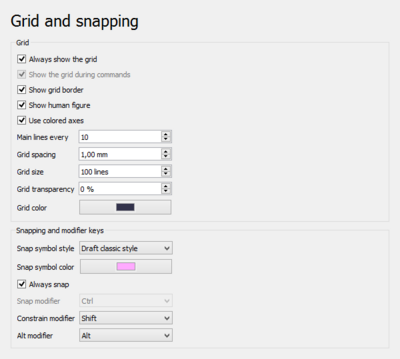
Note that several grid preferences can also be changed with the Draft SelectPlane command.
On this page you can specify the following:
| Name | Description |
|---|---|
| Always show the grid | If checked, the grid will always be visible in new views. Use Draft ToggleGrid to change this for the active view. |
| Show the grid during commands | If checked, the grid will be visible during commands in new views. Use Draft ToggleGrid to change this for the active view. introduced in 1.0 |
| Show grid border | If checked, an additional border is displayed around the grid, showing the main square size in the bottom left corner. |
| Show human figure | If checked, the outline of a human figure is displayed at the bottom left corner of the grid. Only effective if Show grid border is enabled. |
| Use colored axes | If checked, the two main axes of the grid are colored red, green or blue if they match the X, Y or Z axis of the global coordinate system. |
| Major lines every | The number of squares between major grid lines. Major grid lines are thicker than minor grid lines. |
| Grid spacing | The distance between grid lines. |
| Grid size | The number of squares in the X and Y direction of the grid. |
| Grid transparency | The overall transparency of the grid. |
| Grid color | The color of the grid. |
| Snap symbol style | The style for snap symbols. The options are:
|
| Snap symbol color | The color for snap symbols, snap dimensions and edit nodes. |
| Always snap | If checked, snapping is activated without the need to press the Snap modifier key. |
| Snap modifier | The Snap modifier key. |
| Constrain modifier | The Constrain modifier key. |
| Alt modifier | The Alt modifier key. The function of this key depends on the command. |
Visual
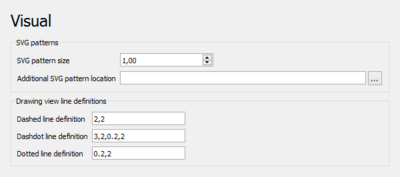
On this page you can specify the following:
| Name | Description |
|---|---|
| SVG pattern size | The default size for SVG patterns. A higher value results in a denser pattern.
|
| Additional SVG pattern location | An optional directory with custom SVG files containing pattern definitions to be added to the standard patterns. |
| Dashed line definition | An SVG linestyle definition used by the TechDraw DraftView command. |
| Dashdot line definition | Idem. |
| Dotted line definition | Idem. |
Texts and Dimensions

These preferences are the defaults used when creating new objects. Changing them does not affect existing objects.
On this page you can specify the following:
| Name | Description |
|---|---|
| Scale multiplier | The default annotation scale multiplier. This is the inverse of the scale set in the Draft Scale Widget. If the scale is 1:100 the multiplier is 100. introduced in 1.0
|
| Font name | The default font for texts, dimensions and labels. introduced in 1.1 |
| Font size | The default height for texts, dimension texts and label texts. |
| Line spacing factor | The default line spacing for multi-line texts and labels (relative to the font size). |
| Text color | The default color for texts, dimension texts and label texts. |
| Show dimension line | If checked, the dimension line is displayed by default. |
| Line width | The default line width. |
| Start arrow type | The default symbol displayed at the start of dimension lines. The options are:
|
| Start arrows size | The default size for start arrows. introduced in 1.1 |
| End arrow type | The default symbol displayed at the end of dimension lines. See Start arrow type. introduced in 1.1 |
| End arrows size | The default size for end arrows. introduced in 1.1 |
| Line and arrow color | The default color for lines and arrows. |
| Show unit | If checked, a unit symbol is added to dimension texts by default. |
| Unit override | The default unit override for dimensions. Enter a unit such as m or cm, leave blank to use the current unit defined in FreeCAD.
|
| Number of decimals | The default number of decimal places for dimension texts. |
| Feet separator | The optional string inserted between the feet and inches values in dimensions. introduced in 1.0 |
| Dimension line overshoot | The default distance the dimension line is extended past the extension lines. |
| Extension line length | The default length of extension lines. Use 0 for full extension lines. A negative value defines the gap between the ends of the extension lines and the measured points. A positive value defines the maximum length of the extension lines. Only used for linear dimensions.
|
| Extension line overshoot | The default length of extension lines above the dimension line. |
| Text spacing | The default space between the dimension line and the dimension text. |
Tato stránka je načtena z https://wiki.freecad.org/Draft_Preferences