


|
|
| Posizione nel menu |
|---|
| Path → Foratura |
| Ambiente |
| Path |
| Avvio veloce |
| P,D |
| Introdotto nella versione |
| - |
| Vedere anche |
| Nessuno |

Descrizione
The  Drilling tool generates a drilling Operation in the Job.
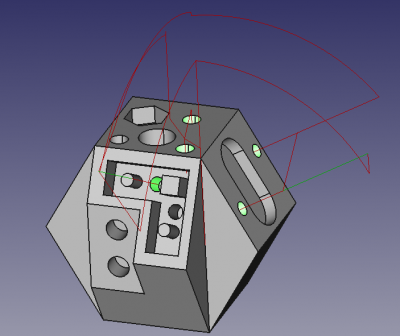
Above: CAM Drilling operation sample
Usage
- Selezionare lo strumento Foratura dal menu Path, o premere il pulsante GUI.
- Scegliere un controller dell'utensile dalla finestra pop-up del dialogo di selezione e confermare premendo OK.
- I fori con il diametro degli utensili disponibili per l'elaborazione compaiono nell'elenco della scheda Geometria di base. Confermare che i fori dell'elenco sono i fori destinati all'elaborazione, oppure aggiungerne, abilitarne o disabilitarne, se necessario. I fori possono essere aggiunti selezionando le facce che ospitano i fori.
- Accertarsi che le profondità e la profondità finale, Depths e Final Depth, siano corrette, altrimenti correggerle.
- Accertarsi che Heights, Safe e Clearance Heights siano corrette, altrimenti correggerle.
- Nella scheda Operazione, specificare il valore di Retract Height, Peck Depth, e il periodo Dwell in secondi. Abilitare Peck, Dwell, e Use Tip Length se è necessario.
Notes
- When using edges for Base Geometry, always select the bottom edge of the hole.
- Always verify the tool chosen is the correct diameter for the hole(s) selected.
- Peck disabled generates (G81 canned drill cycles). Peck enabled generates (G83 canned drill cycles).
- Dwell enabled is currently unsupported, but is intended to generate (G82 canned drill cycles).
Properties
Note : Not all of these Properties are available in the Task Window Editor. Some are only accessible in the Data tab of the Properties View panel for this Operation.
Base
Note: It is suggested that you do not edit the Placement property of path operations. Rather, move or rotate the CAM Job model as needed.
- DatiPlacement: Overall placement[position and rotation] of the object - with respect to the origin (or origin of parent object container)
- DatiAngle: Angle in degrees applied to rotation of the object around Axis property value
- DatiAxis: Axis (one or multiple) around which to rotate the object, set in sub-properties: X, Y, Z
- DatiX: X-axis value
- DatiY: Y-axis value
- DatiZ: Z axis value
- DatiPosition: Position of the object, set in sub-properties: X, Y, Z - with respect to the origin (or origin of parent object container)
- DatiX: X-distance value
- DatiY: Y-distance value
- DatiZ: Z-distance value
- DatiLabel: User-provided name of the object (UTF-8)
- DatiDisabled: List of disabled features
Depth
- DatiClearance Height: The height needed to clear clamps and obstructions
- DatiFinal Depth: Final Depth of Tool- lowest value in Z
- DatiSafe Height: The height above which Rapid motions are allowed. (Rapid safety height between locations)
- DatiStart Depth: Starting depth of Tool - first cut depth in Z
Drill
- DatiAdd Tip Length: Calculate the tip length and subtract from final depth
- DatiDwell Enabled: Enable dwell
- DatiDwell Time: The time to dwell between peck cycles
- DatiPeck Depth: Incremental Drill depth before retracting to clear chips
- DatiPeck Enabled: Enable pecking
- DatiRetract Height: The height where feed starts and height during retract tool when path is finished
- DatiReturn Level: Controls how tool retracts Default=G98
Path
- DatiActive: Make False, to prevent operation from generating code
- DatiComment: An optional comment for this Operation
- DatiUser Label: User assigned label
- DatiTool Controller: Defines the Tool controller used in the Operation
Rotation (when available)
- DatiAttempt Inverse Angle: Automatically attempt Inverse Angle if initial rotation is incorrect.
DatiB_Axis Error Override: Visually orient B(y) rotations to model (error in FreeCAD rendering).- DatiEnable Rotation: Enable rotation to gain access to holes not normal to Z axis.
- DatiInverse Angle: Inverse the angle of the rotation. Example: change a rotation from -22.5 to 22.5 degrees.
- DatiReverse Direction: Reverse orientation of Operation by 180 degrees.
Tasks Window Editor Layout
Descriptions for the settings are provided in the Properties list above.
This section is simply a layout map of the settings in the window editor for the Operation.
Base Geometry
- Add: Adds selected element(s) which should be the base(s) for the path(s).
- Delete: Delete the selected item(s) in the Base Geometry list.
- Clear: Clear all items in the Base Geometry list.
Base Location
- Add: Add an (X,Y) coordinate location to the current drilling operation.
- Remove: Remove the selected location item(s) from the Base Location list.
- Edit: Edit the selected location item.
Depths
- Start Depth:
- Final Depth:
Heights
- Safe Height:
- Clearance Height:
Operation
- Tool Controller:
- Retract Height:
- Peck:
- Peck Depth:
- Dwell:
- Dwell Time:
- Use Tip Length:
Scripting
See also: FreeCAD Scripting Basics.
Example:
#Place code example here.
Questa pagina è recuperata da https://wiki.freecad.org/CAM_Drilling