


|
|
| poziția meniului |
|---|
| Arch → Schedule |
| Ateliere |
| Arch |
| scurtătură |
| Nici unul |
| Prezentat în versiune |
| - |
| A se vedea, de asemenea, |
| Arch Equipment |

Descriere
Instrumentul Schedule vă permite să creați automat și să populați automat o spreadsheet cu conținutul adunat din model.
For a more general solution, see the Reporting Workbench in the list of external workbenches. This workbench uses SQL syntax to extract information from the document.
Cum se folosește
- Open or create a FreeCAD document which contains some objects
- Press the
 Schedule button
 - Adjust the desired options
- Press OK
Plan de lucru
First you need to have a model. For example, here is a document with a couple of objects. I did Arch stuff here, but it doesn't need to be Arch, it can be anything.
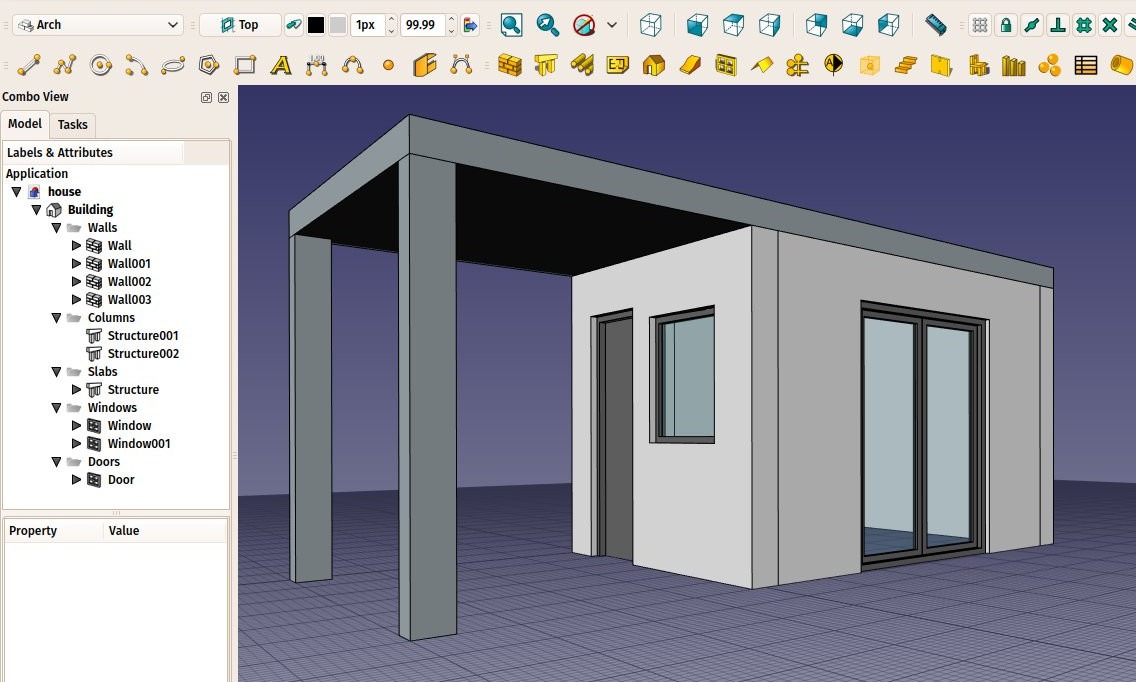
Then you press the Arch Schedule button. You get a task panel like this. It is pretty wide, so you'll need to widen the task panel to be comfortable.

Then you can fill line by line. Each line is a "query" and will render one line in the spreadsheet. Press the Add button to add a new line, and double-click each cell from that line to fill in the values. The Del button will delete the line which contains a currently selected cell, and Clear will delete all the lines. Possible values to put in columns are:
- Description: A description for this query. The Description column will be the first column of the resulting spreadsheet. The description is mandatory to have a query performed. If you leave the description cell empty, the whole line will be skipped and left blank in the spreadsheet. This allows you to add "separator" lines.
- Value: This is the real query that you want to perform on all the objects selected by this query. It can be two kinds of things: either the word count (or Count or COUNT, it's case-insensitive), which will simply count objects, or retrieve ans sum a property, for example object.Shape.Volume or object.Length or even object.Label. The name you use before the first dot (object) can be anything, you could also write x.Shape.Volume. The rule is: what comes after the first dot will be retrieved from each object selected by this query, if possible (object that don't have the required property will be skipped), and the result will be added together. For example, if you use object.Shape.Volume, you will get the sum of all volumes of all objects selected by this query.
- Unit: An optional unit to express the results in. It's up to you to give a unit that matches the query you are doing, for example, if you are retrieving volumes, you should use a volume unit, such as m^3. If you use a wrong unit, for ex. cm, you'll get wrong results.
- Objects: You can leave this empty, then all the objects of the document will be considered by this query, or give a semicolon (;)-separated list of object names (not labels). If any of the objects in this list is a group, its children will be selected as well. So the easiest way to use this feature is to group your objects meaningfully in the document, and just give a group name here. You can also use the Selection button to add objects currently selected in the document.
- Filter: Here you can add a semicolon(;)-separated list of filters. Each filter is written in the form: filter:value, where filter can be (it's case-insensitive too): Name, Label, Type, or Role (see full list below). For example: name:door;type:window will filter the objects we got from the step above, and retain only those whose name contains "door" AND the type (returned by Draft.getType) is "wall". Everything is case-insensitive. Filters that begins with ! are inverted. For example, !name:wall will retain only objects that DON'T have "wall" in their name. "Role" is a property that all Arch objects have.
| Query | Description |
|---|---|
label:floor1;ifctype:window
|
Will retain only objects that have "floor1" in their DateLabel and "window" in their DateIFC Type. A window with the DateLabel "Floor1-AA" and the DateIFC Type "Window Standard Case" will be included. |
label:door
|
Will retain only objects that have "door" in their DateLabel |
!label:door
|
Will retain only objects that do not have "door" in their DateLabel |
ifctype:structural
|
Will retain only objects that have "structural" in their DateIFC Type |
!ifctype:structural
|
Will retain only objects that do not have "structural" in their DateIFC Type or that do not have the DateIFC Type property |
!ifctype:
|
Will retain only objects that do not have the DateIFC Type property |
Butonul Import vă permite să construiți această listă în altă aplicație a foii de calcul, ți importă aceasta ca pe un fișier csv aici.
Astfel putem construi o listă de queries ca de exemplu:

After that, press OK and a new Schedule object is added to the document, which contains a result spreadsheet:
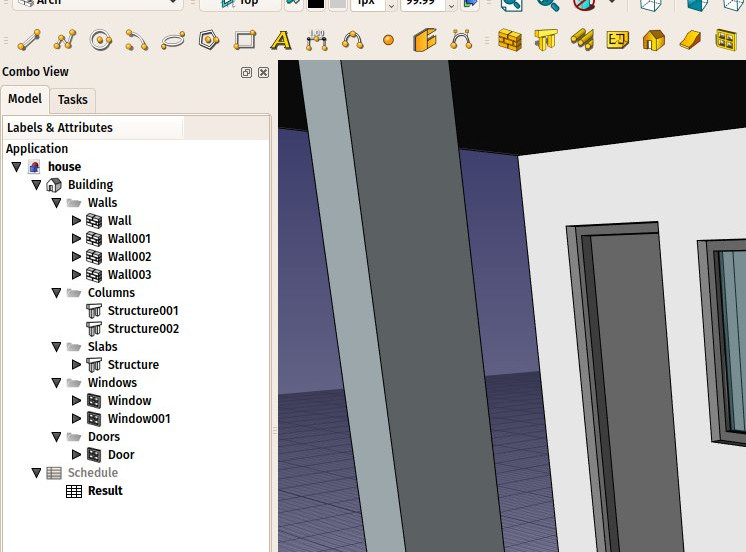
By double-clicking the Schedule object, you get back to the task panel and change the values. By double-clicking the spreadsheet itself, you get the results in 3 columns: description, value, unit (if applicable):
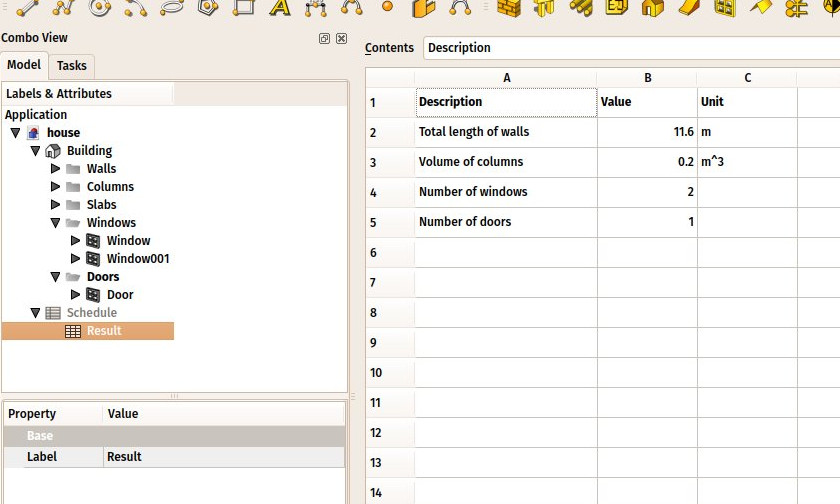
The spreadsheet can then be exported to csv normally, from the Spreadsheet workbench.
Dynamic properties
It is possible to add your own properties to objects. These are called Dynamic properties. If they have been added with the Prefix group name option selected, their names will indeed start with the group name, but this prefix is not displayed in the Property View. Their names have this form: NameOfGroup_NameOfProperty. To reference them in a schedule this full name must be used.
Această pagină este preluată de la https://wiki.freecad.org/Arch_Schedule