GuiCommand: Name: Sketcher ValidateSketch MenuLocation: Sketch , Validate sketch... Workbenches: Sketcher_Workbench, PartDesign_Workbench SeeAlso: Sketcher_ConstrainCoincident
Sketcher ValidateSketch
Description
The  Sketcher ValidateSketch tool can analyze and repair a sketch that is no longer editable or has invalid constraints, or add missing coincident constraints to a sketch created from imported geometry such as DXF files. It can also be useful to locate a missing coincidence in a native sketch that generates an error when trying to apply a PartDesign feature.
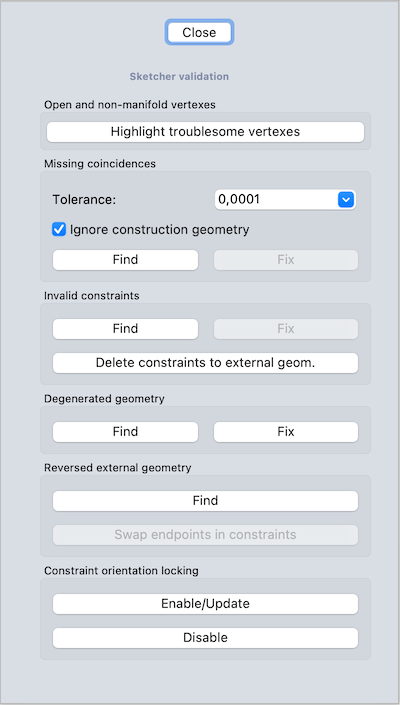 *The Sketcher validation task panel*
Usage
- This tool cannot be used while a sketch is in edit mode. To finish edit mode see Sketcher LeaveSketch.
- Select a sketch.
- There are several ways to invoke the tool:
- Press the Validate sketch... button.
- Select the Sketch → Validate sketch... option from the menu.
- Press the
- The Sketcher validation task panel opens. See Options for more information.
- Press the Close button to finish.
Options
Missing coincidences
Finds out missing coincidences for overlapping vertices, and adds them. Press the Find button; a pop up dialog will appear to report how many missing coincidences were found; they will be shown in the 3D view as yellow crosses. Press OK to close the dialog, then press the Fix button to add the missing coincidences.
If necessary, define a larger tolerance value in the drop-down field.
Press Highlight troublesome vertexes to highlight vertexes that are outside this tolerance.
This tolerance is also used by the Find/Fix process.
Leave the \"Ignore construction geometry\" checkbox checked to disregard construction geometry in the analysis.
Invalid constraints
Checks for malformed constraints.
For example, if there is a Circle-Line-Tangent constraint, but it references two lines, it is considered invalid.
(This sometimes happens due to the Topological naming problem, i.e. the external geometry changes type).
It also does other checks, such as for empty links.
Degenerated geometry
Degenerated geometry can result from solver actions in a sketch.
For instance, if a line is forced to shorten to become almost a point.
Other examples: a zero length line or zero radius circle/arc.
Reversed external geometry
Reversed external geometry can happen because the handling of reversed geometry was changed around revision 0.15.
This process might be helpful if sketches with external-geometry fail to solve because of these changes.
Constraint orientation locking
Tangent and perpendicular constraints are implemented (via-point).
Internally they work by constraining the angle between tangent vectors. With tangent constraint for example, the angle can be 0 or 180 degrees (co-directed or opposed vectors). The actual angle is remembered in the constraint data (\"constraint orientation is locked\"), it guards against flipping. But the angle can be erased (\"constraint orientation unlock\") or updated; these tools do exactly that.
The locking mechanism typically works well and this tool should not be needed. It should only used after making a backup of the open document.
{{Sketcher Tools navi}}
⏵ documentation index > Sketcher > Sketcher ValidateSketch
This page is retrieved from https://github.com/FreeCAD/FreeCAD-documentation/blob/main/wiki/Sketcher_ValidateSketch.md