FreeCAD Logo FreeCAD 1.0
  • English Afrikaans Arabic Belarusian Catalan Czech German Greek Spanish Spanish Basque Finnish Filipino French Galician Croatian Hungarian Indonesian Italian Japanese Kabyle Korean Lithuanian Dutch Norwegian Bokmal Polish Portuguese Portuguese Romanian Russian Slovak Slovenian Serbian Swedish Turkish Ukrainian Valencian Vietnamese Chinese Chinese
  • Features
  • Download
  • Blog
  • Documentation
    Documentation index Getting started Users documentation The FreeCAD manual Workbenches documentation Python coding documentation C++ coding documentation Tutorials Frequently asked questions Privacy policy About FreeCAD
  • Contribute
    How to help Sponsor Report a bug Make a pull request Jobs and funding Contribution guidelines Developers handbook Translations
  • Community
    Code of conduct Forum The FPA GitHub GitLab Codeberg Mastodon Matrix IRC IRC via Webchat Gitter Discord Reddit Twitter Facebook LinkedIn Calendar
  • ♥ Donate

Donate

$
SEPA Information
Please set up your SEPA bank transfer to:
Beneficiary: The FreeCAD project association
IBAN: BE04 0019 2896 4531
BIC/SWIFT: GEBABEBBXXX
Bank agency: BNP Paribas Fortis
Address: Rue de la Station 64, 1360 Perwez, Belgium

While Stripe doesn't support monthly donations, you can still become a sponsor! Simply make a one-time donation equivalent to 12 months of support, and you'll gain access to the corresponding sponsoring tier. It's an easy and flexible way to contribute.

If you are not sure or not able to commit to a regular donation, but still want to help the project, you can do a one-time donation, of any amount.

Choose freely the amount you wish to donate one time only.

You can support FreeCAD by sponsoring it as an individual or organization through various platforms. Sponsorship provides a steady income for developers, allowing the FPA to plan ahead and enabling greater investment in FreeCAD. To encourage sponsorship, we offer different tiers, and unless you choose to remain anonymous, your name or company logo will be featured on our website accordingly.

from 1 USD / 1 EUR per month. You will not have your name displayed here, but you will have helped the project a lot anyway. Together, normal sponsors maintain the project on its feet as much as the bigger sponsors.

from 25 USD / 25 EUR per month. Your name or company name is displayed on this page.

from 100 USD / 100 EUR per month. Your name or company name is displayed on this page, with a link to your website, and a one-line description text.

from 200 USD / 200 EUR per month. Your name or company name and logo displayed on this page, with a link to your website and a custom description text. Companies that have helped FreeCAD early on also appear under Gold sponsors.

Instead of donating each month, you might find it more comfortable to make a one-time donation that, when divided by twelve, would give you right to enter a sponsoring tier. Don't hesitate to do so!

Choose freely the amount you wish to donate each month.

Please inform your forum name or twitter handle as a notein your transfer, or reach to us, so we can give you proper credits!


GuiCommand: Name: Sketcher ToggleConstruction MenuLocation: Sketch , Sketcher geometries , Toggle construction geometry Workbenches: Sketcher_Workbench Shortcut: G N SeeAlso:

Sketcher ToggleConstruction

Description

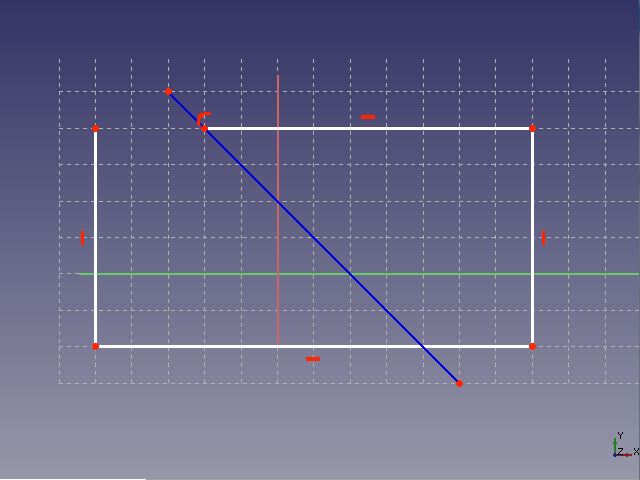
The Sketcher ToggleConstruction tool either toggles the geometry creation tools to/from construction mode, or toggles selected geometry to/from construction geometry.

Construction geometry is marked with a dedicated color (default blue) and ((v1.0) ) linetype. Construction geometry is not visible outside the sketch, it is intended to help define constraints and other geometry inside the sketch itself. Construction lines can however be used as a rotation axis by PartDesign Revolution.
Usage

Toggle tools

  1. Make sure there is no selection.
  2. There are several ways to invoke the tool:
    • Press the Toggle construction geometry button.
    • Select the Sketcher → Sketcher geometries → Toggle construction geometry option from the menu.
    • Right-click in the 3D view and select the Toggle construction geometry option from the context menu.
    • Use the keyboard shortcut: G then N.
  3. The mode of the geometry creation tools is toggled:
    • In normal mode their menu and toolbar icons are white, and they create regular geometry (default color white). The icon of this tool is then: .
    • In construction mode their menu and toolbar icons are blue, and they create construction geometry (default color blue). The icon of this tool is then: .

Toggle geometry

  1. Select one or more elements in the sketch.
  2. Invoke the tool as described above, or with the following additional option:
    • Right-click in the Elements section of the Sketcher Dialog and select the Toggle construction geometry option from the context menu.
  3. The selected elements are changed from normal geometry to construction geometry or vice versa. Their appearance changes accordingly.
  4. The mode of the geometry creation tools is not changed.

⏵ documentation index > Sketcher > Sketcher ToggleConstruction

This page is retrieved from https://github.com/FreeCAD/FreeCAD-documentation/blob/main/wiki/Sketcher_ToggleConstruction.md

Get in touch!
Forum GitHub Mastodon Matrix IRC Gitter.im Discord Reddit Twitter Facebook LinkedIn

© The FreeCAD Team. Homepage image credits (top to bottom): ppemawm, r-frank, epileftric, regis, rider_mortagnais, bejant.

This project is supported by: , KiCad Services Corp. and other sponsors

GitHubImprove this page on GitHub