FreeCAD Logo FreeCAD 1.0
  • Engleză Afrikaans Arabă Belarusă Catalană Cehă Germană Greacă Spaniolă Spaniolă Bască Finlandeză Filipineză Franceză Galiciană Croată Maghiară Indoneziană Italiană Japoneză Kabyle Coreeană Lituaniană Olandeză Norvegiană Bokmål Poloneză Portugheză Portugheză Română Rusă Slovacă Slovenă Sârbă Suedeză Turcă Ucrainiană Valenciană Vietnameză Chineză Chineză
  • Funcții
  • Descarca
  • Blog
  • Documentaţie
    Indicele documentului Primii pasi Documentație utilizatori Manualul utilizatorului FreeCAD Documentaţia Atelierelor Documente despre codarea în limbajul python C++ coding documentation Tutoriale Întrebări frecvente Privacy policy About FreeCAD
  • Contribuiți
    Cum să ajuți Sponsor Raportează o problemă Efectuează o cerere de tragere Locuri de muncă și finanțare Orientări privind contribuția Developers handbook Translations
  • Comunitate
    Code of conduct Forum The FPA GitHub GitLab Codeberg Mastodon Matrix IRC IRC via Webchat Gitter Discord Reddit Twitter Facebook LinkedIn Calendar
  • ♥ Donate

Donate

$
Informaţii SEPA
Te rugăm să-ți configurezi transferul bancar SEPA în:
Beneficiary: The FreeCAD project association
IBAN: BE04 0019 2896 4531
BIC/SWIFT: GEBABEBBXXX
Agenție bancară: BNP Paribas Fortis
Adresă: Rue de la Station 64, 1360 Perwez, Belgium

While Stripe doesn't support monthly donations, you can still become a sponsor! Simply make a one-time donation equivalent to 12 months of support, and you'll gain access to the corresponding sponsoring tier. It's an easy and flexible way to contribute.

If you are not sure or not able to commit to a regular donation, but still want to help the project, you can do a one-time donation, of any amount.

Choose freely the amount you wish to donate one time only.

You can support FreeCAD by sponsoring it as an individual or organization through various platforms. Sponsorship provides a steady income for developers, allowing the FPA to plan ahead and enabling greater investment in FreeCAD. To encourage sponsorship, we offer different tiers, and unless you choose to remain anonymous, your name or company logo will be featured on our website accordingly.

from 1 USD / 1 EUR per month. You will not have your name displayed here, but you will have helped the project a lot anyway. Together, normal sponsors maintain the project on its feet as much as the bigger sponsors.

from 25 USD / 25 EUR per month. Your name or company name is displayed on this page.

from 100 USD / 100 EUR per month. Your name or company name is displayed on this page, with a link to your website, and a one-line description text.

from 200 USD / 200 EUR per month. Your name or company name and logo displayed on this page, with a link to your website and a custom description text. Companies that have helped FreeCAD early on also appear under Gold sponsors.

Instead of donating each month, you might find it more comfortable to make a one-time donation that, when divided by twelve, would give you right to enter a sponsoring tier. Don't hesitate to do so!

Choose freely the amount you wish to donate each month.

Please inform your forum name or twitter handle as a notein your transfer, or reach to us, so we can give you proper credits!

AxisCross
TextureMapping
Std View Menu

Std ToggleClipPlane

poziția meniului
View → Clipping plane‏‎
Ateliere
All
scurtătură
Nici unul
Prezentat în versiune
-
A se vedea, de asemenea,
Nici unul

Description

Un plan de secționare este un plan care împarte volumul obiectului în două jumătăți. Toate părțile obiectului dintr-un jumătate de spațiu sunt vizibile, părțile din celălalt spațiu al jumătății sunt invizibile. Obiectele arată ca niște felii și detaliile interiorului devin vizibile. Planul de tăiere este activat de meniul View → Clipping plane.
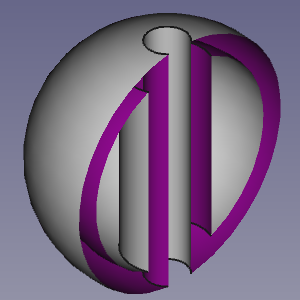
A clipped hollow object

The Clipping dialog box

Usage

  1. Select the View → Clipping View option from the menu.
  2. The Clipping dialog box opens.
  3. Do one of the following:
    • Check one or more of the Clipping X to Clipping Z checkboxes.
      • Optionally change the offset distance(s).
      • Optionally press the Flip button(s) to change the side of the clipping plane objects are hidden on.
    • Check the Custom Clipping Direction checkbox.
      • Optionally change the offset distance.
      • Do one of the following:
        • Press the View button to use the direction of the current view.
        • Check the Adjust to view direction checkbox for a direction that dynamically adepts to view changes.
        • Specify the direction by entering the X-, Y- and Z-coordinates of a normal vector.
  4. Optionally change the view to inspect the model.
  5. Press the Close button to close the task panel and finish the command.

Notes

  • To clearly distinguish the interior of partially clipped objects change their VizualizareLighting property to One side. The color of the interior side of their faces will then depend on the backlight settings: Edit → Preferences → Display → Light Sources → Backlight. See Preferences Editor.


AxisCross
TextureMapping
Std View Menu

Această pagină este preluată de la https://wiki.freecad.org/Std_ToggleClipPlane

Intrați în legătură!
Forum GitHub Mastodon Matrix IRC Gitter.im Discord Reddit Twitter Facebook LinkedIn

© The FreeCAD Team. Homepage image credits (top to bottom): ppemawm, r-frank, epileftric, regis, rider_mortagnais, bejant.

Acest proiect este sprijinit de: , KiCad Services Corp. and other sponsors

GitHubImprove this page on GitHub