


|
|
| Ubicación en el Menú |
|---|
| View → Clipping plane |
| Entornos de trabajo |
| All |
| Atajo de teclado por defecto |
| Ninguno |
| Introducido en versión |
| - |
| Ver también |
| Ninguno |
Description
The Std ToggleClipPlane command temporarily hides objects and parts of objects on one side of up to three virtual planes in the active 3D View.
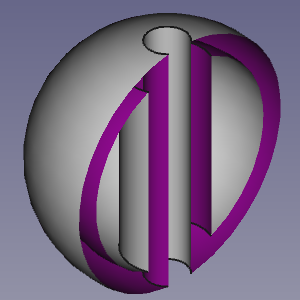
A clipped hollow object

The Clipping dialog box
Usage
- Select the View →
 Clipping View option from the menu.
 - The Clipping dialog box opens.
- Do one of the following:
- Check one or more of the Clipping X to Clipping Z checkboxes.
- Optionally change the offset distance(s).
- Optionally press the Flip button(s) to change the side of the clipping plane objects are hidden on.
- Check the Custom Clipping Direction checkbox.
- Optionally change the offset distance.
- Do one of the following:
- Press the View button to use the direction of the current view.
- Check the Adjust to view direction checkbox for a direction that dynamically adepts to view changes.
- Specify the direction by entering the X-, Y- and Z-coordinates of a normal vector.
- Check one or more of the Clipping X to Clipping Z checkboxes.
- Optionally change the view to inspect the model.
- Press the Close button to close the task panel and finish the command.
Notes
- To clearly distinguish the interior of partially clipped objects change their VistaLighting property to
One side. The color of the interior side of their faces will then depend on the backlight settings: Edit → Preferences → Display → Light Sources → Backlight. See Preferences Editor.
Esta página ha sido recuperada de https://wiki.freecad.org/Std_ToggleClipPlane