


|
|
| Menu location |
|---|
| Sketch → Sketcher Tools → Extend Edge |
| Workbenches |
| Sketcher |
| Default shortcut |
| G Q |
| Introduced in version |
| 0.17 |
| See also |
| Sketcher Trimming |
Description
The  Sketcher Extend tool extends or shortens a line or an arc to an arbitrary location, or to a target edge or point.
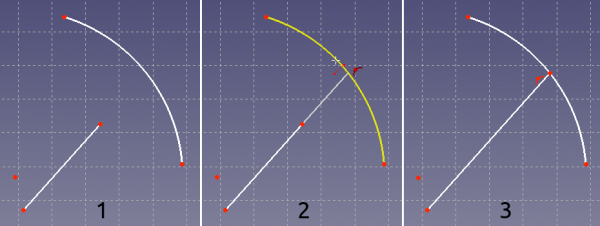
Shown on the left (1), the two sketch elements before the operation; in the middle (2), the line is being extended to the arc; on the right (3), the final result.
Usage
See also: Drawing aids.
- There are several ways to invoke the tool:
- Press the Extend Edge button.
- Select the Sketcher → Sketcher Tools → Extend Edge option from the menu.
- Right-click in the 3D View and select the Extend Edge option from the context menu.
- Use the keyboard shortcut: G then Q.
- Press the
- If there is a previous selection it is cleared. The tool does not accept a pre-selection.
- The cursor changes to a cross with the tool icon.
- Select a line or an arc.
- Move the cursor in the direction to extend or shorten.
- Do one of the following:
- Click an arbitrary point.
- To extend/shorten to another edge (Auto constraints must be enabled): Place the cursor over the target edge. When it is highlighted and the
 point-on-object constraint icon appears besides the cursor, click to confirm. The constraint is added.
 - To extend/shorten to a point (Auto constraints must be enabled): Place the cursor over the target point. when it is highlighted and the
 coincident constraint icon appears besides the cursor, click to confirm. The constraint is added.
- If the tool runs in continue mode:
- Optionally keep extending/shortening edges.
- To finish, click in an empty area in the 3D View, right-click or press Esc, or start another geometry or constraint creation tool.
Notes
- If not fully constrained, the target edge or point may be modified as well.
このページは以下から取得されています https://wiki.freecad.org/Sketcher_Extend