Úvod
A Preference Pack is a distributable collection of user preferences (introduced in 0.20) that can be installed as an add-on and applied as a single set. Any user parameter that can be set in the user.cfg file can be included in a Preference Pack. Applying a preference pack sets all of the variables in the supplied CFG file without modifying any other user settings. For example, these packs can be used to create "Themes" by bundling together a custom stylesheet along with a set of user preferences that sets the various colors and styles of items in FreeCAD that aren't controlled by the stylesheet.
Main Preference Packs user interface
Most user interaction with installed Preference Packs is via the General tab in the General settings section of the Preferences editor.
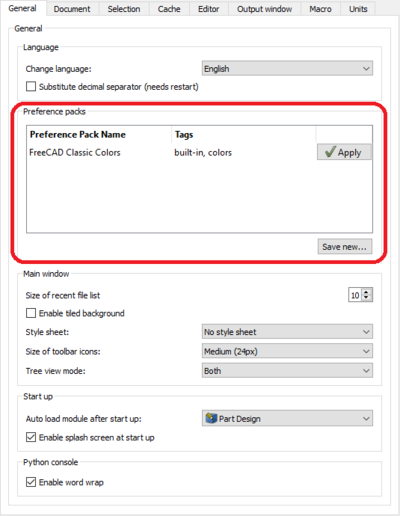
Applying an installed pack
To apply a Preference Pack, click the Apply button next to its name in the General tab of the Preferences editor. The core of a Preference Pack is a set of user preferences. When applying a pack each of these preferences is changed to the value defined in the pack. Optionally, the pack author may have included a pre- and/or post-application macro that may also be run. Because packs can potentially make large (and possibly undesirable) changes to your user preferences, a timestamped backup of your original preferences is taken, and stored in FREECAD_USER_DATA/SavedPreferencePacks/Backups. These backups are retained for one week.
Creating a new pack
Packs can be created by hand, or jump-started by using the Save new... button in the General tab of the Preferences editor. Clicking the button shows a dialog requesting a name for the new pack, and displays a set of checkboxes allowing only a subset of preferences to be stored.
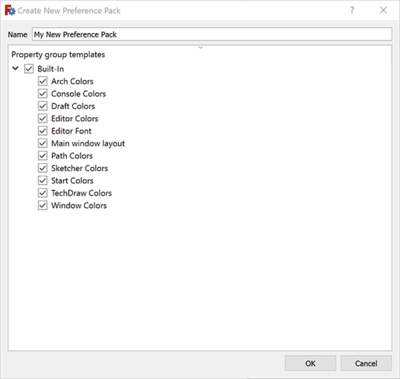
Because of the way FreeCAD uses preferences internally, only items contained in these template files can be saved automatically using this procedure. Items not included in the template files must be manually included in the pack's *.cfg file. There is no built-in limit to which preferences items may be included in a preference pack, but authors are strongly discouraged from changing a user's set language, or from modifying the recent files list, or from changing anything related to a temporary UI state (e.g. the saved size of a resizable window, etc.).
Template details
These sections list all preferences contained in the built-in templates. Right now they are focused on appearance-related items, but pull requests and forum suggestions for additional inclusions are welcome. Installed Addons may also provide their own templates (not documented here). Click "Expand" on the far right of each entry to see the list.
Arch Colors
- Preferences/Mod/Arch/WallColor
- Preferences/Mod/Arch/StructureColor
- Preferences/Mod/Arch/RebarColor
- Preferences/Mod/Arch/WindowColor
- Preferences/Mod/Arch/WindowGlassColor
- Preferences/Mod/Arch/PanelColor
- Preferences/Mod/Arch/ColorHelpers
- Preferences/Mod/Arch/defaultSpaceColor
Console Colors
- Preferences/OutputWindow/colorText
- Preferences/OutputWindow/colorLogging
- Preferences/OutputWindow/colorWarning
- Preferences/OutputWindow/colorError
Draft Colors
- Preferences/Mod/Draft/constructioncolor
- Preferences/Mod/Draft/gridTransparency
- Preferences/Mod/Draft/gridColor
- Preferences/Mod/Draft/snapcolor
Editor Colors
- Preferences/Editor/Text
- Preferences/Editor/Bookmark
- Preferences/Editor/Breakpoint
- Preferences/Editor/Keyword
- Preferences/Editor/Comment
- Preferences/Editor/Block comment
- Preferences/Editor/Number
- Preferences/Editor/String
- Preferences/Editor/Character
- Preferences/Editor/Class name
- Preferences/Editor/Define name
- Preferences/Editor/Operator
- Preferences/Editor/Python output
- Preferences/Editor/Python error
- Preferences/Editor/Current line highlight
Editor Font
- Preferences/Editor/FontSize
- Preferences/Editor/Font
Main Window Layout
- Preferences/MainWindow/DockWindows/Std_SelectionView
- Preferences/MainWindow/DockWindows/Std_ComboView
- Preferences/MainWindow/DockWindows/Std_ReportView
- Preferences/MainWindow/DockWindows/Std_PythonView
- Preferences/MainWindow/DockWindows/Std_TreeView
- Preferences/MainWindow/DockWindows/Std_PropertyView
- Preferences/MainWindow/DockWindows/Std_DAGView
- Preferences/MainWindow/Toolbars/File
- Preferences/MainWindow/Toolbars/Workbench
- Preferences/MainWindow/Toolbars/Macro
- Preferences/MainWindow/Toolbars/View
- Preferences/MainWindow/Toolbars/Structure
- Preferences/MainWindow/Toolbars/Navigation
Path Colors
- Preferences/Mod/Path/DefaultNormalPathColor
- Preferences/Mod/Path/DefaultRapidPathColor
- Preferences/Mod/Path/DefaultPathMarkerColor
- Preferences/Mod/Path/DefaultExtentsColor
- Preferences/Mod/Path/DefaultProbePathColor
- Preferences/Mod/Path/DefaultHighlightPathColor
- Preferences/Mod/Path/DefaultBBoxSelectionColor
- Preferences/Mod/Path/DefaultBBoxNormalColor
Sketcher Colors
- Preferences/View/SketchEdgeColor
- Preferences/View/SketchVertexColor
- Preferences/View/EditedEdgeColor
- Preferences/View/EditedVertexColor
- Preferences/View/ConstructionColor
- Preferences/View/ExternalColor
- Preferences/View/InvalidSketchColor
- Preferences/View/FullyConstrainedColor
- Preferences/View/InternalAlignedGeoColor
- Preferences/View/FullyConstraintElementColor
- Preferences/View/FullyConstraintConstructionElementColor
- Preferences/View/FullyConstraintInternalAlignmentColor
- Preferences/View/FullyConstraintConstructionPointColor
- Preferences/View/ConstrainedIcoColor
- Preferences/View/NonDrivingConstrDimColor
- Preferences/View/ConstrainedDimColor
- Preferences/View/ExprBasedConstrDimColor
- Preferences/View/DeactivatedConstrDimColor
- Preferences/View/CursorTextColor
- Preferences/View/CursorCrosshairColor
- Preferences/View/CreateLineColor
Start Colors
- Preferences/Mod/Start/BackgroundColor1
- Preferences/Mod/Start/BackgroundTextColor
- Preferences/Mod/Start/PageColor
- Preferences/Mod/Start/PageTextColor
- Preferences/Mod/Start/BoxColor
- Preferences/Mod/Start/LinkColor
- Preferences/Mod/Start/BackgroundColor2
TechDraw Colors
- Preferences/Mod/TechDraw/Decorations/SectionColor
- Preferences/Mod/TechDraw/Decorations/CenterColor
- Preferences/Mod/TechDraw/Decorations/VertexColor
- Preferences/Mod/TechDraw/Decorations/HighlightColor
- Preferences/Mod/TechDraw/Colors/Hatch
- Preferences/Mod/TechDraw/Colors/Background
- Preferences/Mod/TechDraw/Colors/PreSelectColor
- Preferences/Mod/TechDraw/Colors/HiddenColor
- Preferences/Mod/TechDraw/Colors/SelectColor
- Preferences/Mod/TechDraw/Colors/NormalColor
- Preferences/Mod/TechDraw/Colors/CutSurfaceColor
- Preferences/Mod/TechDraw/Colors/GeomHatch
- Preferences/Mod/TechDraw/Colors/FaceColor
- Preferences/Mod/TechDraw/Colors/ClearFace
Window Colors
- Preferences/View/BacklightColor
- Preferences/View/BackgroundColor
- Preferences/View/BackgroundColor2
- Preferences/View/BackgroundColor3
- Preferences/View/BackgroundColor4
- Preferences/View/Simple
- Preferences/View/Gradient
- Preferences/View/UseBackgroundColorMid
- Preferences/View/HighlightColor
- Preferences/View/SelectionColor
- Preferences/View/DefaultShapeColor
- Preferences/View/RandomColor
- Preferences/TreeView/TreeEditColor
- Preferences/TreeView/TreeActiveColor
- Preferences/MainWindow/TiledBackground
- Preferences/MainWindow/StyleSheet
Preference Pack structure
While the core of most Preference Packs is a single configuration file, because of their design for distribution, some auxiliary structure is also required. Four core files define a pack, laid out in the following directory structure (for a Preference Pack named "SamplePreferencePack"):
- package.xml
- SamplePreferencePack/
- SamplePreferencePack.cfg
- pre.FCMacro
- post.FCMacro
The Package Metadata file, package.xml, defines the name of the Preference Pack, and allows you to assign other metadata items such as a version number, author information, and tags (which are displayed in the main UI as a comma-separated list). For a Preference Pack saved using the GUI as explained above, a single package.xml file is created in the FREECAD_USER_DATA/SavedPreferencePacks/ directory. This file is used to describe the details such as the name and tags of all user-saved preference packs. To change a pack's name or tags, that file must be manually edited with a text editor. It can also provide a template for distributed preference packs: the author of a distributed pack may choose to start by saving a pack locally, then copying the pack's subdirectory and this global package.xml file as a starting point, modifying the copied package.xml file to only reference the pack being packaged for distribution.
Other files may also be included in a distribution, depending on what's required for the pack. A well-produced preference pack designed for distributing a visual theme called "DarkSide" for FreeCAD might look like:
- package.xml
- resources/
- icons/
- DarkSide.svg
- icons/
- DarkSide/
- DarkSide.cfg
- DarkSide.qss
Note the omission of the pre.FCMacro and post.FCMacro files, which are often unnecessary, as well as the inclusion of an icon (for display by the  Addon Manager), and the inclusion of a qss file (which will then be referenced in the DarkSide.cfg configuration data file).
The pre- and post- macro files are standard FreeCAD Python macros, and may contain any commands valid in such a macro. If the pre.FCMacro raises an exception (of any type), the application of the preference pack is cancelled. If the post.FCMacro raises an exception (of any type), the application of the pack is rolled back using the backup taken prior to its application. For example, these macros may be used to query the user for license acceptance, or to verify they are happy with the final state of their system after application.
The package.xml file for this example pack might be:
<?xml version="1.0" encoding="UTF-8" standalone="no" ?>
<package format="1" xmlns="https://wiki.freecad.org/Package_Metadata">
  <name>DarkSide Theme Package</name>
  <description>A preference pack including a stylesheet and other GUI color information for a Dark mode.</description>
  <version>1.0.0</version>
  <maintainer email="chennes@pioneerlibrarysystem.org">Chris Hennes</maintainer>
  <license file="LICENSE">GPLv3</license>
  <url type="repository" branch="main">https://github.com/chennes/DarkSideThemePackage</url>
  <icon>resources/icons/DarkSide.svg</icon>

  <content>
    <preferencepack>
      <name>DarkSide</name>
      <description>Dark mode color scheme</description>
      <tag>color</tag>
      <tag>stylesheet</tag>
      <tag>dark</tag>
      <file>DarkSide.qss</file>
    </preferencepack>
  </content>

</package>
Including templates in your add-on
Many add-ons have user-specifiable preference information that is added to the user.cfg file. An add-on author may also choose to provide a Preference Pack Template file that lists the user configuration variables that can be automatically saved using the "Save new pack" method described above. To include these template files, add-on authors should create a subdirectory in their package called either "PreferencePackTemplates" or "preference_pack_templates". Within that folder should be one or more *.cfg files: each must be a valid, well-formed user.cfg XML file containing one or more configuration variables set to their default values. The name of the file should reflect its purpose, e.g. "colors.cfg", "active_tabs.cfg", etc. This set of files will be presented to the user when they save a new preference pack, with each file receiving a checkable entry in the list of items to save. The filename is used to generate the UI entry, with underscores replaced by spaces (and the extension omitted).
Distributing a pack
Preference Packs are distributed identically to External Workbenches through the Addon Manager. To install a pack manually, use git to clone the package repository into your FreeCAD data directory (enter App.getUserAppDataDir() in the Python console to get this path), in a subdirectory called "Preference Packs". Note that user-installed packs with the same name as an included pack take precedence.
See also Private Preference Packs.
Tato stránka je načtena z https://wiki.freecad.org/Preference_Packs