


|
|
| Menu location |
|---|
| Context menu → Move Feature After… |
| Workbenches |
| PartDesign |
| Default shortcut |
| None |
| Introduced in version |
| 0.17 |
| See also |
| PartDesign MoveTip, PartDesign MoveFeature |
Description
 Move Feature After…, as this command is labeled in the context menu, allows reordering of objects under a Body. Sketches, datum geometry and features are supported.
Usage
- In the Tree View, select the object(s) to be moved then right-click to open the context menu.
- Select the Move Feature After… option from the context menu.
- In the Move Feature After… dialog, select the object under which to move the object(s).
- Press OK.
Example
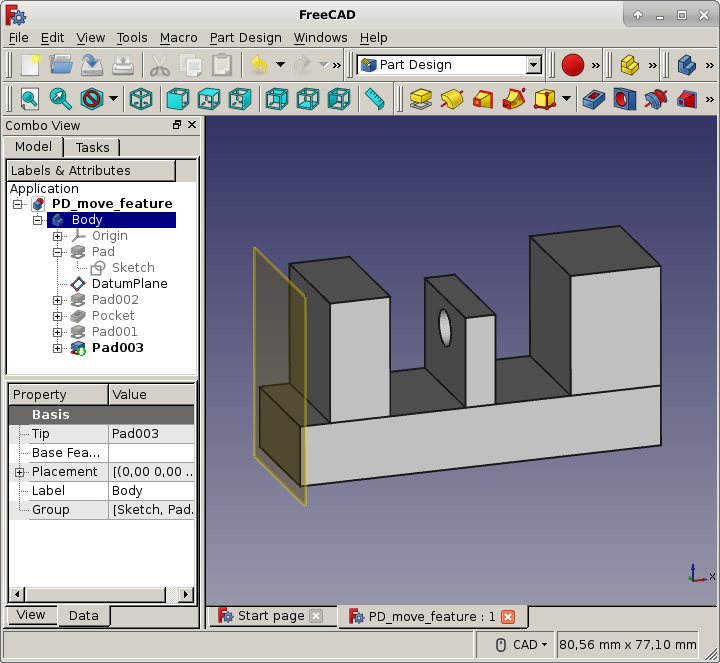
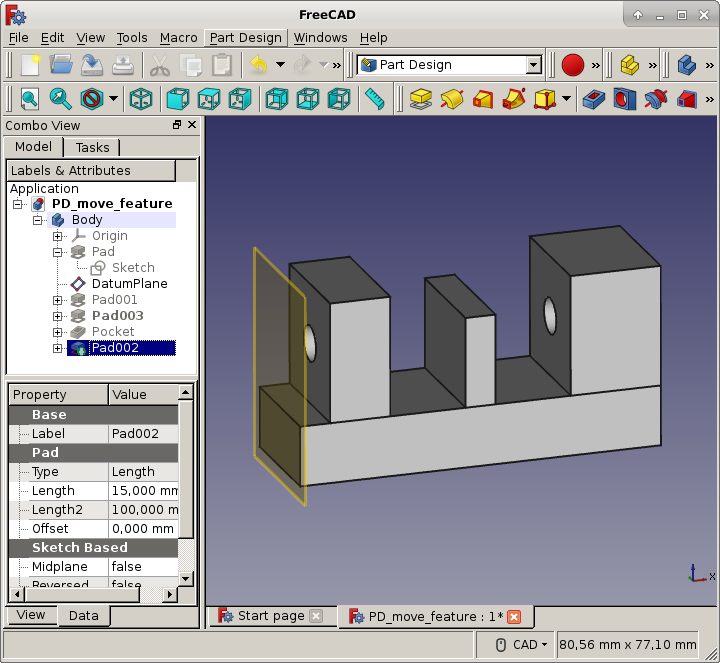
The following three pictures show the same model with a pocket defined on a sketch attached to the datum plane. The features are reordered from one picture to the other. This has the effect that the pocket makes either no hole or makes holes in different pads, depending on the order of the features in the model tree.

This page is retrieved from https://wiki.freecad.org/PartDesign_MoveFeatureInTree