


|
|
| Posizione nel menu |
|---|
| OpenSCAD → Aggiungi Elemento OpenSCAD |
| Ambiente |
| OpenSCAD |
| Avvio veloce |
| Nessuno |
| Introdotto nella versione |
| - |
| Vedere anche |
| Nessuno |

Description
Descrizione
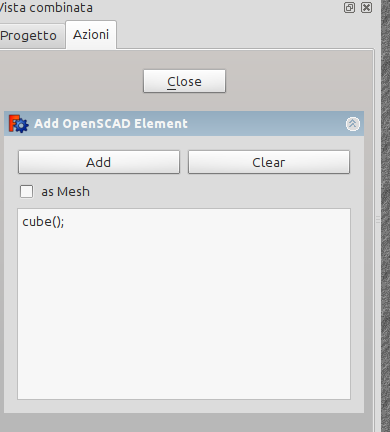
Aggiunge un elemento OpenSCAD inserendo il codice OpenSCAD nel pannello delle azioni ed esegue il binario di OpenSCAD (richiede OpenSCAD installato)
Quando è selezionato as Mesh, OpenSCAD restituisce un oggetto Mesh.
Ogni volta che si preme Aggiungi viene eseguito il codice OpenSCAD e gli elementi vengono importati.
Questa funzione non fornisce alcun controllo della sintassi o messaggi di errore tranne un output se OpenSCAD è mancante. Se mancano degli elementi, il percorso usato per specificare le dichiarazioni <>and include<> potrebbe essere sbagliato.
Le librerie dovrebbero essere accessibili di default, e agli esempi si può accedere con:
Libraries should be accessible as usual, whereas example can be reached as stated below.
include <../examples/example001.scad>;
che dovrebbe includere il primo esempio (example001.scad), noto anche come l'icona di OpenSCAD
Setup OpenSCAD within FreeCAD
Impostazione iniziale di OpenSCAD all'interno di FreeCAD
- Affinché FreeCAD possieda questa funzionalità è necessario che OpenSCAD sia installato sul computer.
- Installare la versione di OpenSCAD adatta al proprio sistema operativo. Vedere il sito di OpenSCAD per maggiori informazioni.
- FreeCAD ha bisogno di sapere dove trovare l'eseguibile OpenSCAD.
- Avviare FreeCAD e andare al menu Strumenti, selezionare Modifica parametri....
- Nella finestra di sinistra esplorare Preferences....Mod...OpenSCAD. Cliccare su OpenSCAD,
- quindi "cliccare con il tasto destro del mouse" nella finestra di destra e selezionare Nuovo elemento String.
- Appare una finestra pop-up in cui viene chiesto il nome del nuovo elemento, immettere il nome openscadexecutable e confermare.
- Ora la finestra pop-up passa a chiedere il testo, immettere il percorso del file eseguibile di OpenSCAD (ad esempio in Ubuntu il percorso è: /usr/bin/openscad).
- Chiudere e riavviare FreeCAD. Nella barra degli strumenti e nel menu OpenSCAD, nell'ambiente OpenSCAD di FreeCAD, appare una nuova icona OpenSCAD.
- È anche possibile aggiungere un altro parametro opzionale che controlla il numero massimo di lati di un poligono prima che esso sia considerato un cerchio.
- La procedura per aggiungere questo parametro è simile alla precedente, ma si deve aggiungere un "Nuovo elemento Integer", di nome UseMaxFN, e quindi immettere un valore appropriato.
Il pannello Azioni per l'inserimento di un elemento OpenSCAD:
Inserimento dell'eseguibile di OpenSCAD in FreeCAD:

L'icona di Aggiungi elemento OpenSCAD:

FreeCAD needs to be told where to find the OpenSCAD executable:
- Switch to the
 OpenSCAD Workbench via View → Workbench → OpenSCAD
 - Open the preferences dialog Edit → Preferences
- Click on "OpenSCAD" on the left plane
- Click on the button labled ... in General Settings → General OpenSCAD Settings → OpenSCAD executable to browse the directory or enter the path (e.g. Ubuntu based Linux distributions
/usr/bin/openscad) directly into the line input right to the button - Close and restart FreeCAD
- Result: A new OpenSCAD icon will appear on the tool bar, and in the OpenSCAD menu, in the FreeCAD OpenSCAD workbench.
Note: It is also possible to add another optional Parameter which controls the maximum sides of a polygon before it is considered a circle (fn).
A partire dalla versione 0.14, se l'impostazione di cui sopra è vuota, FreeCAD cerca l'eseguibile OpenSCAD.
Questa pagina è recuperata da https://wiki.freecad.org/OpenSCAD_AddOpenSCADElement