|
|
| Description |
|---|
| Macro for list all objects in the project in one list without hierarchy, options sort by name, label, visibility, group, by length option search by name, label .... without case sensitive or with case sensitive and select all objects displayed in the macro window. Macro FCTreeView Icon package unzip the .zip file and copy the icon in your macro directory. Macro version: 00.10b Last modified: 2025-07-04 FreeCAD version: 0.18 and below Download: ToolBar Icon Author: Mario52 |
| Author |
| Mario52 |
| Download |
| ToolBar Icon |
| Links |
| Macros recipes How to install macros How to customize toolbars |
| Macro Version |
| 00.10b |
| Date last modified |
| 2025-07-04 |
| FreeCAD Version(s) |
| 0.18 and below |
| Default shortcut |
| None |
| See also |
| None |

Description
Macro for list all objects in the project in one list without hierarchy, options sort by name, label, visibility, group, by length option search by name, label ... without case sensitive or with case sensitive and select all objects displayed in the macro window.
Temporary code for external macro link. Do not use this code. This code is used exclusively by Addon Manager. Link for optional manual installation: Macro
# This code is copied instead of the original macro code
# to guide the user to the online download page.
# Use it if the code of the macro is larger than 64 KB and cannot be included in the wiki
# or if the RAW code URL is somewhere else in the wiki.

from PySide import QtGui, QtCore

diag = QtGui.QMessageBox(QtGui.QMessageBox.Information,
    "Information",
    "This macro must be downloaded from this link\n"
    "\n"
    "https://gist.githubusercontent.com/mario52a/67517ef758ff20005d0a6adcfd8c9190/raw/c3706833f2534272107292de6a183bc6e07447cb/Macro_FCTreeView.FCMacro" + "\n"
    "\n"
    "Quit this window to access the download page")

diag.setWindowFlags(QtCore.Qt.WindowStaysOnTopHint)
diag.setWindowModality(QtCore.Qt.ApplicationModal)
diag.exec_()

import webbrowser
webbrowser.open("https://gist.githubusercontent.com/mario52a/67517ef758ff20005d0a6adcfd8c9190/raw/c3706833f2534272107292de6a183bc6e07447cb/Macro_FCTreeView.FCMacro")
Usage
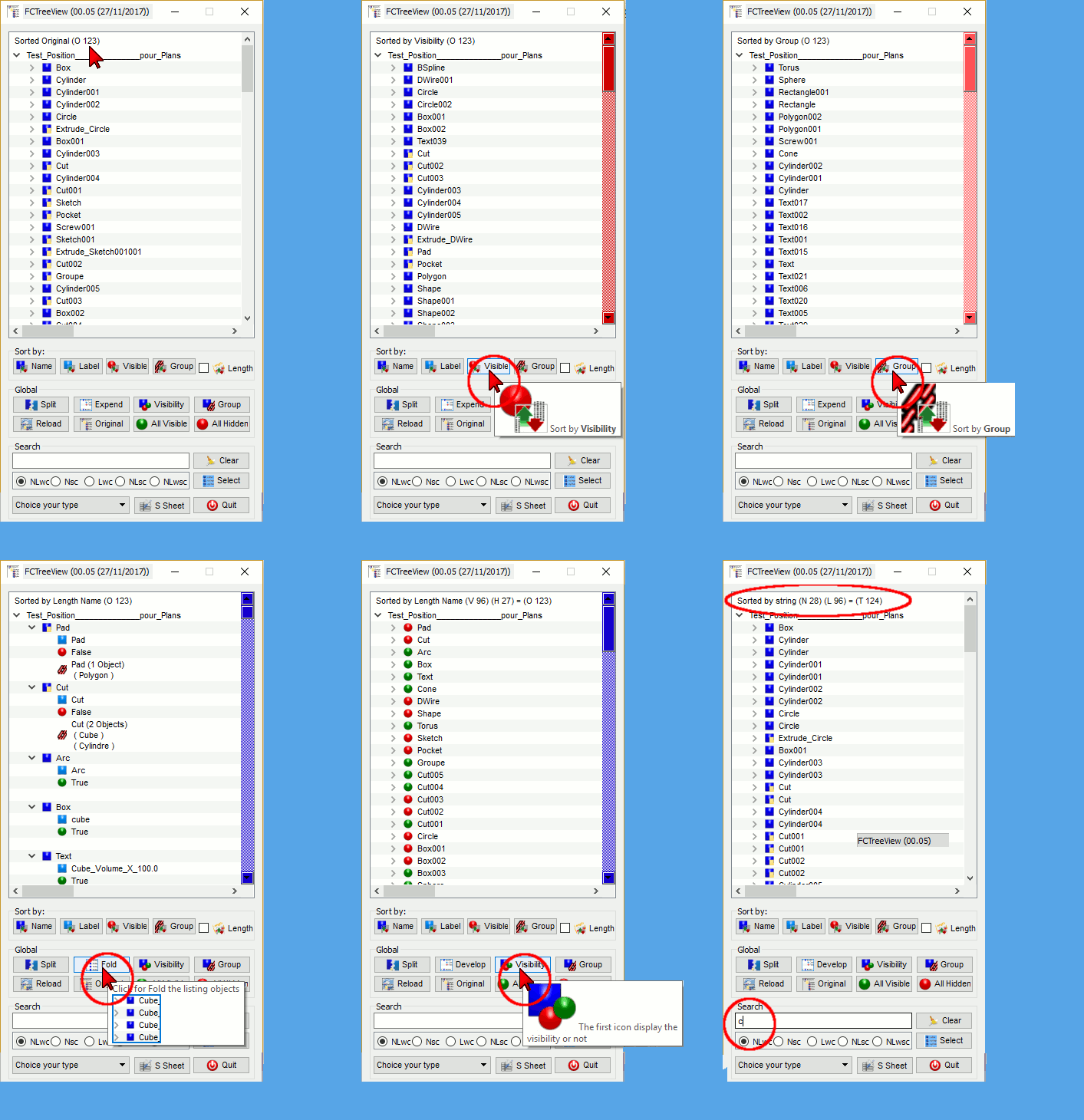
Section Window
The title display the option, number and type object(s) displayed
- O = Objects
- N = Name
- L = Label
- T = Total
- G = Group
- S = Single
- V = Visible
- H = Hidden
If one object are selected : the Placement Base, Rotation and Center of mass is displayed (if available !)
 Icon used for the Name of object (the scrollbar is colored blue)
 Icon used for the Label of object (the scrollbar is colored blue clear)
 Icon used for visualise if the object is status Visible (mouse click for Hidden) (the scrollbar is colored green)
 Icon used for visualise if the object is status Hidden (mouse click for Visible) (the scrollbar is colored red)
 Icon used for the Name contains objects (or folder Group)
 Icon used for inform the object in a group the number objects is displayed in top group (the scrollbar is colored red clear)
 Icon used for displayed the single object (not group)
Section Sort by :
 Name Icon used for flip/flop normal/reverse the data listing sort by Name
 Label Icon used for flip/flop normal/reverse the data listing sort by Label
 Visible Icon used for flip/flop normal/reverse the data listing sort by Visibile/Hidden
 Group Icon used for flip/flop normal/reverse the data listing sort by Group/Single object
 Length If this check Box is checked the sort is created by length with the button clicked (Name, Label ...)
Section Global
 Split flip/flop Split the Name list
 Split flip/flop Split the Name and Label list
 Expend flip/flop the data listing Fold/Expend
 Expend flip/flop the data listing Expend/Fold
 Visibility flip/flop normal/Visibility
 Group flip/flop normal/Group
 Reload reload the data in the project
 Original return in original organisation after operation visibility/Hidden
 All Visible visualise if the object is status Visible
 All Hidden visualise if the object is status Hidden
Section Search
 Clear Clear the search line edit
The radioButton options Search:
- ("NLwc") : Search by Name and Label Without respecting the sensitive Case
- ("Nsc") : Search by Name and respecting the Sensitive Case
- ("Lwc") : Search by Label Without respecting the sensitive Case
- ("NLsc") : Search by Name and Label and respecting the Sensitive Case
- ("NLwsc") : Search by Name and Label in Word and respecting the Sensitive Case (same panel selection of FreeCAD)
- (Nu) : Search by numeric value (radius, length, angle .....) see version section
 Select flip/flop for Selected all object(s) displayed in the window
 Unselected flip/flop Unselected all object(s)
 S Sheet access in Spreadsheet options
The SpreadSheet options:
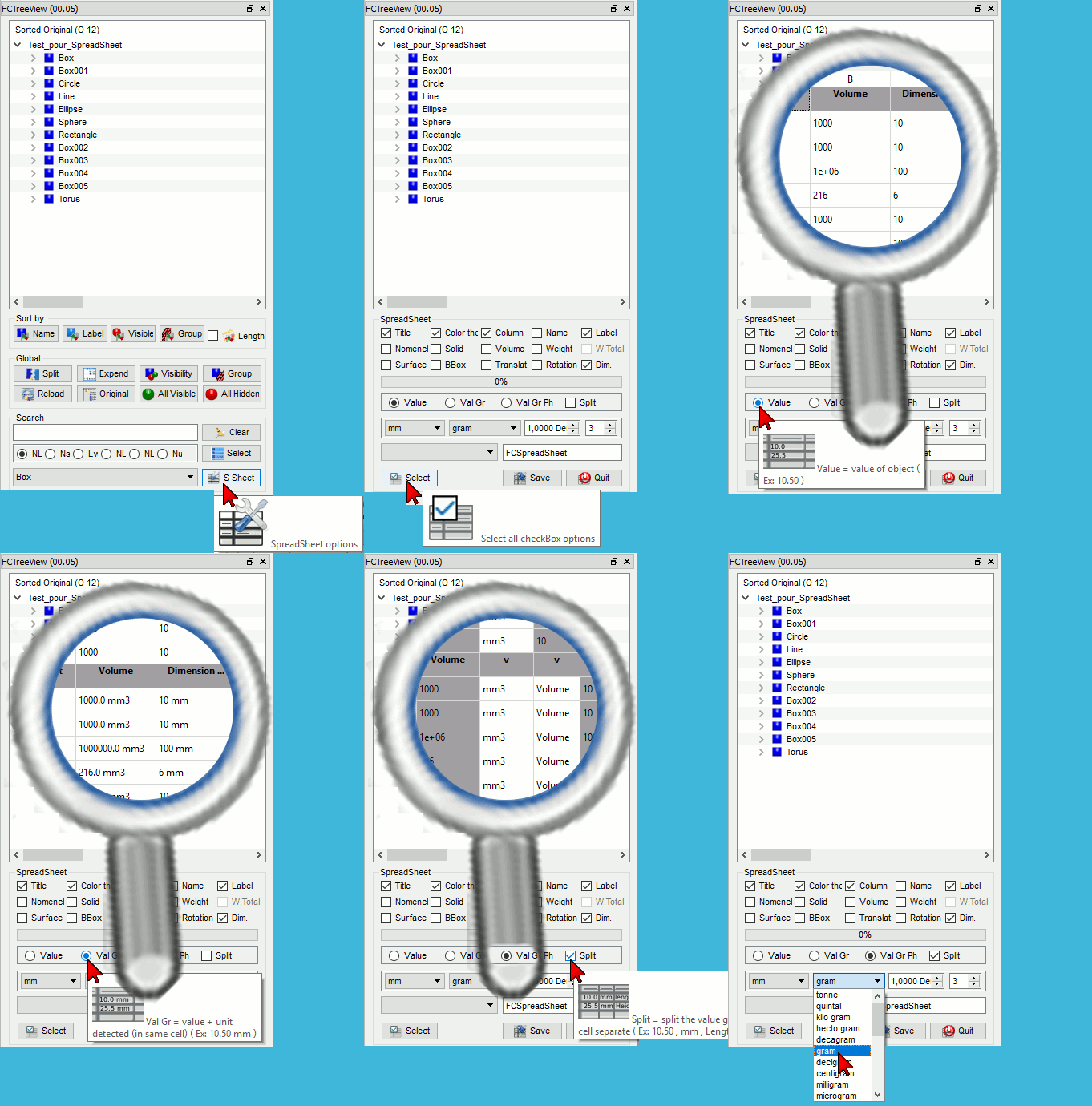
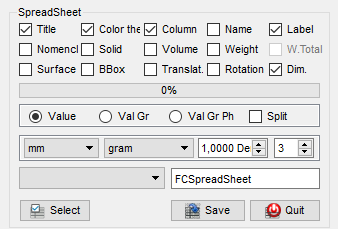
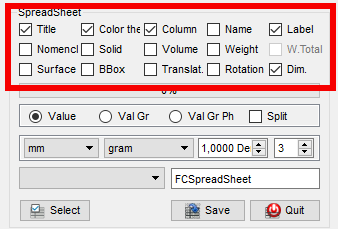
- CheckBox options for select the data to save in spreadsheet
 Select : Select all checkBox option to save
 Select : unSelect all checkBox option to save

- Value : alone the value is saved in the cell
- Ex : 10.00

- Ex : 10.00
- Val Gr : the value and the unit are saved in unique cell
- Ex : 10.00 mm

- Ex : 10.00 mm
- Val Gr Ph : the value, the unit and the physic data is saved in unique cell
- Ex : 10.00 mm Length

- Ex : 10.00 mm Length
- Split : if the Split checkBox is checked, the data is cut saved in separate cell
- Ex : 10.00 | mm | length

- Ex : 10.00 | mm | length

- Combobox mm : select the unit length desired. The value is convert in the selected unit. The units length available are:
- km, hm, dam, m, dm, cm, mm, um, nm, pm, fm, in, lk, ft, yd, rd, ch, fur, mi, lea, nmi
- Combobox gram : select the unit weight desired. The value is convert in the selected unit. The units weight available are:
- t, q, kg, hg, dag, g, dg, cg, mg, µg, ng, pg, fg, gr, dr, oz, oz t, lb, t lb, st, qtr, cwt, tonneau fr, ct
- Spinbox Densite : give the density by dm3 of the material used (Default : 1.0000)
- Spinbox Round : give the round value desired (Default : 3)
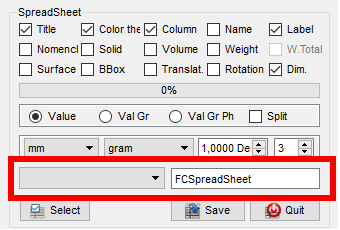
- Combobox Name spreadSheet : List the spreadsheet in the document
- Line edit Name spreadSheet : Display the actual spreadsheet or give the name for the new spreadsheet

Select select all checkbox options
Unselect unselected all checkbox options
 Save save the data in Spreadsheet displayed. if no spreadsheet is active the spreadsheet named FCSpreadSheet is created
 Quit quit the Spreadsheet options
Icons
The icon must be copied into the same directory as the macro


Script
For prevent many instance the clic on ToolBar button are effect flip/flop (hide/visible)
The macro is located in right dock for change it modify the value line number 133 testing = 0 (or change it with the mouse as a widget normal)
The toolbar icon 
Macro_FCTreeView.FCMacro

To do
Docked the macro
Version
ver 0010b (2025-07-04) : restore the "Original" button
ver 00.10 (2025-06-04) : return to PySide and more interactivity with the 3D view, but the Original button is now obsolete
ver 00.09 (2020-09-24) : correct the "freeze" macro after call the assembly4 workbench i try activate "Class SelObserver" and it work ???
class SelObserver:
    def addSelection(self, document, object, element, position):  # Selection
        global sourisPass
        global listeSorted
        global ui

        None
ver 00.08 (2020-02-25) : upgrade with Layout
ver 00.07 (06/05/2018) : modify procedure for search the last cell used
ver 00.06 (13/12/2017) : correct little bug line del line num 1881 "del listeSortedBis[doublon][4:] # supprime le fond inutile" thanks renatorivo
ver 00.05 (27/11/2017) : add creation spreadsheet and many option for him
ver 00.04 (29-09-2017) : add search by numeric value (length, radius....)
values researched :
global impost                 ; impost = ["Angle","Angle0","Angle1","Angle2","Angle3","ChamferSize","Circumradius","Columns","Degree",
                                          "FilletRadius","FirstAngle","Growth","Height","LastAngle","Length","Length2","MajorRadius",
                                          "MinorRadius","Pitch","Polygon","Radius","Radius1","Radius2","Radius3","Rows","Size","Width",
                                          "X","X1","X2","Xmax","Xmin","X2max","X2min",
                                          "Y","Y1","Y2","Ymax","Ymin","Y2max","Y2min",
                                          "Z","Z1","Z2","Zmax","Zmin","Z2max","Z2min"]
ver 00.03 (23/09/2017) : add search by type object
ver 00.02 (11/09/2017) : modify for docked and prevent many instance the clic on button are effect flip/flop (macro hide/visible)
ver 00.01 (08/09/2017) :
This page is retrieved from https://wiki.freecad.org/Macro_FCTreeView