|
|
| Description |
|---|
| Gives information about the selected shape and can display a conversion of length, inclination (degrees, radians, grades, percent), area, volume and weight in different units (metric and imperial). The macro now also works for the elements of a sketch in edit mode.
|
| Author |
| Mario52 |
| Download |
| ToolBar Icon |
| Links |
| Macros recipes How to install macros How to customize toolbars |
| Macro Version |
| 1.40b |
| Date last modified |
| 2026/02/26 |
| FreeCAD Version(s) |
| All |
| Default shortcut |
| None |
| See also |
| Arch Survey, Macro SimpleProperties, Macro FCInfoGlass |

Description
Gives information about the selected shape and can display a conversion of length, inclination (degrees, radians, grades, percent), area, volume and weight in different units (metric and imperial). The macro now also works for the elements of a sketch in edit mode.
Temporary code for external macro link. Do not use this code. This code is used exclusively by Addon Manager. Link for optional manual installation: Macro
# This code is copied instead of the original macro code
# to guide the user to the online download page.
# Use it if the code of the macro is larger than 64 KB and cannot be included in the wiki
# or if the RAW code URL is somewhere else in the wiki.

from PySide import QtGui, QtCore

diag = QtGui.QMessageBox(QtGui.QMessageBox.Information,
    "Information",
    "This macro must be downloaded from this link\n"
    "\n"
    "https://gist.githubusercontent.com/mario52a/8d40ab6c018c2bde678f/raw/4afa86cc2636684bee93760cea4751f8a9ae9f72/FCInfo_en_Ver_1-40b-rmu_Docked.FCMacro" + "\n"
    "\n"
    "Quit this window to access the download page")

diag.setWindowFlags(QtCore.Qt.WindowStaysOnTopHint)
diag.setWindowModality(QtCore.Qt.ApplicationModal)
diag.exec_()

import webbrowser
webbrowser.open("https://gist.githubusercontent.com/mario52a/8d40ab6c018c2bde678f/raw/4afa86cc2636684bee93760cea4751f8a9ae9f72/FCInfo_en_Ver_1-40b-rmu_Docked.FCMacro")
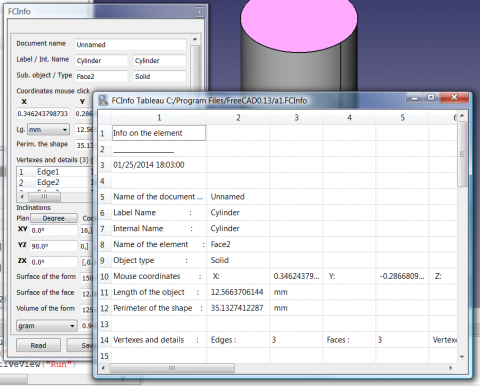
FCInfo
Usage
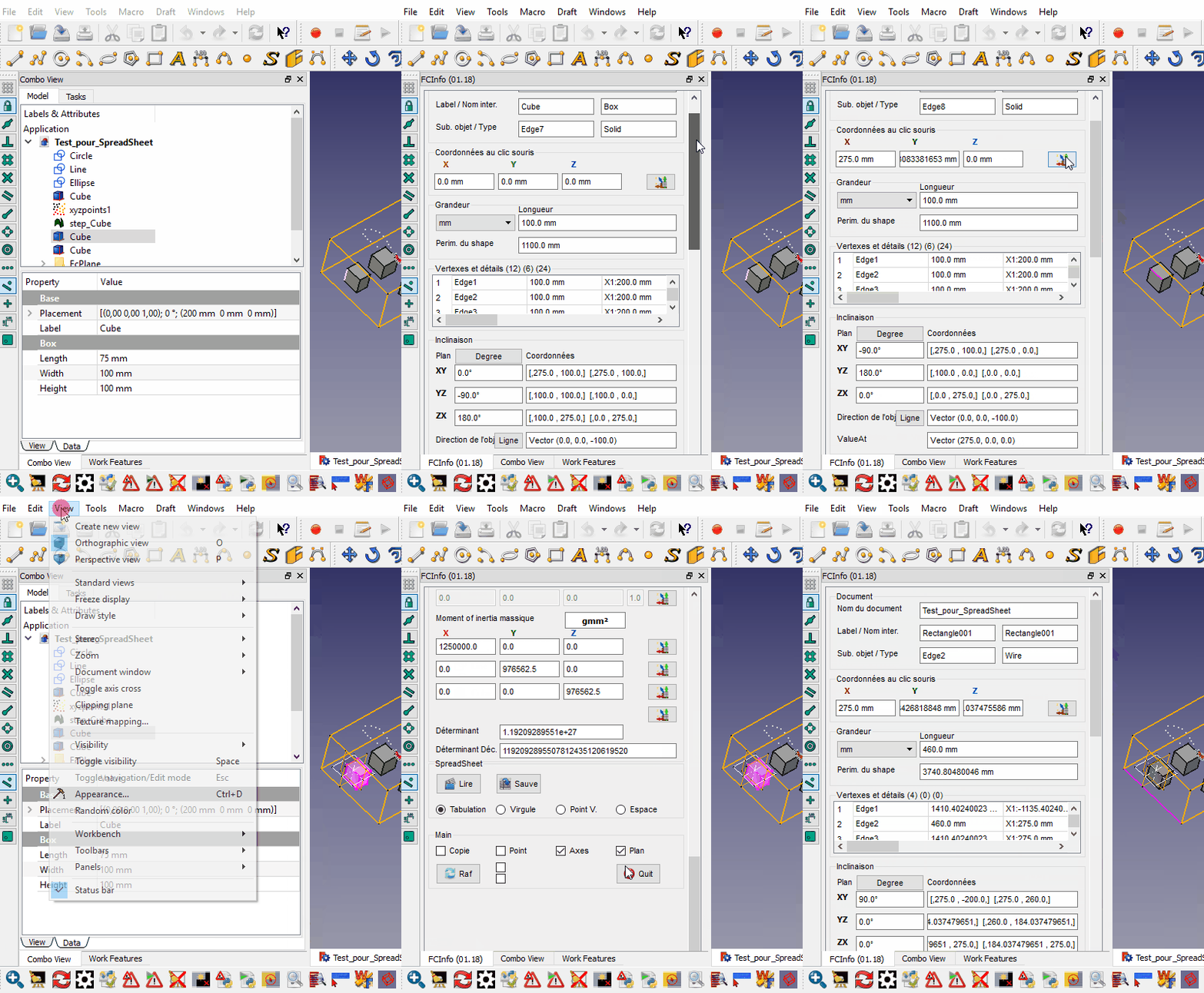
Select an object and launch the application, or launch the application first and then select an object. The object is analyzed and a dialog opens showing the gathered information. With each new selection, the length unit is reset to mm and the angle unit to decimal degrees.
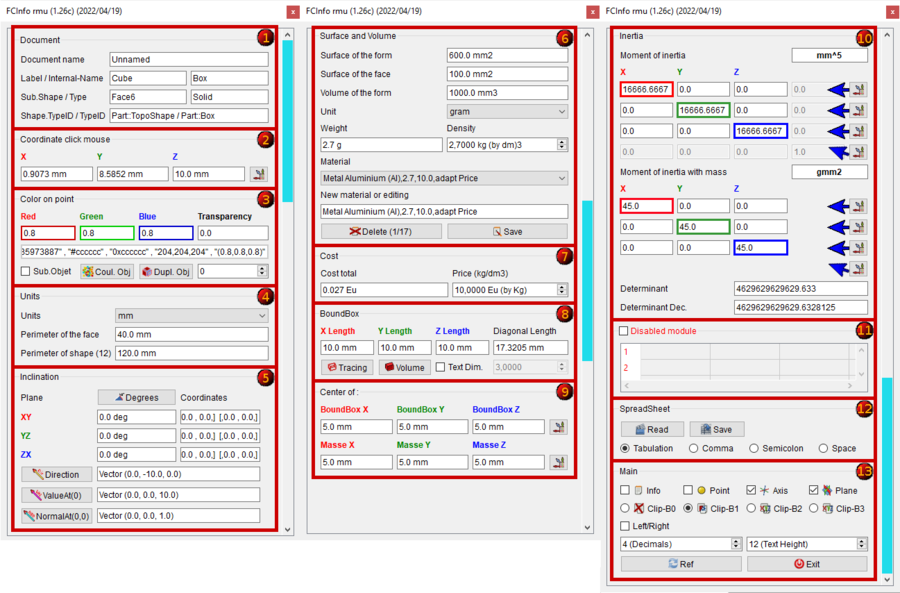
Sector 1: Document
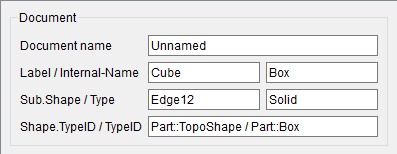
- Document name
- Label and internal name of the object
- Internal name of the object
- Sub element name and type of the object
- Type of the object
(you can set the variable switch_setVisible_GBox_001_Document to false to hide the Box)
Sector 2: Coordinates click mouse
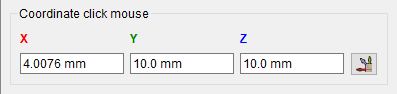
- Coordinates X, Y and Z click to mouse
- The button creates point, axis, plane, copies vector axis from FreeCAD.Vector(-24.0, 240.0, 7.0)
(you can set the variable switch_setVisible_GBox_002_Coordinate_Mouse to false to hide the Box)
Sector 3: Color on point
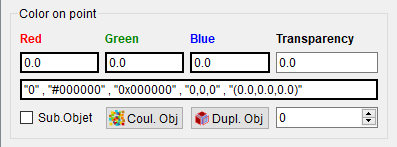
- Color on point clicked.
- value 0.0 to 1.0
- Line Edit display the color value in different formats: "3435973887" , "#cccccc" , "0xcccccc" , "204,204,204" , "(0.8,0.8,0.8)"
- 3435973887 : Mode RVBA Int unsigned (format in FreeCAD preferences) Alpha = 255
- #cccccc : Mode RVB Hexadecimal (Qt:
setStyleSheet("color : #cccccc")) - 0xcccccc : Mode RVB Hexadecimal (Python:
hex(0xcccccc) - "204,204,204 " : RVB decim: Mode RVB (Qt:
setStyleSheet(u"QLineEdit {"background-color: rgb(204, 204, 204)};")) - (0.8,0.8,0.8) : RVB float: Mode RVB format float de 0.0 à 1.0
- (The number of decimals depend of the option "x (Decimals)")
 Sub.Objet : Change the color of the selected object or subobject. If this box is activated
  Sub.Objet the face or sub Object selected is modified or duplicated. If it is not activated (default) the object is modified (color) or duplicated
- Coul. Obj : Change the color of the shape or the face depend of the choice. In case object Mesh or Points the complete object is colored.
- Dupl. Obj : Duplicates the face or the object depend to the chosen option. In the case of a Mesh object or Points the complete object is colored. Duplicate a Mesh object keeps the original and creates a solid shape. Duplicate a Points object keeps the original and creates a copy.
- 0
 : Degree of transparency of the selected face or object depends on the selected option 0 = opaque, 100 = transparent
(you can set the variable switch_setVisible_GBox_003_Color to false to hide the Box)
Sector 4: Components Mesh
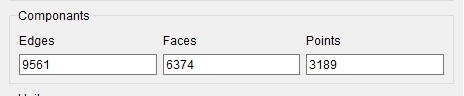
If the selection is a mesh object one new window "Components" is displayed and gives:
- Edges : number of edges 9561.
- Faces : number of faces 6374.
- Points : number of points 3189.
(you can checked to false the variable switch_setVisible_GBox_004_Object_Mesh for hidden the Box)
Sector 5: Units
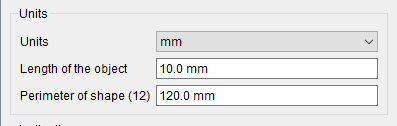
- mm
 : If the object is a face perimeter, the length of the object is displayed. Unit size can be selected :
km, hm, dam, m, dm, cm, mm, µm, nm, pm, fm, inch, link, foot, yard, perch, chain, furlong, mile, league, nautique. - Length of the object : Length of the object or perimeter of the face 10.0 mm.
- If the object is a circle, a second lineEdit Radius : is opened and displays the radius and diameter of circle 2.0 mm (dia. 4.0 mm).
- Perimeter of the shape (12). Perimeter of the object and number of subObject (Edges) contained in the object 120.0 mm.
(you can set the variable switch_setVisible_GBox_005_Value_Unit to false to hide the Box)
Sector 6: Inclination
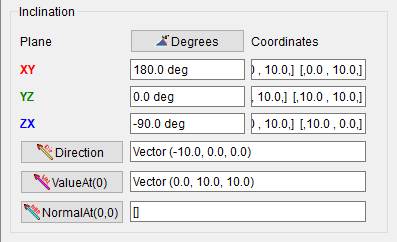
- Inclination of the object can be displayed in:
- decimal degree, ex: 174.831872611°
- degree minute second, ex: 174° 49' 54.741401
- radian, ex: 3.05139181449 rad
- grade, ex: 194.257636235 gon
- percent, ex: 30° = 57.74%
- Inclinations in planes XY, YZ, ZX and their coordinates
- Direction object, Vector (0.0, 0.0, -10.0) gives the direction of the object. The calculate is : coord_1 - coord_2 = direction (or reverse)
- Direction this button create a line in direction of the object.
- ValueAt(0), Vector (0.0, 0.0, 10.0) returns the 3D vector corresponding to a parameter value.
- ValueAt(0) this button create a line in ValueAt direction of the object.
- NormalAt(0,0), Vector (0.0, 0.0, 1.0) returns the 3D vector corresponding to a parameter value.
- NormalAt(0,0) this button create a line in NormalAt direction of the object.
(you can set the variable switch_setVisible_GBox_006_Inclination to false to hide the Box)
Sector 7: Surface and Volume
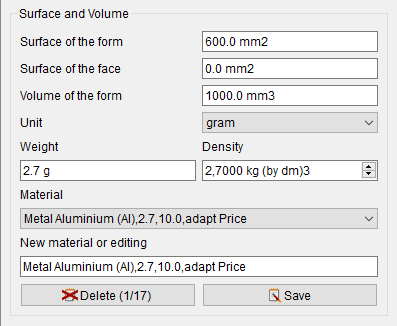
- Surface of the form displayed, unit size can be selected. 600.0 mm2
- Surface of the face displayed, unit size can be selected. 0.0 mm2
- Volume of the form displayed, unit size can be selected. 1000.0 mm3
- Unit , choice your unit.
- The gram unit mass can be chosen :
ton,quintal, kg, hg, dag, gram, dg, cg, mg, µg, ng, pg, fg, gr (grain), dr (drachm), oz (once), oz t (once troy),
lb t (livre troy), lb (livre av), st (stone), qtr (quarter), cwt (hundredweight), tonneau fr, ct. - Weight of the form displayed, unit mass can be selected. 2.7 g
- Density of the material in kg by dm3 2.7000 kg (by dm3)
- Material Metal Nickel (Ni),8.27,10.0,adapt Price
- In beginning the macro search the file FCInfo_material.txt, if the file not exist, one file FCInfo_material.txt is created.
- The file is created with 10 types of material saved in this format.
- Title of material , Density on dm3 , Price on dm3 , text info on choice
- (4 fields separate by coma)
- Liquid Water (H2o),1,10.0,adapt Price
- Mater Beton,2.4,10.0,adapt Price
- Metal Aluminium (Al),2.7,10.0,adapt Price
- Metal Copper (Cu),8.96,10.0,adapt Price
- Metal Gold (Au),19.3,10.0,Gratis
- Metal Iron (Fe),7.87,10.0,adapt Price
- Metal Lead (Pb),11.35,10.0,adapt Price
- Metal Magnesium (Mg),1.43,10.0,adapt Price
- Metal Nickel (Ni),8.27,10.0,adapt Price
- Metal Pewter (Sn),7.29,10.0,adapt Price
- Metal Platinum (Pt),21.45,10.0,adapt Price
- Metal Silver (Ag),10.5,10.0,adapt Price
- Metal Sodium (Na),0.97,10.0,adapt Price
- Metal Titanium (Ti),4.4,10.0,adapt Price
- Metal Zinc (Zn),7.1,10.0,adapt Price
- Wood Beechwood,0.8,10.0,adapt Price
- Wood MDF,0.75,10.0,adapt Price
- Wood Mahogany,0.6,10.0,adapt Price
- Wood Oak,0.7,10.0,adapt Price
- Wood White pine,0.4,10.0,adapt Price
- New material or editing Metal Nickel (Ni),8.27,10.0,adapt Price
- you can modify or edit one new material in this format:
- Title, Density on dm3, Price on dm3, text info on choice
- (4 fields separate by coma)
- you can also edit the file in your favorite editor respecting the specific format
- you can save the file in a path desired with the variable : seTMaterialSavePathName
- by default the file is created in the macro path
- Delete 1/17 : delete the displayed field
- Save : save the modification or the new material
(you can set the variable switch_setVisible_GBox_007_Surface_and_Volume to false to hide the Box)
Sector 8: Cost
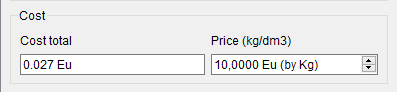
- Cost total : cost total of the selected object
0.027 Eu
- Price (kg/dm3) : price of the selected material (Metal Aluminium (Al),2.7,10.0,adapt Price)
10,0000 Eu (by Kg)
(you can set the variable switch_setVisible_GBox_008_Cost_And_Price to false to hide the Box)
Sector 9: BoundBox
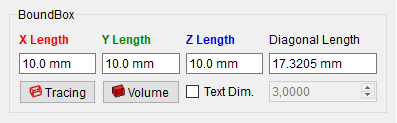
- BoundBox gives extreme dimensions of the shape.
- maximum X length : 10.0 mm
- maximum Y length : 10.0 mm
- maximum Z length : 10.0 mm
- diagonal length : 17.3205 mm
- Tracing : create 6 rectangles to dimensions of boundbox
- Volume : create volume to dimensions of boundbox
- Text Dim. : create the dimension of the triangle (boundbox)
- If the Text Dim. is checked, the spinbox dimension of text 3,000 is operational for give your value (3.0 by default)
(you can set the variable switch_setVisible_GBox_009_BoundBox to false to hide the Box)
Sector 10: Center of:
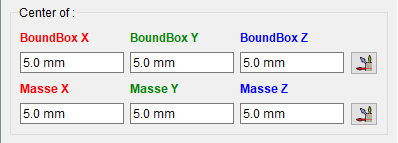
- Center of the shape and its coordinates XYZ
- Center of mass and its coordinates XYZ
- The buttons creates on point, axis, plane, copy vector axis form FreeCAD.Vector(-24.0, 240.0, 7.0) (see Sector 13)
(to hide the Box the variable switch_setVisible_GBox_010_Center_Mass can be set to false)
Sector 11: Inertia
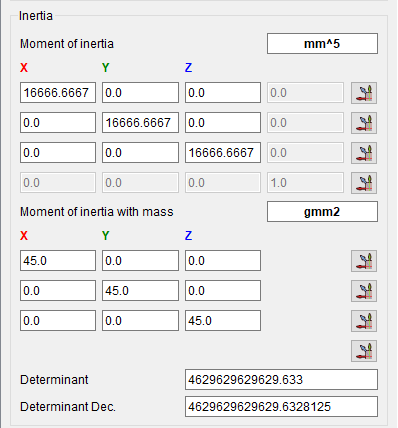
- Moment of inertia and these coordinates length and weigth
- The button creates on point, axis, plane, copy vector axis form FreeCAD.Vector(-24.0, 240.0, 7.0) (see Sector 13)
- action line 1 : x1, y1, z1, 0.0
- action line 2 : x2, y2, z2, 0.0
- action line 3 : x3, y3, z3, 0.0
- action 4 diagonal : x1, y2, z3
same for length and weigth
- Determinant 1 : 4629629629629.633 computes the determinant of the matrix, in scientific value
- Determinant 2 : 4629629629629.6328125 computes the determinant of the matrix, in decimal value
(you can set the variable switch_setVisible_GBox_011_Inertia to false to hide the Box)
Sector 12: SpreadSheet
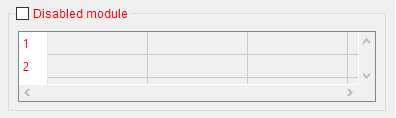
- Disabled module CheckBox for search or not all details of the object. If it is not checked, only the principal value is displayed.
- Vertexes and details of the shape (compt_Edge), (compt_Faces), (compt_Vector of the Face)
- Max 200 lines in the table, if there are more than 200 lines it appears (!+ 200) and the number of lines
- If the object is complicated with many objects, the time is long and the search is repeated with every mouse click. The write function in the spreadSheet included, decreases the display time for this it is disabled by default
- Full details can save be the Save button in a file in CSV format and can be viewed the file in spreadsheet with the Read or by an external spreadsheet as LibreOffice OpenOffice or other
(you can set the variable switch_setVisible_GBox_012_SpreadSheet to false to hide the Box)
Sector 13: SpreadSheet creation
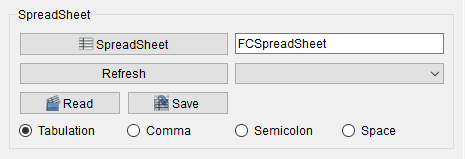
- SpreadSheet : create a new spreadsheet in a document
- SpreadSheet : the current spreadsheet. If the spreadsheet does not exist one spreadsheet is created
- Refresh : refresh the list of spreadsheet in document
- - : the spreadsheet(s) present in document
- Read : read the data in a spreadsheet saved .FCInfo or txt, asc, csv
- Save : save the data in disk in the form selected below .FCInfo or txt, asc, csv
 Tabulation : the separator is tab stop (by default)
 Comma : the separator is Comma
- Semicolon : the separator is Semicolon
- Space : the separator is Space
Option for save or read the spreadsheet with different separator, tab stop, Comma, Semicolon, Space
The Tabulation (tab stop) is the separator for the FreeCAD [Spreadsheet_Workbench|Spreadsheet workbench]
The number of this four separators are calculated for help if unknown
The COMMA are the old (01.16 and before) separator of the FCInfo macro
Now for compatibility with the FreeCAD Spreadsheet and since 01.17 version the TABULATION is the separator by default
If you want to convert your old FCInfo spreadsheet : Open it in FCInfo and save it with the Tabulation option checked
(you can set} the variable switch_setVisible_GBox_013_SpreadSheet_Creation to false to hide the Box)
Sector 14: Main tools
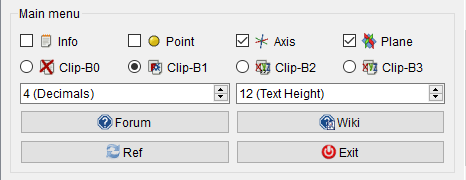
- Info : if this CheckBox is checked, the informations are displayed in the Report View window
- Point : if checked, one point is created in the coordinate displayed form : FreeCAD.Vector(-24.0, 240.0, 7.0)
- Axis : if checked, one axis is created in the coordinate displayed form : FreeCAD.Vector(-24.0, 240.0, 7.0)
- Plane : if checked, one axis plane is created in the coordinate displayed form : FreeCAD.Vector(-24.0, 240.0, 7.0)
- Clip-B0 : None clipBoard
- Clip-B1 : If checked the coordinate are copy in the clipBoard Form : FreeCAD.Vector(X.0, Y.0, Z.0) FreeCAD model
- Clip-B2 : If checked the coordinate are copy in the clipBoard Form : X, Y, Z with Comma separator
- Clip-B3 : If checked the coordinate are copy in the clipBoard Form : X Y Z as is with Space separator
- Left/Right : if this CheckBox is not checked, the window macro are displayed to right (default). If it is checked the macro window is displayed to left.
If the option is 1 mode fly (User parameter:BaseApp/Preferences/Macros/FCMmacros/FCInfo/seTPositionFlyRightLeft) this button is not visible . - 4 (Decimales) : give the number of decimals displayed
- 12 (Dim. texte) : give the dimension of text in the macro
- Forum : direction FCInfo forum tread (you must to be connected to internet)
- Wiki : direction Wiki FCInfo (you must to be connected to internet)
- Ref : refresh the display of data in the Report View
- Exit : exit the macro properly (not use the red cross of the window)
(you can set the variable switch_setVisible_GBox_014_Main_Tools to false to hide the Box)
Once launched the macro, the macro remains active and the window remains visible. To exit the macro click Exit. If you leave it by the cross, the macro remains in memory and the data appears in the "Report View" of FreeCAD, you must restart FreeCAD to quit it.
-
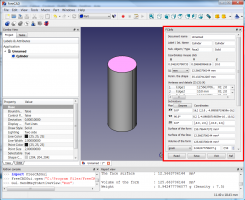 Docked to right,
 -
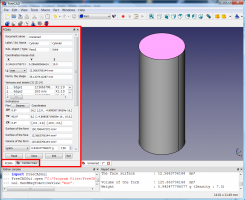 or left with Combo View and reachable by a tab, or not docked, to the choice.
Options
The unit used
Length unit:
km, hm, dam, m, dm, cm, mm, µm, nm, pm, fm, inch, link, foot, yard, perch, chain, furlong, mile, league, nautique.
Angle degrees :
- decimal degree, ex: 174.831872611°
- degree minute second, ex: 174° 49' 54.741401''
- radian, ex: 3.05139181449 rad
- grade, ex: 194.257636235 gon
- percent ex: 30° = 57.74%
Understanding of angles in FCInfo display.
-
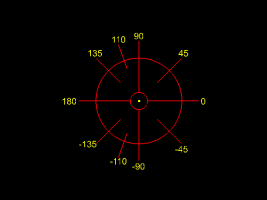 Understanding of angles in FCInfo display
 -
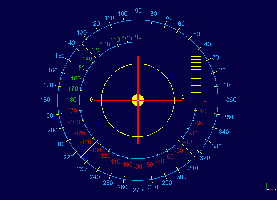 Understanding of angles in percent in FCInfo display
click twice to see the animation (the image must be in full screen)
Weight unit :
ton, quintal, kg, hg, dag, gram, dg, cg, mg, µg, ng, pg, fg, gr (grain), dr (drachm), oz (once), oz t (once troy),
lb t (livre troy), lb (livre av), st (stone), qtr (quarter), cwt (hundredweight), tonneau fr, ct
FCInfo Configuration
- Location : Tools > Edit parameter > *User parameter:BaseApp/Preferences/Macros/FCMmacros/FCInfo/
- switchNotInfoOnBeginning # SetBool
trueor [false]- Display or not this text information on run macro
- [
false] = display this information true= this information is not displayed from beginning
- [
- Display or not this text information on run macro
- switchVersionSearch # SetBool
trueor [false]- Search if one new version exist on run macro
- switchWarning # SetBool
trueor [false]- Display or not display the window warning in case not good selection
- switchCreatePoint # SetBool
trueor [false]- Check the Create point checkBox
- switchCreateAxis # SetBool
trueor [false]- Check the Create axis checkBox
- switchCreatePlane # SetBool
trueor [false]- Check the Create plane checkBox
- switchDisplayInfoObject # SetBool
trueor [false]- Check the info checkBox
- switchClearDisplayReportView # SetBool
trueor [false]- if switchClearDisplayReportView is
truethe ReportView is cleared
- if switchClearDisplayReportView is
- seTWidgetPosition # SetBool
trueor [false]- Check the Widget Position Left/Right checkBox
- if seTWidgetPosition [
false] : if seTPositionFlyRightLeft = 2 = docked to Right - if seTWidgetPosition
true: if seTPositionFlyRightLeft = 3 = docked to Left - if it is 1 the window macro is not docked
- switchBoundBoxCreateText # SetBool
trueor [false]- Create the text dimension of the BoundBox
- seTBoundBoxTextHeigth # seTBoundBoxTextHeigth = 3.0
- Give the Heigth of the text dimension (independent of the seTTextHeigthValue)
- seTBoundBoxTextArround # seTBoundBoxTextArround = 3
- Give the arround of the text dimensions (independent of the seTDecimalValue)
- seTMemoClipBoard # SetInt [0], 1, 2, 3
- Give one value [0], 1, 2, 3 clipBoard
- [0] = desactivate the clipBoard
- 1 = the data string is memorised to : FreeCAD.Vector( X, Y, Z )
- 2 = the data string is memorised to : X, Y, Z
- 3 = the data string is memorised to : X Y Z
- Give one value [0], 1, 2, 3 clipBoard
- seTTextHeigthValue # SetInt 11
- Give one text heigth value of the macro
- seTDecimalValue # SetInt 4
- Give the number of decimal displayed
- If the number is -1 the total decimal value is displayed)
- seTMaterialCurrentIndex # SetInt 0
- Set the index of the ComboBox
- seTMaterialFileName # SetString FCInfo_material.txt
- Name of the material file
- seTMaterialSavePathName # SetString C:\...\Macro\FCInfo_material.txt
- Path name of the material file
- seTMaterialPrice # SetFloat
- Material price by Kg
- seTMaterialSuffixDevise # SetString
- Devise money
- seTMaterialSuffixCost # seTMaterialSuffixCost
- Suffix Devise cost
- seTMaterialCost # SetFloat
- Material cost
- seTDensiteValue # SetFloat 1.0
- Give the densite value
- seTDensiteDecimalNumber # SetInt 4
- Give the number of decimal for the densite value
- seTDensiteSingleStep # SetFloat 1.0
- Give the step for one click, by default 1.0 (possible 0.01 or ...)
- seTDensiteSuffixChain # SetString kg (by dm3)
- Choice your suffix string
- seTPositionFlyRightLeft # SetInt 2
- Choice your position, Fly, [Right], Left
- 1 = the macro window is fly (not docked)
- [2] = the macro window is positioned to Right
- 3 or other = the macro window is positioned to Left
- Choice your position, Fly, [Right], Left
- seTIndexUnitWeight # SetInt
- Set unit Weight index
- seTUnitSymbolMicro # U
- Set Symbol Micro
- seTUnitSymbolCube # 3
- Set Symbol Cube
- seTUnitSymbolCarre # 2
- Set Symbol Square
- seTIndexUnitLength # SetInt
- Set unit Length index
- setBSplineToByArcValue # SetFloat 0.00001
- Set unit for cut the BSpline for seack the radius on point given
- setMeshTopologyValue # SetFloat 0.1
- Set unit for create the Mesh to Shape
- switchBSplineCreateCircleConstructorAxis #SetBool
trueor [false]- Display the axis of the circles (arcs) for create the BSpline
- switchBSplineCreateCircleConstructor #SetBool
trueor [false]- Display the circles cretors for create the BSpline
- switchCreateLineDiVatNatOnClick #SetBool
trueor [false]- Create the Line info on point (0,0,0) or on point mouse clicked (x,y,z) if it is
true - If it is
trueone '*' is displayed in front of text. EX: '*Direction'
- Create the Line info on point (0,0,0) or on point mouse clicked (x,y,z) if it is
This switch (section GroupBox) allows you to view only the desired section(s) (just visual) false or true.
All calculations are done without taking account of this option
- section GroupBox begin
- switch_setVisible_GBox_001_Document = True (1)
- switch_setVisible_GBox_002_Coordinate_Mouse = True (1)
- switch_setVisible_GBox_003_Color = True (1)
- switch_setVisible_GBox_004_Object_Mesh = True (1)
- switch_setVisible_GBox_005_Value_Unit = True (1)
- switch_setVisible_GBox_006_Inclination = True (1)
- switch_setVisible_GBox_007_Surface_and_Volume = True (1)
- switch_setVisible_GBox_008_Cost_And_Price = True (1)
- switch_setVisible_GBox_009_BoundBox = True (1)
- switch_setVisible_GBox_010_Center_Mass = True (1)
- switch_setVisible_GBox_011_Inertia = True (1)
- switch_setVisible_GBox_012_SpreadSheet = True (1)
- switch_setVisible_GBox_013_SpreadSheet_Creation = True (1)
- switch_setVisible_GBox_014_Main_Tools = True (1)
- section GroupBox end
Script
Copy the contents of the macro in a file named "FCInfo.FCMacro"
- Windows: the form is usually " drive:\Users\your_user_name\AppData\Roaming\FreeCAD\ "
- Ubuntu: the form is usually " /home/your_user_name/.FreeCAD ".
Or, directly in the interface of FreeCAD
The icon must be in the same directory as the macro.
Download image positioning on the icon 
 and then drag the mouse right click "save as" (do not change the name)
PS: the code is too long to be contained in the wiki page (for the time being the wiki pages accept only 64 KB) the macro code has been placed in the forum
Download the macro file on gist docked to right

(Or on the forum. )
PS: this macro uses getSelection() and the list of object begin to 1 ex: for a box Edge1 to Edge12 and the code in the console start at 0 ex: for a box Edge[0] to Edge[11]
This is normal, the counting on arrays/lists inside OpenCascade always starts at 1 and not at 0.
Limitations
Always leave it with the button Exit. If one exits the program without going through the button Exit, the program remains in memory and continues to run and the display will remain in the "Report View". You must leave FreeCAD to erase it from memory.
Only the first 200 elements of the object are visible in the table. If there are more than 200 items in the object, a signal will be displayed by (! +200). The complete list of data is visible in the file saved by the button Save.
If the macro window is invisible after the run, see the bottom window :
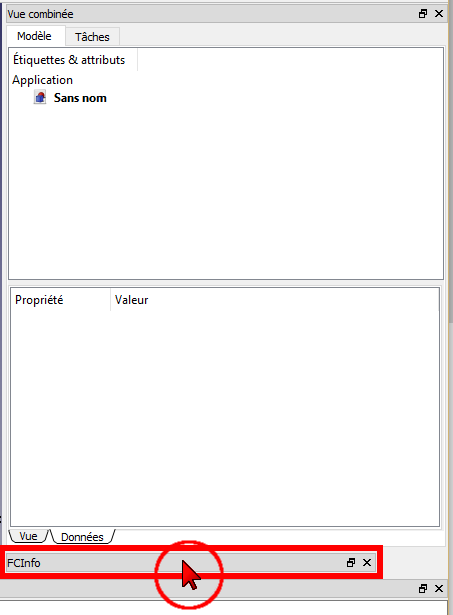
project:
read the file directly in a table. done
matches the "Edges" and their coordinates done
association of a substance to its density
inclination on the element rather than the global object done
inlay right in the interface of FreeCAD done
Version
ver "1.40b" 2026/02/26 : correction save spreadSheet
ver "1.40" 2026/02/26 : section "inertia" totally reworked by RexLinz https://forum.freecad.org/viewtopic.php?p=874981#p874981 thanks RexLinz
ver "1.30d" 2026/02/22 : replace freecadweb by freecad
ver "1.30c" 2025/01/28 : replace connect comboBox for Arch Linux
replace:
QtCore.QObject.connect(self.comboBox_Unit, QtCore.SIGNAL(u"currentIndexChanged(QString)"), self.SIGNAL_comboPoids_Changed)
by:
self.comboBox_Unit.currentTextChanged.connect(self.SIGNAL_comboPoids_Changed)
ver "1.30b" 2025/01/20 : replace the slash Windows "\" by the slash Python "/"
ver "1.30" 2025/01/02 : delete all reference to PySide PySide2 and QtWidgets modify the (Qt) Save file
#
import PySide2
from PySide2 import QtGui , QtCore, QtWidgets
from PySide2.QtWidgets import QComboBox
from PySide2.QtWidgets import QMessageBox
from PySide2.QtWidgets import QTableWidget, QApplication
from PySide2.QtGui import *
from PySide2.QtCore import *
from PySide2.QtWidgets import *

            OpenName, Filter = PySide2.QtWidgets.QFileDialog.getOpenFileName(None, u"Read a txt file", setPathLatestDirectory, "*.FCInfo *.csv *.asc *.txt;;FCInfo (*.FCInfo);;Cvs (*.csv);;Ascii (*.asc);;TXT (*.txt);;(*.*);;(*)")#PySide2
replaced and change command by
#
import PySide
try:
    from PySide import QtWidgets
    from PySide.QtWidgets import *
except Exception:
    None
from PySide import QtGui , QtCore
from PySide.QtGui import *
from PySide.QtCore import *

            OpenName, Filter = QFileDialog.getOpenFileName(None, u"Read a txt file", setPathLatestDirectory, "*.FCInfo *.csv *.asc *.txt;;FCInfo (*.FCInfo);;Cvs (*.csv);;Ascii (*.asc);;TXT (*.txt);;(*.*);;(*)")#PySide
ver "1.29b" 2024/05/10 PySide2 modify Inertia " MatrixX1*uniteM to (MatrixX1*uniteM) " and adding spinBox inertia
ver 1.29 2024/05/06 french version fr PySide6 by sylvainbx https://gist.github.com/sylvainbx/af09a30be3e1427de56305825331fb29 merci sylvainbx
ver 1.28b 1.28c 2023/10/30 orthographe
ver 1.28 01/09/2023 modify variable name, possibility hidden each sector, save data spreadSheet in document, surface radius, add button webWiki and webForum
ver 1.27 2023/06/30 optimize the styleSheet, correct the left/right position and restore view after edition sketcher
self.PB_00_Decrement.setStyleSheet("background-color: white; border:2px solid rgb(215, 10, 22);") # bord white and red
replaced by
self.PB_00_Decrement.setStyleSheet("QPushButton {background-color: white; border:2px solid rgb(215, 10, 22)};") # bord white and red
- ver 1.26c 2022/04/19 upgrade BSpline error with Gear Bspline=Line
- ver 1.26b 20/02/2022 upgrade for detect BSpline in SubObject
- ver 1.26 06/02/2022 add info on Mesh and Points objects, decode colours, duplicate object or subObject, memorize the latest path and other preferences options
- ver 1.25e 18/12/2021 add info detailed to BSpline (ToByArcs) and info "sel[0].TypeId"
- ver 1.25d 12/12/2021 ---
- ver 1.25c 12/12/2021 correct "strAround((" by "str(Around(" and other little ...
- ver 1.25b 11/12/2021 correction error in change/modify new material and reorganization
- ver 1.25 10/12/2021 PySide2 and add comboBox materials
- ver 1.24 02/12/2021 add adjustedGlobalPlacement modified by edwilliams16 for placement with Body, boundbox tracing
- ver 1.23cb 25/11/2021 delete "import Sketcher * " create conflict with "open(OpenName, "r")" ??
Adding
FreeCAD.ActiveDocument.openTransaction(u"FCInfo")    # memorise les actions (avec annuler restore)
FreeCAD.ActiveDocument.commitTransaction()           # restore les actions  (avec annuler restore)
#FreeCAD.ActiveDocument.abortTransaction()           # abandonne les actions(avec annuler restore)
- ver 1.25d, 13/12/2021 little correction material field uncomment the "'try...Except" !!!
- ver 1.25c, 12/12/2021 little correction new material
- ver 1.23b, 20/11/2021 little correction, add text info in beginning run macro, and ordinal the text code
- ver 1.23 , 19/11/2021 include icon in macro, number decimal displayed, text height, configure options in the Preference FC, correct info for elements of sketch in edit mode.
- ver 1.22 , 12/11/2020 : now the macro is totally uninstalled i use :
try:
        self.window.setAttribute(QtCore.Qt.WA_DeleteOnClose, True)    # destroy
        self.window.deleteLater()                                     # destroy
        self.window.destroy()                                         # destroy
except Exception:
        None
How do i exit from FreeCAD instead of Python?
instead:
self.window.hide()
and i adding the possibility display or not the "Error Message" window "False" by default, if you wand activate the warning window go to :
FreeCAD >Menu >Tools >Edit parameters... >BaseApp/Preferences/Macros/FCMmacros/FCInfo > switchWarning
- ver 1.21-3.01 , 07/11/2019 # 07/11/2019 ver "01.21-3-rmu" replace character micro = "U", square = "2", cube = "3", degrees = " deg" see "https://forum.freecad.org/viewtopic.php?f=3&t=6005&start=70#p345819"
- ver 1.21-2.01 (1.21-rmu) 11/06/2019 rmu replace all characters over 127 in ex: "°" in chr(176)) #degree
- ver 1.21.01 (1.21-rmu) 30/05/2019 rmu change fixed positions to qt layouts grid.addWidget() by rmu75 see the rmu75 fork "https://gist.github.com/rmu75/b165147bd1c2f2659c014103793ae1d8"
- ver 1.21 , 16/04/2019 optimization for Py 3... Qt 5... FreeCAD 0.15 to 0.19 release
- ver 1.20 , 29/01/2018 optimization
- ver 1.19 , 20/01/2018 create checkBox for use detection all elements of the object if wanted or not , the macro is faster. Optimisation
- ver 1.18 , 19/12/2017 ...
- ver 1.17c , 14/12/2017 create plane with coordinate give in one project in other project and replace "FCInfo" by "__title__"
- ver 1.17b , 13/12/2017 little correction replace FCTreeView to FCInfo
- ver 1.17 , 12/12/2017 add upgrade Moment of inertia mm and kg by pinq FCMacro and moment of inertia of assembly, and create plane, axis, point, and add options separator for spreadsheet
- ver 1.16 , 21/06/2017 add control height police (here PointSize 8) and checkbox for position the window to right or left
- ver 1.15 , 19/12/2015 suppression PyQt4 option see , add checkBox for editing infos in the Report View
- ver 1.14 , 04/08/2014 replace PyQt4 and PySide and correct tooltip not displayed cause on PySide and add fg
- ver 1.13 , 27/07/2014 replace FCInfo_en_Ver_1-12_Docked.FCMacro to FCInfo_en_Ver_1-13_Docked.FCMacro accept PyQt4 and PySide
- ver 1.12 , 10/03/2014 adding tooltip
- ver 1.11 , 04/03/2014 adding µm, nm, pm, fm, µg, ng, pg, percent, fixed of grandeur carat
"cd"in "ct", display of the label and internal name, fixed calculation of angles XY YZ ZX could give an error on a compound shape, window dockable in FreeCAD - ver 1.10b , 19/11/2013 buttons outside the scrollbar and the dimensions of the window blocking
- ver 1.10 , 18/11/2013 create scrollbar
- ver 1.08b , 10/11/2013 translation units in English, error correction to display the area of the faces listed in the table and replacement of the"print" by "App.Console.PrintMessage"
ver 1.09 , 04/11/2013 works perfectly on Windows and Linux (cause of errors on Linux the characters : ² ³ ° "ordinal not in range(128)")- ver 1.08 , 24/10/2013 correction of high top "Faces" and "Edges" displaying 100 objects (in the saved file)
- ver 1.07 , 11/10/2013 matches the "Faces" and their coordinates.
- ver 1.06 , 22/09/2013 matches the "Edges" and their coordinates, inclination on the element rather than the global object
- ver 1.05 , 17/09/2013 added an icon for the spreadsheet, conversion barrel fr, affichage des dimensions overall instead of coordinates.
- ver 1.04 , 11/09/2013: read the file directly in a table.
- ver 1.03 , 09/09/2013: clearer display in view report and replacement by "typeObject = sel[0].Shape.ShapeType"
- ver 1.02 , 7/09/2013 : small updates
- ver 1.00 , 6/09/2013
Links
See Also:  Arch Survey
You can share your comments on the forum Info Workbench - Help with icons please.
Here another post of FCInfo Macro
This page is retrieved from https://wiki.freecad.org/Macro_FCInfo