|
|
| Description |
|---|
| Visualizza e modifica rapidamente le coordinate di posizionamento di un oggetto selezionato direttamente o tramite espressioni. Macro version: 1.0 Last modified: 01-08-2023 FreeCAD version: Creato e testato in 0.21 Download: Express Placement Author: screeneroner |
| Author |
| screeneroner |
| Download |
| Express Placement |
| Links |
| Macros recipes How to install macros How to customize toolbars |
| Macro Version |
| 1.0 |
| Date last modified |
| 01-08-2023 |
| FreeCAD Version(s) |
| Creato e testato in 0.21 |
| Default shortcut |
| None |
| See also |
| None |
Descrizione
La macro Express Placement è un componente aggiuntivo dell'interfaccia utente grafica di FreeCAD. Consente di modificare rapidamente le coordinate di posizionamento X, Y e Z dell'oggetto attualmente selezionato.
Differenza e benefici
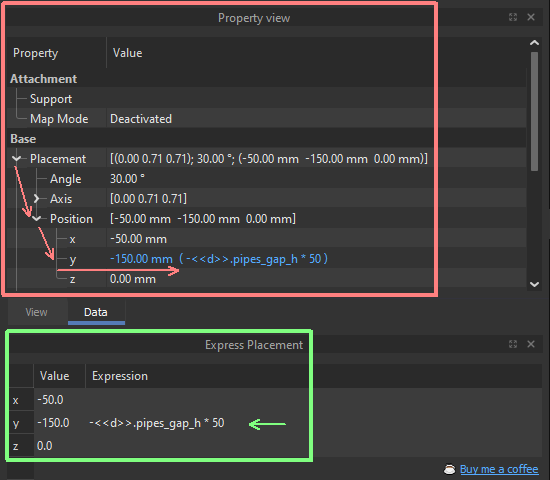
Un doppio clic per modificare il posizionamento degli oggetti invece di quattro clic sequenziali: Si può lavorare 4 volte più velocemente!
Posizionamento standard di FreeCAD (in rosso)
L'editor standard integrato di FreeCAD richiede molti clic del mouse aggiuntivi prima di poter effettivamente iniziare a modificare i parametri, soprattutto quando si utilizzano espressioni parametriche per posizionare l'oggetto:
- Fare clic sulla voce Base/Posizionamento nella vista Proprietà per espandere l'albero Posizionamento.
- Fare clic sul ramo Posizione per espandere i campi delle coordinate X, Y, Z.
- Fare clic sulla coordinata desiderata per rendere visibile l'icona di modifica dell'espressione.
- Fare clic sull'icona di modifica dell'espressione, che è così piccola che potrebbe essere difficile da premere.
In alternativa, premere il tasto = sulla tastiera. Questa operazione potrebbe richiedere anche più tempo rispetto al clic sull'icona.
È necessario ripetere questi clic quando si seleziona un altro oggetto. Ancora e ancora...
Posizionamento Express (in verde)
La macro Express Placement crea un pannello speciale per te. Puoi ancorare questo pannello in qualsiasi posizione adatta. Mostra tre righe con coordinate X, Y e Z. Queste coordinate contengono valori e campi espressione. Sono disponibili per la modifica con un semplice doppio clic.
Installazione
Addon Manager
Trovare Express Placement in FreeCAD Addon Manager e installarlo.
Avvio diretto di Express Placement
Si può scaricare e utilizzare immediatamente il componente aggiuntivo Express Placement in FreeCAD:
- Scaricare il file express-placement.FCMacro e posizionarlo nella cartella User Macros all'interno della cartella di installazione di FreeCAD.
- Eseguirlo direttamente dal menu principale di FreeCADMacro / Macros / Macro utente.
Installazione del pulsante di Express Placement nella barra degli strumenti
Per poter attivare rapidamente la tabella Express Placement, è possibile posizionare un pulsante per eseguire rapidamente questa macro e richiamare la tabella Express Placement:
- Scaricare il file Express Placement.FCMacro e posizionarlo nella cartella User Macros all'interno della cartella di installazione di FreeCAD.
- Selezionare la macro Express Placement nel pannello User Macros, richiamabile dal menu principale di FreeCAD Macro / Macro / Macro utente.
- Premere il pulsante Barra degli strumenti e seguire la finestra di dialogo Guida dettagliata per posizionare il pulsante Express Placement nella posizione desiderata nelle barre degli strumenti di FreeCAD.
Utilizzo
Basta eseguire la macro Express Placement direttamente o tramite il pulsante della barra degli strumenti e si vedrà una nuova finestra delle proprietà agganciata nell'interfaccia utente di FreeCAD. La si può trascinare in qualsiasi punto consentito dell'interfaccia utente e chiuderla quando non serve. La prossima volta che sarà nuovamente necessaria, eseguire la macro o premere nuovamente il pulsante della barra degli strumenti per visualizzare la finestra Express Placement.
Quando si decide di modificare il posizionamento dell'oggetto selezionato, fare doppio clic sulla cella desiderata nella finestra Express Placement e digitare un nuovo valore o modificare quello esistente. Il nuovo valore verrà inserito direttamente nel modello.
Se si ritiene utile questo componente aggiuntivo e si ritiene che valga la pena offrirmi un paio di tazze di caffè triple in riconoscimento del mio lavoro, si può farlo in qualsiasi momento tramite ☕ Offrimi un caffè
Script
Cliccare qui per mostrare/nascondere il codice sorgente dell'Addon.
# -*- coding: utf-8 -*-
__Name__ = "Express Placement"
__Comment__ = "FreeCAD GUI addon that allow quick editing X,Y,Z coordinates of the selected object"
__Author__ = "screeneroner"
__Version__ = "1.0"
__Date__ = "2023-08-01"
__License__ = "GPL-3.0"
__Web__ = "https://wiki.freecad.org/Macro_Express_Placement"
__Wiki__ = "https://wiki.freecad.org/Macro_Express_Placement"
__Icon__ = "https://wiki.freecad.org/images/8/8f/Std_AxisCross_example.svg"
__Help__ = "Display and quickly edit selected object placement coordinates directly or via expressions"
__Status__ = "Working"
__Requires__ = "FreeCAD >= 0.19"
__Communication__ = "https://forum.freecad.org/memberlist.php?mode=viewprofile&u=60629"
#~~~~~~~~~~~~~~~~~~~~~~~~~~~~~~~~~~~~~~~~~~~~~~~~~~~~~~~~~~~~~~~~~~~~~~~~~~~~~~~~~~~~~


''' ~~~~~~~~~~~~~~~~~~~~~~~~~~~~~~~~~~~~~~~~~~~~~~~~~~~~~~~~~~~~~~~~~~~~~~~~~~~~~~~~~~~~~~~~~~~~~~~~~~~~~~
This macro is free software: you can redistribute it and/or modify it under the terms of the
version 3 GNU General Public License as published by the Free Software Foundation.

This program is distributed in the hope that it will be useful, but WITHOUT ANY WARRANTY without even
the implied warranty of MERCHANTABILITY or FITNESS FOR A PARTICULAR PURPOSE.
See the GNU General Public License for more details (https://www.gnu.org/licenses/gpl-3.0.html)

WARNING TO USERS AND MODIFIERS

This script contains "Buy me a coffee" links to honor the author's hard work and dedication in creating
all the features present in this code. Removing or altering these links not only violates the GPL license
but also disregards the significant effort put into making this script valuable for the community.

If you find value in this script and would like to show appreciation to the author,
kindly consider visiting the site below and treating the author to a few cups of coffee:
                           https://www.buymeacoffee.com/screeneroner
Your honor and gratitude is greatly appreciated.
~~~~~~~~~~~~~~~~~~~~~~~~~~~~~~~~~~~~~~~~~~~~~~~~~~~~~~~~~~~~~~~~~~~~~~~~~~~~~~~~~~~~~~~~~~~~~~~~~~~~~~ '''


import FreeCADGui as Gui
import FreeCAD as App
from PySide import QtGui, QtCore

# Define a function to create and display a table
def create_table():
    # Function to update the table with the selected object's data
    def update_table_with_selected_object():
        # Clear the table first
        clear_table()

        # Get the selected objects
        selection = Gui.Selection.getSelection()
        # If there's exactly one selected object
        if len(selection) == 1:
            selected_obj = selection[0]
            selected_object = selected_obj
            # Ensure the object isn't a spreadsheet
            if str(selected_obj.TypeId) != "Spreadsheet::Sheet":
                # Populate the table with the object's placement data
                populate_table_with_placement(selected_obj)
                # Store the selected object on the table widget
                table_widget.selected_object = selected_obj

    # Function to populate the table with an object's placement data
    def populate_table_with_placement(selected_obj):
        # Clear the table first
        clear_table()

        # Get the object's placement
        placement = selected_obj.Placement
        # Update each row of the table with the object's placement data
        for row in range(3):  # Limit to 3 instead of row_count
            value_widget = QtGui.QTableWidgetItem()
            value_widget.setText(str(getattr(placement.Base, ["x", "y", "z"][row])))
            table_widget.setItem(row, 0, value_widget)

        # Get the object's properties
        properties_list = selected_obj.ExpressionEngine
        # If the object has properties
        if properties_list is not None:
            # For each property that involves placement
            for prop in properties_list:
                if prop[0] in [".Placement.Base.x", ".Placement.Base.y", ".Placement.Base.z"]:
                    # Get the attribute's name
                    attribute = prop[0].split(".")[-1]
                    # Set the corresponding cell's value
                    expression_label = QtGui.QTableWidgetItem()
                    expression_label.setText(prop[1])
                    table_widget.setItem(["x", "y", "z"].index(attribute), 1, expression_label)

        # Add the new row with the support data
        support_label_widget = QtGui.QLabel(" ")
        support_link_widget = QtGui.QLabel( u'\u2615' + '  <a href="https://www.buymeacoffee.com/screeneroner">Buy me a coffee</a>  ')
        support_link_widget.setAlignment(QtCore.Qt.AlignRight | QtCore.Qt.AlignVCenter)
        support_link_widget.setTextFormat(QtCore.Qt.RichText)
        support_link_widget.setTextInteractionFlags(QtCore.Qt.TextBrowserInteraction)
        support_link_widget.setOpenExternalLinks(True)

        table_widget.setCellWidget(3, 0, support_label_widget)
        table_widget.setCellWidget(3, 1, support_link_widget)

        # Adjust the height of each row
        header = table_widget.horizontalHeader()
        header.setFixedHeight(24)
        for row in range(row_count):
            table_widget.setRowHeight(row, 18)


    # Function to clear the table
    def clear_table():
        for row in range(row_count):
            for col in range(column_count):
                table_widget.takeItem(row, col)

    # Function to update the selected object's placement values based on edits to the table
    def update_values(row):
        item = table_widget.item(row, 0)
        if item is not None:
            # Get the edited text
            edited_text = item.text()
            # Get the label of the value that was edited
            value_label = ["x", "y", "z"][row]
            # Get the selected object
            selected_obj = table_widget.selected_object
            # Get the object's placement
            placement = selected_obj.Placement

            # If the edited text is not empty
            if edited_text != "":
                try:
                    # Try to convert the edited text to a float
                    edited_value = float(edited_text)
                    # Update the corresponding placement value
                    if value_label == "x":
                        placement.Base.x = edited_value
                    elif value_label == "y":
                        placement.Base.y = edited_value
                    elif value_label == "z":
                        placement.Base.z = edited_value
                except ValueError:
                    # If the text can't be converted to a float, print an error message
                    print("Invalid value entered. The value must be a valid number.")

                # Update the object's placement
                selected_obj.Placement = placement

                # Recompute the document to reflect the changes
                App.ActiveDocument.recompute()
                # print(f"Updated value: {edited_value} in row {row}, column 0")

                # Reselect the object to refresh the table data
                reselect_object(selected_obj)

    # Function to update the selected object's expression values based on edits to the table
    def update_expression(row):
        item = table_widget.item(row, 1)
        if item is not None:
            # Get the edited text
            edited_text = item.text()
            # Get the label of the expression that was edited
            expression_label = ["x", "y", "z"][row]
            # Get the selected object
            selected_obj = table_widget.selected_object
            # Get the attribute's name
            attribute = f".Placement.Base.{expression_label}"

            # Update the attribute's expression
            selected_obj.setExpression(attribute, edited_text if edited_text != "" else None)

            # Recompute the document to reflect the changes
            App.ActiveDocument.recompute()
            # print(f"Updated expression: {edited_text} in row {row}, column 1")

            # Reselect the object to refresh the table data
            reselect_object(selected_obj)

    # Function to reselect an object
    def reselect_object(selected_obj):
        # Clear the current selection
        Gui.Selection.clearSelection()
        # Add the selected object to the selection
        Gui.Selection.addSelection(selected_obj)

    # Define the table's dimensions
    row_count = 4
    column_count = 2

    # Create the table widget
    table_widget = QtGui.QTableWidget(row_count, column_count)
    table_widget.setHorizontalHeaderLabels(["Value", "Expression"])
    table_widget.setVerticalHeaderLabels(["x", "y", "z", " "])

    # Left align the headers
    header = table_widget.horizontalHeader()
    header.setDefaultAlignment(QtCore.Qt.AlignLeft)

    # Adjust columns to contents
    table_widget.setSizeAdjustPolicy(QtGui.QAbstractScrollArea.AdjustToContents)
    table_widget.resizeColumnsToContents()
    table_widget.resizeRowsToContents()

    table_widget.setShowGrid(False)

    # Assign a delegate to handle cell edits
    delegate = QtGui.QItemDelegate()
    table_widget.setItemDelegate(delegate)

    # Connect signals to handle cell edits
    delegate.commitData.connect(lambda: update_values(table_widget.currentRow()) if table_widget.currentColumn() == 0 else None)
    delegate.closeEditor.connect(
        lambda: update_expression(table_widget.currentRow()) if table_widget.currentColumn() == 1 else None
    )

    # Define a class to observe selection changes
    class SelectionObserver:
        # When an object is selected, update the table
        def addSelection(self, doc, obj, sub, pnt):
            update_table_with_selected_object()

        # When an object is deselected, update the table
        def removeSelection(self, doc, obj, sub):
            update_table_with_selected_object()

    # Create an instance of the observer class
    selection_observer = SelectionObserver()
    # Add the observer to the selection
    Gui.Selection.addObserver(selection_observer)

    # Update the table with the currently selected object's data
    update_table_with_selected_object()

    # Make the last column stretch to fill the remaining space
    table_widget.horizontalHeader().setStretchLastSection(True)

    # Get the main window
    mainWindow = Gui.getMainWindow()

    # Check if the dock widget already exists
    dock_widget = mainWindow.findChild(QtGui.QDockWidget, "ExpressPlacementWidget")

    # If the dock widget does not exist, create it
    if dock_widget is None:
        dock_widget = QtGui.QDockWidget("Express Placement")
        dock_widget.setObjectName("ExpressPlacementWidget")  # Assign an object name to the dock widget
        mainWindow.addDockWidget(QtCore.Qt.LeftDockWidgetArea, dock_widget)

    # Set the dock widget's widget to the table
    dock_widget.setWidget(table_widget)
    # Make sure the dock widget is visible
    dock_widget.setVisible(True)

# Create and display the table
create_table()
Questa pagina è recuperata da https://wiki.freecad.org/Macro_Express_Placement