


|
|
| Menu location |
|---|
| Drafting → Hatch Annotation → Hatch |
| Workbenches |
| Draft, BIM |
| Default shortcut |
| H A |
| Introduced in version |
| 0.20 |
| See also |
| Draft Pattern |
Описание
The  Draft Hatch command creates hatches on the planar faces of a selected object.
Usage
- Select an object with faces. Only the planar faces of the object will be hatched.
- There are several ways to invoke the command:
- The Hatch task panel opens. See Options for more information.
- Press the OK button to finish the command.
Options
- Press the ... button to select a PAT file. See Notes.
- Select a Pattern from the file.
- Specify a Scale for the pattern.
- Specify a Rotation for the pattern.
- Press Esc or the Cancel button to abort the command.
Pattern alignment
When the hatch pattern for a face is calculated it is temporarily translated to the global XY plane by default. For a face with straight edges the first straight edge determines how this happens. The first point of that edge is put on the origin, and the edge itself is aligned with the X-axis. If you create Draft Wires with that in mind you can control how the hatch pattern is aligned with the outline of the face.
If all faces of the selected object are on the global XY plane you can switch off this default behavior by setting the ДанныеTranslate property of the Draft Hatch to false. The hatch pattern is then aligned with the origin and the X axis of the global coordinate system. For faces on the XY plane with straight edges the ДанныеTranslate property can be used to switch between absolute (on the left in the image) and relative (on the right in the image) patterns.
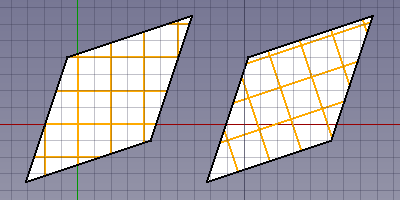
Two Draft Wires with hatches.
The wires were created in a CCW direction starting from the bottom left point.
For the Draft Hatch on the left the Translate property is set to false.
For the Draft Hatch on the right it is set to true.
Relative file path
It is possible to specify a relative path for the PAT file. For this the FreeCAD document must have been saved at least once. See Draft ShapeString for some examples.
Notes
- For now the advice is to download a PAT file. Many can be found online. You can for example do a web search for acad.pat or acadiso.pat.
- A small PAT file is installed with FreeCAD: <program_folder>/data/Mod/TechDraw/PAT/FCPAT.pat, where <program_folder> is the FreeCAD program folder:
- On Linux it is usually /usr/share/freecad.
- On Windows it is usually C:\Program Files\FreeCAD.
- On macOS it is usually /Applications/FreeCAD.
- 1.0 and below: Patterns with dashed lines are not handled properly.
Properties
See also: Property View.
A Draft Hatch object is derived from a Part Feature object and inherits all its properties. It also has the following additional properties:
Data
Hatch
- ДанныеBase (
Link): specifies the object whose faces are hatched. - ДанныеFile (
File): specifies the PAT file. - ДанныеPattern (
String): specifies the pattern name. - ДанныеRotation (
Angle): specifies the rotation of the pattern. - ДанныеScale (
Float): specifies the scale of the pattern. - ДанныеTranslate (
Bool): specifies if the faces are temporarily translated to the global XY plane during the hatching process. Setting it tofalsemay give wrong results for non-XY faces.
Scripting
See also: Autogenerated API documentation and FreeCAD Scripting Basics.
To create a Draft Hatch use the make_hatch method of the Draft module.
hatch = make_hatch(baseobject, filename, pattern, scale, rotation)
Example:
import FreeCAD as App
import Draft

doc = App.newDocument()

rectangle = Draft.make_rectangle(4000, 1000)
rectangle.MakeFace = True
filename = App.getHomePath() + "data/Mod/TechDraw/PAT/FCPAT.pat"
pattern = "Horizontal5"
hatch = Draft.make_hatch(rectangle, filename, pattern, scale=50, rotation=45)

doc.recompute()
Эта страница получена от https://wiki.freecad.org/Draft_Hatch