Foreword
FreeCAD uses Git to manage its source code. This document is a cursory introduction to GitKraken, a graphical user interface to Git. GitKraken is proprietary software that is free to use for non-commercial use; you don't need GitKraken to develop code for FreeCAD but many developers like it, and find it useful to manage their development. FreeCAD doesn't endorse GitKraken but we hope a guide like this one shows users how easy it is to set up the development environment and encourages more people to contribute.
For more information on general Git usage from the command line see Source code management, and the online Pro Git book. To compile FreeCAD see Compiling.
Introduction
Git is a powerful revision control system commonly used to track computer code development. Although it is a complex system, you usually only need some background information on how it works, and to know a few terminal commands. A graphical user interface (GUI) eases the learning curve. GitKraken is a proprietary program that is free to use for non-commercial use that runs on the Electron framework, which means it is cross platform and can be used the same in Linux, MacOS, and Windows.
Setting up Git development
There are different ways to download GitKraken depending on your operating system. In Linux distributions, sometimes you can get it from the package manager.
- Download GitKraken.
- In your web browser go to:
https://github.com/FreeCAD/FreeCAD.

- Click the Fork button. This will clone the
FreeCAD/FreeCADrepository to your own account. In other words the URL to access your fork will be:https://github.com/GITHUBUSERNAME/FreeCAD.git
- Open GitKraken, go to File → Clone Repo, and enter this address.
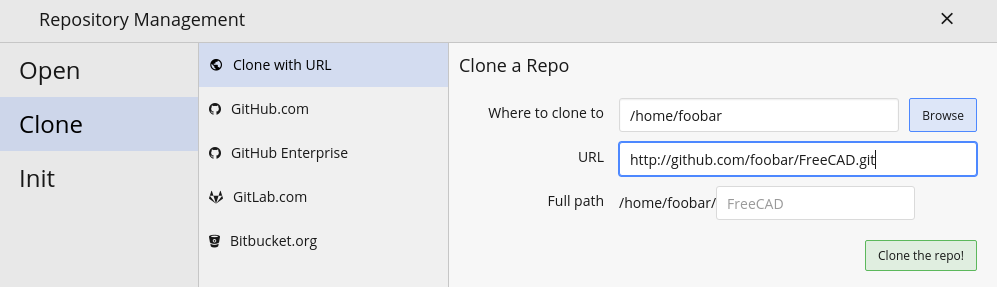
- GitKraken will now
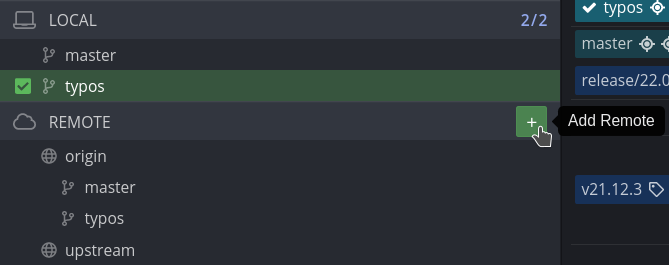
git cloneyour personal repository. Please read the difference between origin vs. upstream remote repository. Essentially, your fork of FreeCAD is theoriginrepository, while the official FreeCAD repository isupstream. You now need to set the upstream accordingly. - Locate the sidebar in Gitkraken. There is a Local and Remote section. Local refers to your local branches. Remote refers to remote repositories and their branches. Lets add the FreeCAD repo as a remote. In the Remote section click the + (as illustrated in the image below).
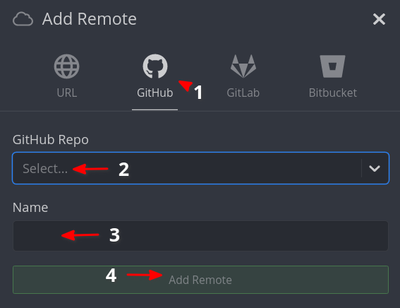
- An Add Remote dialog will open. Click the Github symbol (1). In the Github repo field (2) find the
FreeCAD/FreeCADand click on it. In the Name field, typeupstream. Then click the Add Button.
- The dialog will close and switch back to GitKraken main interface. This time find the Local section in the sidebar; double click on the
masterbranch so you switch to it. In the command line, this is equivalent togit checkout master
- Click on the Push icon on the top right side of the interface. This will push your Local master to your Remote origin master
The GitKraken interface
For more information consult the GitKraken Getting started guide.
| Local master | Your local branch of the FreeCAD master branch, indicated by the blue line in the screenshot.
The item is highlighted in green, meaning that the branch is currently active ( |
| Local <branch-name> | Any other branches on your local machine. In the screenshot you can see branches called editor_fixes and editor_fixes_typos
|
| Remote upstream | The official FreeCAD repository https://github.com/FreeCAD/FreeCAD, indicated by the green line in the screenshot.
|
| Remote origin | Your personal fork of FreeCAD, https://github.com/YourGitHubUsername/FreeCAD, indicated by the red line in the screenshot.
|
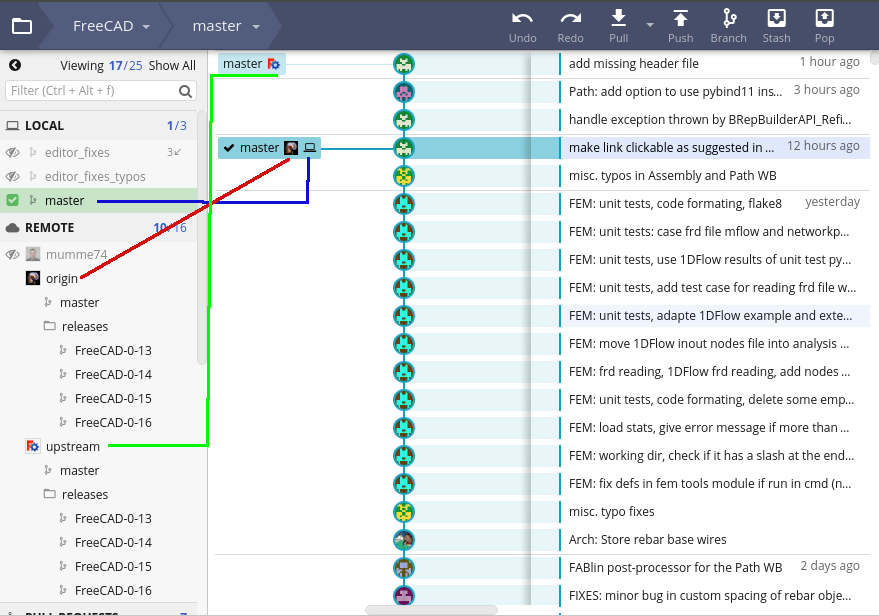
GitKraken interface showing three local branches including a local master, and remote origin and upstream repositories, each of which have a master and release branches.
In the image, the remote the Local master and Remote origin master branches are three commits behind the Remote upstream master, that is, the official FreeCAD source code. This is indicated by the icons being three steps behind in the chain that represents the commit history of the master branch. See Rebasing to update the branches that are behind.
Rebasing
- Checkout the Local master branch by double clicking on it (
git checkout master) - Move the mouse to the last upstream commit, right click, and choose Rebase master onto upstream/master (
git pull upstream master) - Now press the Push button (
git push origin master). This pushes from your Local master to the Remote origin master.
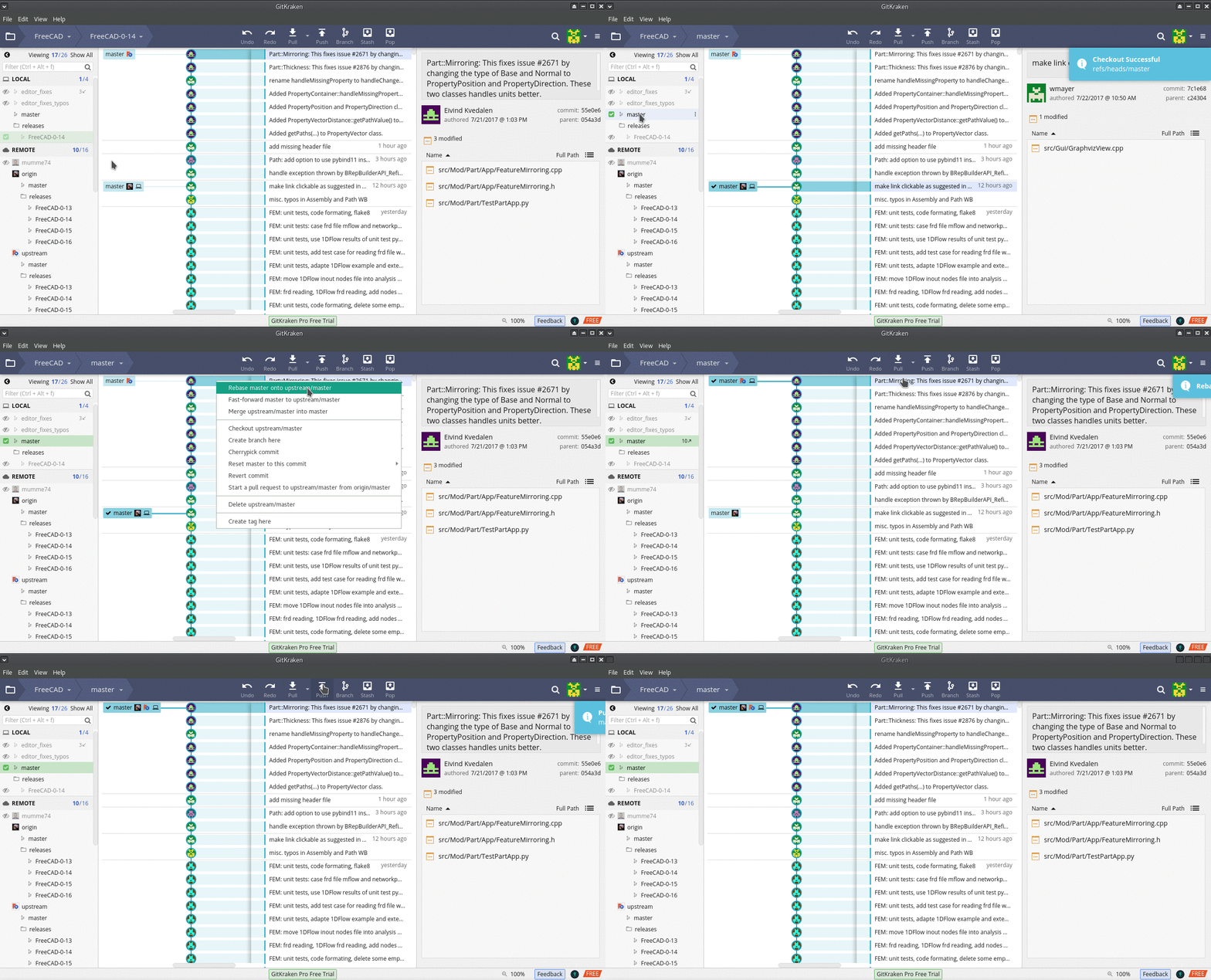
Rebasing a local master updates it so that it matches the contents of the upstream master.
Branches
Branches are a feature that makes Git powerful compared to other revision systems. Branches aren't complete forks, but rather define snapshots where a version of the code starts diverging from the master branch. Whenever you want to modify the FreeCAD code, first create a branch, then make changes, and then merge your commits back to the master branch. With Git it is simple to create, merge and delete branches when you no longer need them. Please read Branching and Merging to understand more about this process in GitKraken.
- Make sure you currently have the master branch active (double click on it,
git checkout master). In GitKraken the Local master branch should be highlighted in green. - Click the Branch button to create a new branch and enter its new name (
git checkout -b new-name-of-your-branch).
Making pull requests
Pull requests (PRs) are necessary to merge the code in a branch in your local repository with the code in the upstream repository. To summarize the process, once you've modified your branch, you need to push it to your GitHub fork (origin, https://github.com/GITHUBUSERNAME/FreeCAD.git), and from there make a pull request to upstream. GitKraken saves you some clicks to easily create pull requests instead of using GitHub's interface.
Steps in GitKraken:
- Find you local branch on the interface and make sure it's active (double click on it).
- Right click the branch name and find the option to Push <your-branch-name> and start a pull request.
- GitKraken will open a dialog that asks you to confirm the repository which your branch will use to pull and push. It will then push your local branch to that remote repository.
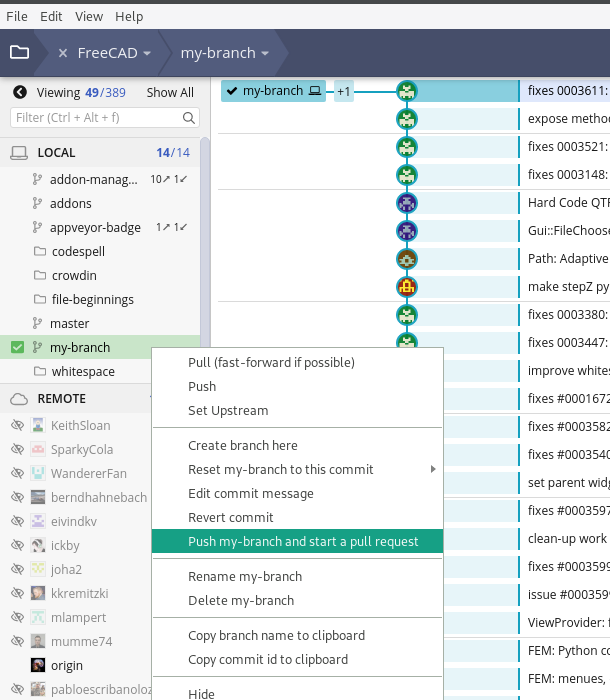
- GitKraken will ask you what you want to call the remote branch. The default name is the same name that the branch has locally in your computer.

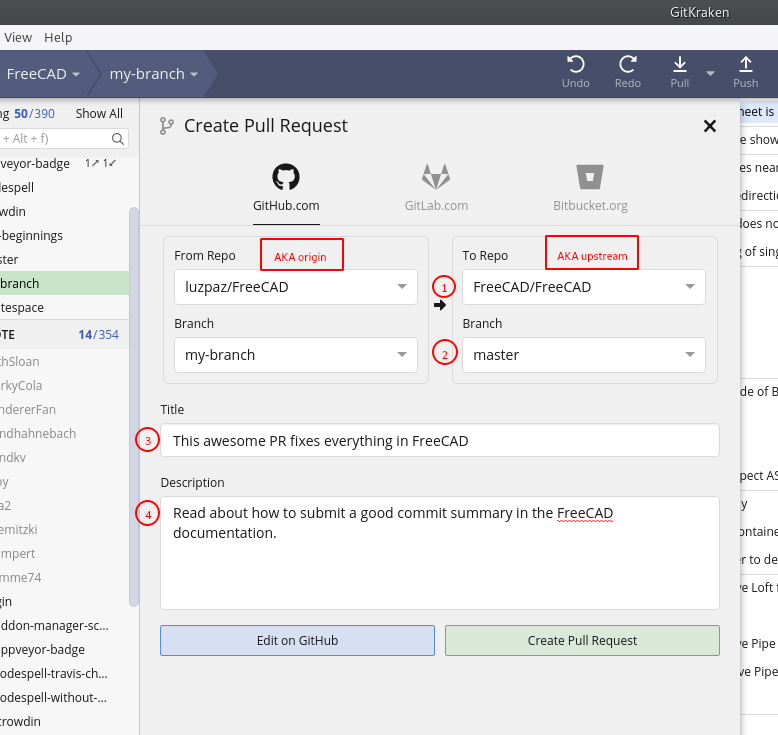
- GitKraken then opens up another dialog asking the repositories and branches to merge, and the direction (from and to).
- You normally want to merge from the remote origin <your-branch-name> (
GITHUBUSERNAME/FreeCAD) to the remote upstream master branch (FreeCAD/FreeCAD). Be sure to enter a good title for the pull request, and write a more descriptive paragraph if your changes are significant. Consult the official documentation of GitKraken for more information.
Resolving merge conflicts
GitKraken has a special merge conflict tool that is only accessible in the GitKraken Pro version. However, there are workarounds to use external tools for merging.
- GitKraken compatible external merge tools: Beyond Compare, FileMerge, Kaleidoscope, KDiff, Araxis, P4Merge
- If none of the above options work for you, it's possible to specify External merge and diff tools within the configuration file
~/.gitconfigin your user's home directory.
Squashing commits
As a revision control system Git encourages making many commits to keep track of your changes; however, if you have too many small changes the commit history may look a bit messy. Squashing is condensing various commits into only one commit. From the GitKraken manual, squashing is available for commits that meet the following requirements:
- You need to select at least two commits to squash.
- The youngest commit, by commit date, is also the current HEAD commit.
- Genealogically consecutive.
- Chronologically consecutive.
- The oldest commit in the list has a parent.
If all these conditions are met, the Squash option appears when you right click the commit node. See Squash.gif

Following other FreeCAD repositories
You can use GitKraken to follow the personal FreeCAD forks of other developers; in this way you can see how they write code and commit changes to their own branches before they submit pull requests to the upstream FreeCAD/FreeCAD repository.
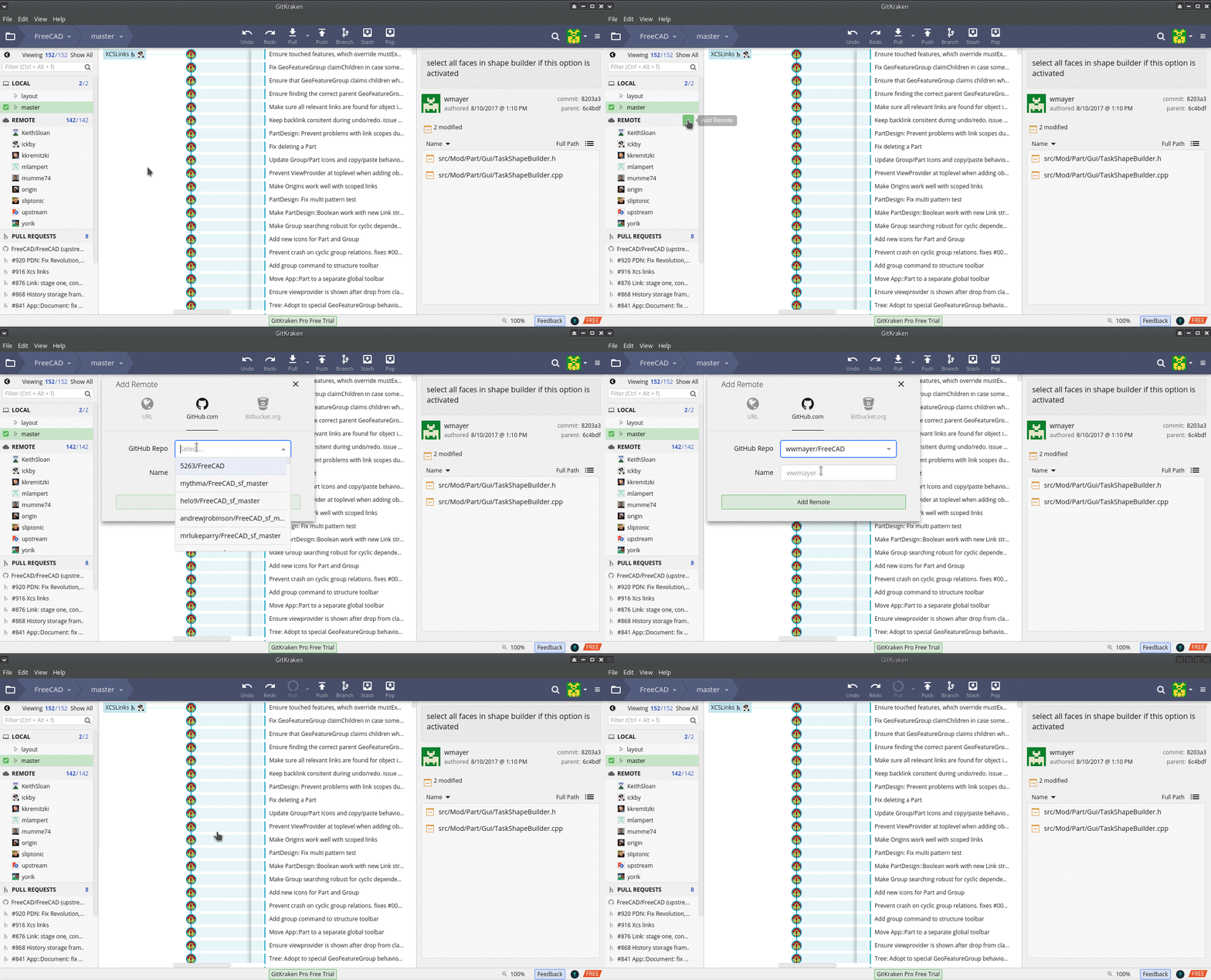
- In the left side panel next to the Remote category, press the + sign.
- A dialogue will come up to enter the name of the repository that you want to add. Recommended remotes are from the main FreeCAD developers and known contributors: wmayer, yorikvanhavre, ickby, sliptonic, kkremitzki, etc.
- Press Add Remote.
Now whenever new commits are made, or branches are rebased, by the authors of those repositories, you will see their commit history in a graphical way.
Related
This page is retrieved from https://wiki.freecad.org/Developing_FreeCAD_with_GitKraken