Here are techniques to reduce disk space required for building FreeCAD on Windows. This may be of use to those, who are limited on disk space (for example, because of an SSD), and for those, who want to avoid installing complete Visual Studio.
It is recommended that you know on practice, how to Compile on Windows with Qt Creator, before attempting this.
Setting up MSVC2013 compiler without installing Visual Studio
Requirements:
- another computer where complete Visual Studio is/can be installed (in theory, this can be achieved by unpacking VS installers, but there is no instructions about this here)
Getting the compiler
0. In order to get the compiler files, go to another computer and locate the actual compiler. Example of path to compiler: drive:\path\to\visual\studio\VC\bin.
1. Copy the compiler binaries and standard libraries to another computer. That is, copy the following folders to C:\Qt\msvc12rip:
- drive:\path\to\visual\studio\VC\bin
- drive:\path\to\visual\studio\VC\lib
- drive:\path\to\visual\studio\VC\include
2. Install Windows SDK. For those who don't know, it is a set of headers, libs and tools to compile Windows programs. Note, where it is installed to. Example path: C:\Program Files (x86)\Windows Kits\8.1
3. Install CMake and Qt creator (just the creator, i.e. the environment, not the actual Qt, to save space).
4. Set up a custom compiler in Qt Creator. Read on to see how.
Compiler in Qt Creator
32-bit
Setting the compiler for 32 bit is quite straightforward.
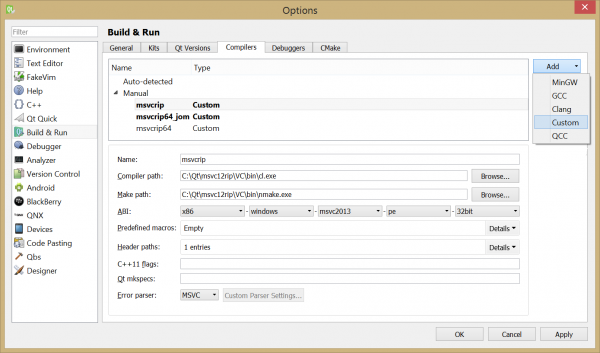
4.1. Set up the compiler under Compilers tab in settings: Add a custom compiler:
- Name = msvcrip (the name doesn't matter, it is up to you)
- Compiler path: C:\Qt\msvc12rip\VC\bin\cl.exe
- Make path: C:\Qt\msvc12rip\VC\bin\nmake.exe
- ABI: x86-windows-msvc2013-pe-32bit
- Header paths - nothing
- Error parser: MSVC
4.2. Under kits tab, I added a kit, and set it up like this:
- Name: FreeCAD32 (again, up to you)
- Device type: Desktop
- Device: Local PC
- Compiler: msvcrip (or whatever you named it in step 1)
- Environment: (correct the paths to your setup)
INCLUDE=C:\Program Files (x86)\Windows Kits\8.1\Include\um\;C:\Qt\msvc12rip\VC\include\
LIB=C:\Qt\msvc12rip\VC\lib\;C:\Program Files (x86)\Windows Kits\8.1\Lib\winv6.3\um\x86\
LIBPATH=C:\Qt\msvc12rip\VC\lib\;C:\Program Files (x86)\Windows Kits\8.1\Lib\winv6.3\um\x86\
PATH=C:\Qt\msvc12rip\VC\bin\;C:\Program Files (x86)\Windows Kits\8.1\bin\x86\;C:\Qt\git\bin\
Note the path to git.exe in PATH. It is optional, but if not specified, the version info will be incomplete in FreeCAD's About.
- Debugger: (optional) set to 32-bit (x86)
- Qt version: None
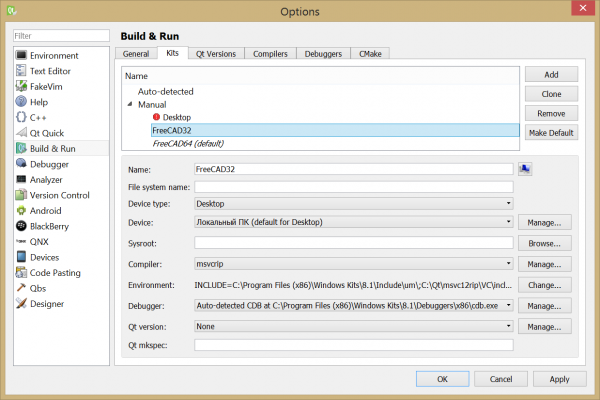
The environment part of the settings took me the most trouble to configure.
64-bit
This is a little bit more tricky than 32-bit compiler. The main problem was that there is no nmake executable in C:\Qt\msvc12rip\VC\bin\x86_amd64, and nmake keeps using the 32-bit compiler. To counter the problem, create a special folder "C:\Qt\msvc12rip\VC\bin\x86_amd64_sa", where mnake and 64-bit cl are combined. Read on for step-by-step instructions.
4.1. in C:\Qt\msvc12rip\VC\bin, create a folder named x86_amd64_sa (sa stands for Stand-Alone, use whatever name you like).
4.2. copy contents of folder C:\Qt\msvc12rip\VC\bin into x86_amd64_sa folder (now you have a 32-bit compiler there).
4.3. copy contents of folder x86_amd64 into x86_amd64_sa, replacing files in the process. Now you have a 64bit compiler with nmake there.
4.4. Set up the compiler under Compilers tab in settings: Add a custom compiler:
- Name = msvcrip64 (the name doesn't matter, it is up to you)
- Compiler path: C:\Qt\msvc12rip\VC\bin\x86_amd64_sa\cl.exe
- Make path: C:\Qt\msvc12rip\VC\bin\x86_amd64_sa\nmake.exe
- ABI: x86-windows-msvc2013-pe-64bit
- Header paths - nothing
- Error parser: MSVC
4.5. Under kits tab, add a kit, and set it up like this:
- Name: FreeCAD64 (again, up to you)
- Device type: Desktop
- Device: Local PC
- Compiler: msvcrip64 (or whatever you named it in step 4.4)
- Environment: (correct the paths to your setup) (compared to 32-bit, amd64/x64 has appeared or has replaced x86 in several places)
INCLUDE=C:\Program Files (x86)\Windows Kits\8.1\include\shared\;C:\Program Files (x86)\Windows Kits\8.1\include\um\;C:\Qt\msvc12rip\VC\include
LIB=C:\Program Files (x86)\Windows Kits\8.1\lib\winv6.3\um\x64\;C:\Qt\msvc12rip\VC\lib\amd64\
LIBPATH=C:\Program Files (x86)\Windows Kits\8.1\References\CommonConfiguration\Neutral\
PATH=C:\Qt\msvc12rip\VC\bin\x86_amd64_sa\;C:\Program Files (x86)\Windows Kits\8.1\bin\x64\;C:\Qt\git\bin\
Note the path to git.exe in PATH. It is optional, but if not specified, the version info will be incomplete in FreeCAD's About.
- Debugger: (optional) set to 64-bit (x64)
- Qt version: None
Tip: set up another kit+compiler pair for using jom instead of nmake, to enable multicore build. The configuration is identical to 64-bit with nmake, except that Make in compiler tab should point to jom.exe. Example path to jom: C:\Qt\Qt542\Tools\QtCreator\bin\jom.exe (you should be able to find jom under where your Qt creator is installed).
All the rest is identical to the normal way one would compile FreeCAD.
Testing compiler and building FreeCAD
Requirements:
- FreeCAD source code (see Compile on Windows)
- Correct libpack, extracted. ("correct" means that it has to match the compiler and bit-ness) (see Compile on Windows)
Open FreeCAD (CMakeLists.txt) with Qt creator, and it will invite you to run cmake. Run it. CMake will build a test program, to see if the compiler works. If the compiler doesn't work, it will show an error telling exactly that, and listing the build output. The build output should help you identify, what's going wrong. Here is a small list of typical errors:
- Can't open Kernel32.lib - something's wrong with LIB or LIBPATH environment variables (note: they set under kits tab in Qt, not in windows!).
- Can't resolve external symbol - something's wring with LIB or LIBPATH (they probably point to .lib-s of wrong bit-ness).
- Manifest-related error - PATH does not point to a location where a resource compiler (rc.exe) of right bit-ness is located.
- Can't locate include - the include location list should contain path to standard headers (C:\Qt\msvc12rip\VC\include on my machine).
To run FreeCAD built with type "Debug", debug versions of MSVC2013 redistributable libraries (msvcp120d.dll, msvcr120d.dll) must be present somewhere reacheable through PATH (system-wide, this time).
You can obtain these dlls from the other computer that has the Visual Studio you ripped the compiler off. Alternatively, these dlls can be extracted from visual studio installer directly, which is very easy:
- mount the downloaded .iso image as a disk (drive D: on my system)
- locate the files:
- D:\packages\vc_librarycore86\cab3.cab/F_REDIST_DLL_APPLOCAL_msvcp120d_x64 (<- or x86, if you are building 32-bit)
- D:\packages\vc_librarycore86\cab3.cab/F_REDIST_DLL_APPLOCAL_msvcr120d_x64
- extract the files, and name them "msvcp120d.dll", "msvcr120d.dll"
- copy the files to libpack folder, into bin
Avoiding copying any libpack files to launch FreeCAD
Requirements:
- Windows Vista and later
- NTFS file system (? maybe not...)
The idea is very simple: instead of copying files - make links. On Windows, symbolic links are available for the purpose. A link makes the linked file appear to be where the link is, but the file is actually stored somewhere else. Links can be made using batch command mklink.
Since there are way too many files to make links manually, a batch script should be used. Here is an example of such a script:
links_libpack.bat:
@set libpackpath=C:\_vt\dev\PC\Qt\FreeCAD\libpack\active
@set builddir=%1
pushd %libpackpath%\bin
for %%i in (*) do mklink "%builddir%\bin\%%i" "%libpackpath%\bin\%%i"
for /D %%s in (*) do mklink /d "%builddir%\bin\%%s" "%libpackpath%\bin\%%s"
popd
pause
First for loop creates links to files, the second loop - links to folders.
You'll have to modify the path to libpack to match yours. Use absolute paths. Then, feed FreeCAD build folder path (full path!) to the script as an argument.
This batch must be run with administrator privileges (or, you can set to allow users use mklink in local security policy settings in Windows). The batch may fail, if there are spaces in paths (it may work, but it is untested). Tip: create a shortcut to links_libpack.bat, set it up to run as admin (in shortcut properties), and drag the build folder onto the shortcut.
This page is retrieved from https://wiki.freecad.org/CompileOnWindows_-_Reducing_Disk_Footprint