


|
|
| Menu location |
|---|
| CAM → Slot |
| Workbenches |
| CAM |
| Default shortcut |
| None |
| Introduced in version |
| 0.19 |
| See also |
| None |
Description
The  CAM Slot command creates a simple slotting operation using various methods of input.
Inputs include:
- selecting one or more faces or edges.
- selecting two vertices.
- entering two custom points.
The CAM Slot object is made to be part of a  CAM Job.
Usage
- Select the reference geometry on the model:
- one or more faces or edges.
- two vertices.
- nothing to use two custom points entered in the Property View of the Data tab: Custom Point1 and Custom Point2.
- Invoke the Slot command using several methods:
- Adjust the desired properties. Descriptions of available properties are found below.
Usage Notes
- All slots:
- Both the beginning and end of a slot path can be extended or shortened. Use the `Extend Path Start` and `Extend Path End` properties.
- Use the `Layer Mode` property to cut the slot in `Single-pass` mode at final depth, or in `Multi-pass` mode using the available `Step Down` property.
- Toggle the `Reverse Direction` property to reverse the direction of the cut path.
- Linear slots:
- Currently there is no capability to offset linear slots laterally (parallel to path of travel). Example: Say you have a tool diameter smaller than the width of the slot area you are clearing. Current behavior of this operation is to create a set of paths on a plane down the center-line of the designated slot, which will result in the slot volume not being fully cleared. Some users would want the operation to create multiple paths that are offset laterally to clear the entire slot area; this not directly possible, though can be achieved through using "Custom Points", see "Vertical face milling" below. Alternatively use the Pocket operation for such clearing.
- Create a custom linear slot using the `Custom Point1` and `Custom Point2` properties with no geometry selection. Example: Initiate a Slot operation in the GUI and click `OK` to save. Now locate and edit the `Custom Point1` and `Custom Point2` properties in the Data tab of the newly created Slot operation. Recompute the operation to update the path.
- Vertical face milling:
- Most of the CAM tools cannot make a path on a single vertical plane since the projection onto horizontal plane has zero area (an internal limitation). The Slot operation makes this possible by selecting "Custom points" which define a line parallel to the vertical plane and suitable Depth parameters.
- Arc/Circular slots:
- Creating arc/circular slots
- You will need to select one bottom arc of the slot. This will produce a path directly on the arc edge you selected.
- You will then need to edit the `Extend Radius` property in the Data tab of the operation. Using the expression editor, set it to either `OpToolDiameter / 2.0` or the negative version `OpToolDiameter / -2.0` as needed, depending on whether you selected the inside or outside arc of the slot.
- Recompute the operation.
- Keep in mind that if the toolbit diameter is not equal to the slot width, the path will not be in the correct location. In this case, adjust the value in the `Extend Radius` property mentioned above.
- Currently users are unable to create a custom arc/circular path. A third `Custom Center` property will need to be added, along with additional modifications to the code base.
- Creating arc/circular slots
Properties
Note : Not all of these Properties are available in the Task Window Editor. Some are only accessible in the Data tab of the Properties View panel for this Operation.
Base
Note: It is suggested that you do not edit the Placement property of path operations. Rather, move or rotate the CAM Job model as needed.
- DataPlacement: Overall placement[position and rotation] of the object - with respect to the origin (or origin of parent object container)
- DataAngle: Angle in degrees applied to rotation of the object around Axis property value
- DataAxis: Axis (one or multiple) around which to rotate the object, set in sub-properties: X, Y, Z
- DataX: X-axis value
- DataY: Y-axis value
- DataZ: Z-axis value
- DataPosition: Position of the object, set in sub-properties: X, Y, Z - with respect to the origin (or origin of parent object container)
- DataX: X-distance value
- DataY: Y-distance value
- DataZ: Z-distance value
- DataLabel: User-provided name of the object (UTF-8)
Depth
- DataClearance Height: The height needed to clear clamps and obstructions
- DataFinal Depth: Final Depth of Tool- lowest value in Z
- DataFinish Depth: Maximum material removed on final pass. The height (thickness) of the last cutting level - set for a better finish.
- DataSafe Height: The height above which Rapid motions are allowed. (Rapid safety height between locations)
- DataStart Depth: Starting depth of Tool - first cut depth in Z
- DataStep Down: Incremental step down of Tool during operation
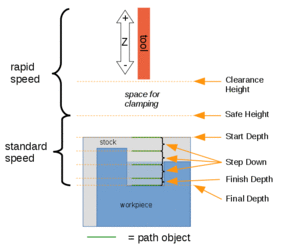
Visual reference for Depth properties (settings)
Path
- DataActive: Make False, to prevent operation from generating code
- DataBase: The base geometry for this operation
- DataComment: An optional comment for this Operation
- DataCoolant Mode: The coolant mode for this operation.
- DataCycle Time: The cycle time estimation for this operation.
- DataTool Controller: Defines the Tool controller used in the Operation
- DataUser Label: User assigned label
Slot
- DataCustom Point1: Enter custom start point for slot path.
- DataCustom Point2: Enter custom end point for slot path.
- DataCut Pattern: Set the geometric clearing pattern to use for the operation.
- DataExtend Path End: Positive extends the end of the path, negative shortens.
- DataExtend Path Start: Positive extends the beginning of the path, negative shortens.
- DataExtend Radius: For arcs/circlular edges, offset the radius for the path.
- DataLayer Mode: Complete the operation in a single pass at depth, or mulitiple passes to final depth.
- DataPath Orientation: Choose the path orientation with regard to the feature(s) selected.
- DataReference1: Choose what point to use on the first selected feature.
- DataReference2: Choose what point to use on the second selected feature.
- DataReverse Direction: Enable to reverse the cut direction of the slot path.
Start Point
- DataStart Point: The custom start point for the path of this operation.
- DataX: X-distance value
- DataY: Y-distance value
- DataZ: Z-distance value
- DataUse Start Point: Make True, if manually specifying a Start Point. Set the start point in the property data Start Point field.
Tasks Window Editor Layout
Descriptions for the settings are provided in the Properties list above.
This section is simply a layout map of the settings in the window editor for the Operation.
Base Geometry
- Add: Adds selected element(s) which should be the base(s) for the path(s)
- Delete: Delete the selected item(s) in the Base Geometry list
- Clear: Clear all items in the Base Geometry list
Depths
- DataStart Depth
- DataFinal Depth
- DataStep Down
Heights
- DataSafe Height
- DataClearance Height
Operation
- DataTool Controller: The tool and its settings to be used for this operation.
- DataCoolant Mode: Coolant mode for this operation.
- DataStart Reference **: Choose what point to use on the first selected feature.
- DataEnd Reference **: Choose what point to use on the second selected feature.
- DataExtend Path End: Positive extends the end of the path, negative shortens.
- DataExtend Path Start: Positive extends the beginning of the path, negative shortens.
- DataLayer Mode: Complete the operation in a single pass at depth, or mulitiple passes to final depth.
- DataPath Orientation **: Choose the path orientation with regard to the feature(s) selected.
- DataReverse Direction: Enable to reverse the cut direction of the slot path.
** Visibility changes depending on Base Geometry selected.
Scripting
See also: FreeCAD Scripting Basics.
Example:
#Place code example here.
This page is retrieved from https://wiki.freecad.org/CAM_Slot