


|
|
| Menu location |
|---|
| None |
| Workbenches |
| BIM |
| Default shortcut |
| None |
| Introduced in version |
| - |
| See also |
| None |

Description
The BIM Views Manager is a dockable window that opens below the normal Tree View, that contains all the Building Parts and Working Plane Proxies of your model in the top part. Drawing Views and TechDraw Pages are listed in the bottom part.
The aim of this window is to allow you to quickly access your levels and working plane configurations, without the need to navigate the tree to find them. It also enables accessing existing pages and drawings.
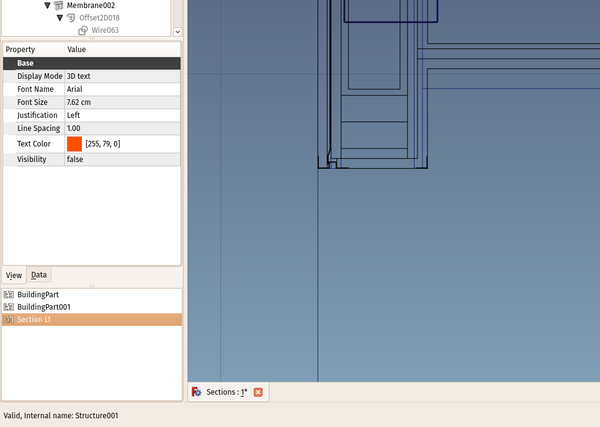
The BIM Views Manager
Usage
The BIM Views Manager will show all the levels (building parts) and working plane proxies of your document. It can be docked anywhere in the FreeCAD interface or be left in a standalone window. Building Parts will also show their level (the Z-coordinate of their placement).
- Clicking the BIM Views Manager button in the Status Bar shows or hides the BIM Views Manager.
Top part
- Clicking any entry selects the corresponding object.
- Double-clicking the height of a level allows you to edit it.
- Double-clicking the name of any object sets the working plane to it and activates the object introduced in 1.1. If the Restore View property of the object is set to True, and a view configuration has been stored in it, that viewpoint is also restored.
- The BIM Views Manager top half has a right-click context menu with the following options:
- Activate activates a selected level.
- New Level creates a new level.
- New Working Plane Proxy creates a new working plane proxy.
- Delete deletes a selected item.
- Toggle Visibility turns a selected level on/off (same as the Space bar).
- Isolate turns all levels off except the selected one.
- Save View Position stores the current view settings in the selected object, allowing to restore it if its Restore View property is set to True.
- Rename allows you to rename a selected object.
Bottom part
- Double-clicking a drawing orients the 3D view to the drawing.
- Double clicking a page opens or activates the page tab.
This page is retrieved from https://wiki.freecad.org/BIM_Views