
Sürücü kurulumu
Linux
FreeCAD Spacenav projesinden sürücüleri destekliyor. Bu, 3Dconnexion'un özel sürücüleri ile uyumlu açık kaynaklı bir sürücü oluşturmayı amaçlayan bir projedir.
Linux
FreeCAD supports drivers from project Spacenav. This is a project aiming to create an open-sourced driver which is compatible with the proprietary drivers from 3Dconnexion.
Depodan yükleyin
Ubuntu
Ubuntu
sudo apt-get install spacenavd
Note, however, that version 0.6 available on Ubuntu 20.04 (and probably older ones) does not seem to work. You then have to compile spacenavd from source as explained below.
Fedora
sudo yum install spacenavd
Debian
apt-get install spacenavd libspnav-dev
Spacenav needs these permissions:
cp ~/.Xauthority /root/
Restart spnavd and FreeCAD
/usr/bin/spnavd_ctl x11 stop
/usr/bin/spnavd_ctl x11 start
openSUSE
sudo zypper install spacenavd
Dağıtımınız eski bir sürüm sağlayabilirse, bu önerilir.
This is recommended if your distribution might provide an outdated version.
Aşağıdaki dosyaları indirin:
- Arşivleri, ana dizininizdeki bir klasöre yerleştirin.
- Spacenavd-0.5 dizinine girin ve aşağıdaki komutları çalıştırın:
./configure
make
- Bu başarılı olursa, aşağıdaki 'root' (veya sudo ile öneki) komutlarını çalıştırın.
make install
./setup_init
/etc/init.d/spacenavd start
- Bu, spacenav arka planını yükler, otomatik olarak sistem önyüklemesine yüklenecek şekilde yapılandırır ve yeniden başlatmaya gerek kalmadan arka plan programı başlatır.
- Şimdi cihazınızın doğru bir şekilde algılandığını kontrol etmenin zamanı geldi. Cihazınız fişe takılı durumdayken, aşağıdaki komutu çalıştırın ve ardından takın.
tail -n100 -f /var/log/spnavd.log
- Çıktı böyle görünüyorsa, devam edebilirsiniz.
Device detection, parsing /proc/bus/input/devices
trying alternative detection, querying /dev/input/eventX device names...
  trying "/dev/input/event1" ... Power Button
  trying "/dev/input/event2" ... 3Dconnexion SpaceNavigator
using device: /dev/input/event2
device name: 3Dconnexion SpaceNavigator
- Şimdi libspnav-0.2.2 adlı dizine girin ve aşağıdaki komutları çalıştırın:
./configure
make
- Aşağıdaki hatayı vererek başarısız olursa: ...
fatal error: gtk/gtk.h: No such file or directory
- ... sonra libgtkmm-2.4-dev'i kurmanız gerekir. Ubuntu altında, bu şekilde yapılır:
sudo apt-get install libgtkmm-2.4-dev
- Make başarıyla tamamlandığında, aşağıdaki root (veya sudo ile) komutunu çalıştırın.
make install
- Libspnav-0.2.2/samples/dizinine bakınız. Cihazınızı test etmek istiyorsanız, iki örnekten birini derleyin ve çalıştırın.
- Spnavcfg'yi derlemek ve kurmak için aynı işlemleri takip edin. Spnavcfg dosyasını root olarak çalıştırdığınızdan emin olun, aksi takdirde hiçbir ayar kaydedilmez!
If you want to start spacenavd at boot using systemd, do the following:
- Go to the directory where you clone the spacenavd repository (to the root of the repository)
- "sudo cp contrib/systemd/spacenavd.service /usr/lib/systemd/system/spacenavd-local.service".
- "sudo systemctl enable spacenavd-local.service".
- "sudo systemctl start spacenavd-local.service", if you want to start it right away.
This is only necessary for the installation from source.
Yeniden başlatın
Bazen navigatör çalışmayı durdurursa, sürücüyü yeniden başlatmak iyidir. Yeniden başlatmak için Terminal'e gidin ve yürütün:
If sometimes SpaceNavigator stops working, it is good to restart driver. To restart it, go to Terminal and execute:
sudo xhost +
sudo /etc/init.d/spacenavd restart
Bundan sonra FreeCAD'i yeniden başlatın. Bazı dağıtımlarda, her açılışta bu gereklidir.
Known Issues
A user reported on the forum they saw the following:
 Spacenav daemon 0.6
 failed to open config file /etc/spnavrc: No such file or directory. using defaults.
 adding device.
 device name: 3Dconnexion SpacePilot
 using device: /dev/input/event5
 No protocol specified
 failed to open X11 display ":0.0"
The workaround that worked for them:
sudo cp ~/.Xauthority /root/
sudo spnavd_ctl x11 start
sudo systemctl restart spacenavd
OSX
3Dconnexion giriş cihazları, FreeCAD'in kurulu olan 3Dconnexion sürücüleri olan bir sistemde oluşturulması ve kullanılması şartıyla OS X'de desteklenir.
3Dconnexion input devices are supported on macOS, provided FreeCAD is built and used on a system with the 3Dconnexion drivers installed. You may need 3DxWare 10.7.2 or greater for macOS 12 Monterey.
Windows
0.13 sürümünden itibaren, 3D fare Windows altında desteklenmektedir. Özel sürücüleri kurmanız gerekir, ancak destek daha düşük seviyede geliştirildiğinden, 3D Connexion kontrol panelinde ayarladığınız ayarları geçersiz kılar. Ancak, bu ayarların çoğu Spaceball sekmeleri altındaki Araçlar >> Özelleştir iletişim kutusundan ayarlanabilir.
As of version 0.13, 3D mouse is supported under Windows. You need to have 3Dconnexion drivers installed. In FreeCAD version 1.0 a new integration with 3Dconnexion devices has been introduced. If compiled with that integration, only recent hardware is supported: to support older devices users will need to self-compile with the FREECAD_3DCONNEXION_SUPPORT cMake variable set to "Raw Input". Windows users should be aware that 3Dconnexion's driver (not the code in FreeCAD) contains a telemetry package that communicates information about your installed software back to 3Dconnexion.
Known Issues
- In FreeCAD version 1.0 and later changing settings in the 3DX config window may not have the expected results (issue). To fix this:
- Stop the driver (by running Stop 3DxWare).
- Go to ..<user>\AppData\Roaming\3Dconnexion\3DxWare\Cfg and delete the FreeCAD.xml file.
- Start the driver (by running Start 3DxWare).
- Run FreeCAD and check if you can change the Spaceball Motion settings.
FreeCAD'i kurma
Linux'ta spnav projesiyle ve Windows'ta çok düşük düzeyde 3D fare desteği verildi. Bu, bir aygıt için herhangi bir ayar için destek olmadığı, çünkü Linux'ta bunun için iyi bir destek olmadığı ve Windows'ta geçersiz kılındığı anlamına gelir. Bu nedenle "Özelleştir" iletişim kutusuna iki ek sayfa eklendi.
1.0 and above: The 3Dconnexion manipulator can be set up in its driver app (3DxWare software).
0.21 and below: If a Spaceball is detected the following tabs in the Customize dialog can be used to change settings:
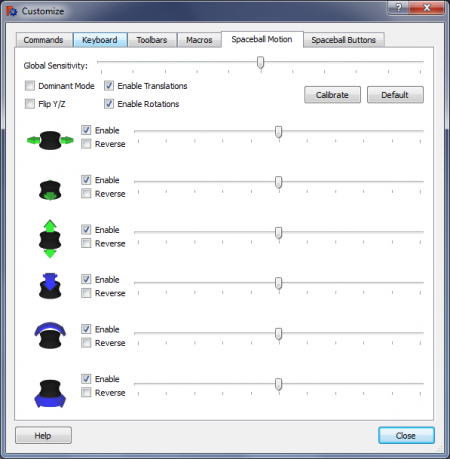
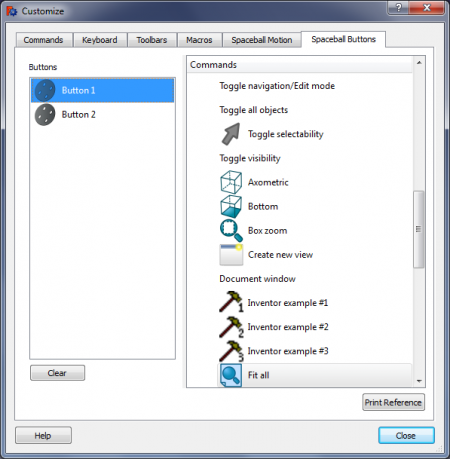
Spaceball Hareketi
Bu sekmede, bazı genel uzay fare ayarlarının kurulumunu yapabilirsiniz. İçeriği:
- Global Duyarlılık - Global duyarlılığı ayarlama özelliğine sahip kaydırıcı
- Baskın - baskın modu etkinleştirirseniz, yalnızca en yüksek hareketi olan eksenler dikkate alınır.
- YZ Çevir - Bu seçenek, 3D farede Y ve Z eksenlerini çevirmenizi sağlar
- Çevirileri Etkinleştir - çevirileri etkinleştirmenin / devre dışı bırakmanın kolay yolu
- Rotasyonları Etkinleştir - rotasyonları etkinleştirmenin / devre dışı bırakmanın kolay yolu
- Kalibre Et - Boşluk yönlendiricisini ayarlamanızı sağlar. Uzay gezgini taşınmazken basılır.
- Varsayılana Ayarla - tüm ayarları kaldırır ve varsayılanlara ayarlar.
In this tab you have ability to set up some of general space mouse settings. They include:
- Global Sensitivity - Slider with ability to set global sensitivity
- Dominant - if you enable dominant mode, only axes with highest move will be considered
- Flip YZ - This option enables you to flip Y and Z axes on 3D mouse
- Enable Translations - easy way to enable/disable translations
- Enable Rotations - easy way to enable/disable rotations
- Calibrate - enables you to calibrate space navigator. It is pressed while space navigator is not moved.
- Set To Default - removes all settings and sets them to default.
Bunun dışında, her eksen için ayarlayabileceğiniz yetenekler:
- Etkin - Eksenleri Etkinleştir / Devre Dışı Bırak
- Ters - Eksenlerde ters hareket
- Hassasiyet - hassasiyeti ayarlama yeteneğine sahip kaydırıcı
Spaceball Düğmeleri
Bu sekmeyi ilk kez açtığınızda, boş ve kullanılamayacak. Etkinleştirmek için boşluk fare düğmelerinden birine basmanız gerekir. Bunu yaptıktan sonra, sol tarafta düğmelerin listesi görünecek ve sağ tarafta komutların listesi bulunacaktır.
When you open this tab for the first time, it will be empty and unavailable. To activate it, you must press one of your space mouse buttons. After you do, list of buttons will appear on the left side, and list of commands will be available on the right side.
Belirli bir komutu bir düğmeyle bağlamak için, sol taraftaki düğmeyi seçin ve sağ taraftaki komutu seçin. Komutları düğmeden silmek için "Sil" e basın.
Troubleshooting
Check if your FreeCAD installation links to the spacenav library. The best way to check this is by running FreeCAD from the command line terminal FreeCAD --log-file /tmp/freecad.log and close it immediately again. Then open the file /tmp/freecad.log and search for the messages:
Connected to spacenav daemon
or
Couldn't connect to spacenav daemon. Please ignore if you don't have a spacemouse.
If none of them appears then your FreeCAD build doesn't link to the spacenav library. If the former message appears then it basically works. The latter message means there is probably a problem with the spacenav daemon.
Related
- Forum thread spacenav on Windows
- Forum thread Space navigator axis confusion
Bu sayfa şu adresten alınmıştır https://wiki.freecad.org/3Dconnexion_input_devices