


|
|
| Ubicación en el Menú |
|---|
| Herramientas -> Guardar imagen... |
| Entornos de trabajo |
| Todos |
| Atajo de teclado por defecto |
| Ninguno |
| Introducido en versión |
| - |
| Ver también |
| ... |
Description
Sinopsis
Este comando abre un letrero de diálogo para guardar el contenido actual de la vista 3D en un archivo que puede ser de diversos formatos de imagen. Adicionalmente, puedes cambiar el ratio de aspecto y la resolución de la captura de pantalla utilizando el botón de "Opciones" para tener acceso a más parámetros.
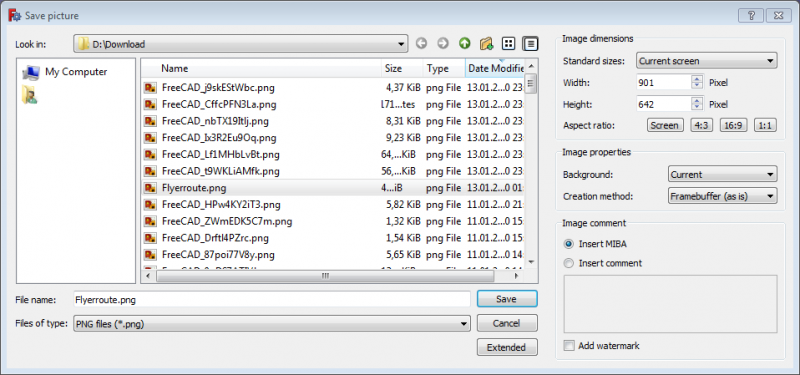
The Save image dialog box after pressing the Extended button
Usage
- Select the Tools →
 Save Image… option from the menu.
 - The Save Image dialog box opens.
- Optionally press the Extended button to reveal an additional panel in the dialog box. For more information see Options.
- Optionally browse to the correct folder.
- Enter a filename and select the file type.
- Press the Save button to create the image file and close the dialog box.
Options
Image Dimensions
- Select a standard size from the Standard sizes dropdown list. Or specify the Width and Height for a custom size.
- Optionally press an Aspect ratio button to set the width-to-height ratio of the image. If the Width input box has the focus the height of the image will change and vice versa.
Image Properties
- Select an option from the Background dropdown list:
CurrentThis option uses the background of the 3D View.WhiteBlackTransparentNot all image formats support transparency.
- Select an option from the Creation method dropdown list:
Offscreen (New)This is the default method. This method supports anti-aliasing. Technical information: The most important classes for this method are Qt's QOffscreenSurface and QOpenGLFramebufferObject.Offscreen (Old)This method does not work on many modern Linux systems as it relies on the graphics driver. This method does not support anti-aliasing. Technical information: This is a real off-screen rendering method that only uses functions from the Coin3d library.Framebuffer (custom)This method supports anti-aliasing. Technical information: If anti-aliasing is off, this method reads the image directly from the graphics renderer, else it renders to a framebuffer and gets the image from there. The key part of this method is Qt's QOpenGLFramebufferObject class.Framebuffer (as is)This method uses the same techniques as Framebuffer (custom). It also supports anti-aliasing but has some limitations related to custom sizes and always uses the current background of the 3D View.
Image Comment
- Select the Insert MIBA option to add MIBA information to the file. Not all image formats support this.
- Or select the Insert comment option and type a comment in the text field to embed a comment in the file. Not all image formats support this.
- Check the Add watermark checkbox to add a watermark. The watermark is placed in the lower left corner of the image and consists of the FreeCAD logo and name above the main FreeCAD URL: freecad.org.
Notes
- The number of available image file formats may vary depending on your OS.
- Some OpenGL drivers don't allow renderings above a certain maximum size.
Preferences
See also: Preferences Editor.
- The 3D View background can be changed in the preferences: Edit → Preferences → Display → Colors → Background Color.
- To change the 3D View anti-aliasing: Edit → Preferences → Display → 3D View → Rendering → Anti-aliasing.
Scripting
See also: Autogenerated API documentation and FreeCAD Scripting Basics.
It is possible to create screenshots with Python code.
Gui.ActiveDocument.ActiveView.saveImage("D:/temp/test.png", 1656, 783, "Current")
This script saves a series of screenshots of different sizes and from different directions. The camera type, orthographic or perspective, is also changed.
import FreeCADGui as Gui
import Part

out_dir = "D:/temp/"
name = "Blade"
view = Gui.ActiveDocument.ActiveView

# Create images with different Views, Cameras and sizes
for p in ["PerspectiveCamera", "OrthographicCamera"]:
    Gui.SendMsgToActiveView(p)
    for f in ["ViewAxo", "ViewFront", "ViewTop"]:
        Gui.SendMsgToActiveView(f)
        for x, y in [[500, 500], [1000, 3000], [3000, 1000], [3000, 3000], [8000, 8000]]:
            view.saveImage(out_dir + name + "_" + p + "_" + f + "_" + str(x) + "_" + str(y) + ".jpg", x, y, "White")
            view.saveImage(out_dir + name + "_" + p + "_" + f + "_" + str(x) + "_" + str(y) + ".png", x, y, "Transparent")

# Close active document
App.closeDocument(App.ActiveDocument.Name)
Esta página ha sido recuperada de https://wiki.freecad.org/Std_ViewScreenShot