FreeCAD Logo FreeCAD 1.0
  • Inglés Africano Árabe Bielorruso Catalán Checo Alemán Griego Español Español Euskera Finlandés Filipino Francés Gallego Croata Húngaro Indonesio Italiano Japonés Cabilio Coreano Lituano Neerlandés bokmal de Noruega Polaco Portugués Portugués Rumano Ruso Eslovaco Esloveno Serbio Sueco Turco Ucraniano Valenciano Vietnamita Chino Chino
  • Características
  • Descarga
  • Blog
  • Documentación
    Índice de documentación Primeros pasos Documentacion para el usuario El manual de FreeCAD Documentación de entornos de trabajo Documentación sobre FreeCAD + Python Documentación de codificación de C++ Tutoriales Preguntas frecuentes Política de privacidad Acerca de FreeCAD
  • Contribuir
    ¿Cómo puedo ayudar? Sponsor Informar de un error Hacer un pull request Trabajos y financiación Pautas de contribución Manual de desarrolladores Traducciones
  • Comunidad
    Código de conducta Foro The FPA GitHub GitLab Codeberg Mastodon Matrix IRC IRC via Webchat Gitter Discord Reddit Twitter Facebook LinkedIn Calendario
  • ♥ Donate

Donate

$
Información de SEPA
Configure su transferencia bancaria SEPA a:
Beneficiary: The FreeCAD project association
IBAN: BE04 0019 2896 4531
BIC/SWIFT: GEBABEBBXXX
Agencia bancaria: BNP Paribas Fortis
Dirección: Rue de la Station 64, 1360 Perwez, Belgium

While Stripe doesn't support monthly donations, you can still become a sponsor! Simply make a one-time donation equivalent to 12 months of support, and you'll gain access to the corresponding sponsoring tier. It's an easy and flexible way to contribute.

If you are not sure or not able to commit to a regular donation, but still want to help the project, you can do a one-time donation, of any amount.

Choose freely the amount you wish to donate one time only.

You can support FreeCAD by sponsoring it as an individual or organization through various platforms. Sponsorship provides a steady income for developers, allowing the FPA to plan ahead and enabling greater investment in FreeCAD. To encourage sponsorship, we offer different tiers, and unless you choose to remain anonymous, your name or company logo will be featured on our website accordingly.

from 1 USD / 1 EUR per month. You will not have your name displayed here, but you will have helped the project a lot anyway. Together, normal sponsors maintain the project on its feet as much as the bigger sponsors.

from 25 USD / 25 EUR per month. Your name or company name is displayed on this page.

from 100 USD / 100 EUR per month. Your name or company name is displayed on this page, with a link to your website, and a one-line description text.

from 200 USD / 200 EUR per month. Your name or company name and logo displayed on this page, with a link to your website and a custom description text. Companies that have helped FreeCAD early on also appear under Gold sponsors.

Instead of donating each month, you might find it more comfortable to make a one-time donation that, when divided by twelve, would give you right to enter a sponsoring tier. Don't hesitate to do so!

Choose freely the amount you wish to donate each month.

Please inform your forum name or twitter handle as a notein your transfer, or reach to us, so we can give you proper credits!

Tutorial
Tema
SampleTopic
Nivel
Beginner
Tiempo para completar
5 minutes
Autores
Mario52
Versión de FreeCAD
All
Archivos de ejemplos
None
Ver también
None

Synopsis

This tutorial shows how to add a button for a macro to a custom toolbar.

For more general information see Interface Customization.

Usage

1. Find the Customize Menu

  • Click Main Menu → Tools → Customize,
Customize
Customize
  • or right click on any toolbar.
Right mouse click
Right mouse click
  • The Customize window appears.
The Customize window appears

2. Make a Macro to a Macro-Tool

  • Select the "Macro" tab.
  • To add an icon for the provided macro click the Pixmap button (labelled ... ).
Select a toolbar
Select a toolbar
  • Search for an appropriate icon from amongst FreeCAD's existing icons,

      [or add your own icon by clicking Add icons...].                  (expand for an example)
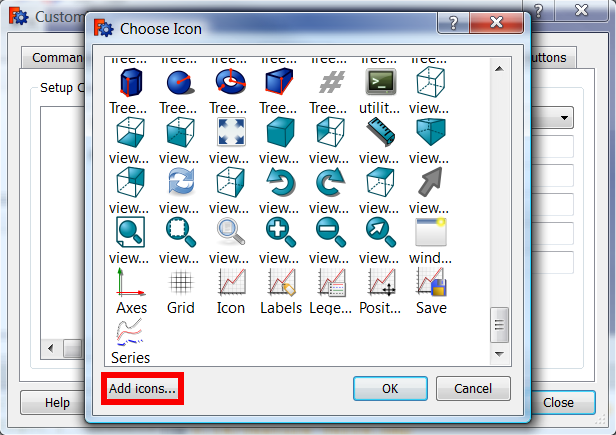
Add icon
Add icon

     [You will get a file selection window, select your custom image file (PNG format, 64x64 pixels)]
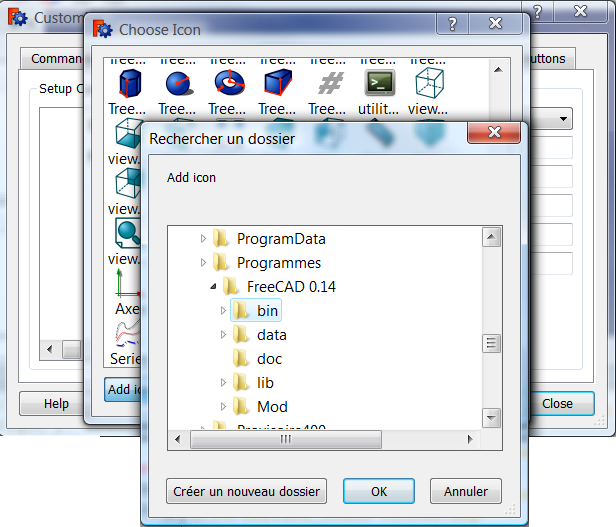
Get a file
Get a file
  • Select your icon and click OK.
Select your icon
Select your icon
  • The icon you selected is now displayed next to the Pixmap button labelled ....
Your icon is displayed
  • Select the provided macro in line Macro:' and specify a Menu text: (which will appear as the text label in the menu); also fill in the Tool Tip': (which is the text that will appear when a mouse is over the button on the toolbar); further lines are optional.
  • Click the button Add.
Click the button
Click the button
  • The button of the macro-tool is now created.
Your button is created

3. Create a toolbar outside the workbench Macro which contains the created Macro-tool

  • Select the Toolbars tab and choose the workbench (for which the toolbar is provided) in the drop down on the right (Part in this example).

     [Since version 0.15 there is a   Global  toolbar. If this is selected, the provided toolbar will be in each workbench.]

Toolbars tab
Toolbars tab
  • In the dropdown on the left select Macros.
Macros
Macros
  • The macro-tool with its icon appears in the list.
Your icon is listed
Your icon is listed
  • Click the button New...
Click on "New"
Click on "New"
  • In the window "New Toolbar" enter the name of the provided extra toolbar for the Part Workbench and click OK
Enter the name for your toolbar
  • The toolbar is now created.
  • To add the created macro-tool to this toolbar, select it in the left window and then click the Button with the arrow pointing right.
Select your macro
Select your macro
  • You have created now a toolbar called "Camera" (with the Macro-tool Camera in it)
  • Click the Close button.
Close
Close
  • Your new toolbar is now contained in the toolbars' right-click menu. Its Icons (in our example only the camera) are visible, if the toolbar is activated (blue checkmark).
New Toolbar
New Toolbar

Esta página ha sido recuperada de https://wiki.freecad.org/Customize_Toolbars

¡Contáctanos!
Forum GitHub Mastodon Matrix IRC Gitter.im Discord Reddit Twitter Facebook LinkedIn

© El equipo de FreeCAD. Créditos de imagen de la página principal (de arriba a abajo): ppemawm, r-frank, epileftric, regis, rider_mortagnais, bejant.

Este proyecto es apoyado por: , KiCad Services Corp. y otros patrocinadores

GitHubMejora esta página en GitHub